

Manually install the Akamai EdgeWorker Enforcer v4
If your organization uses Akamai, you can use HUMAN’s Akamai EdgeWorker Enforcer to protect against malicious behavior. The Enforcer is installed using an Akamai EdgeWorker and deployed to your content delivery network (CDN). The Enforcer dictates how traffic should be handled per your organization’s standards.
You can learn how to install the Akamai EdgeWorker Enforcer with this article.
We highly recommend using the Deploy Tool method instead of a manual installation if possible. See Akamai EdgeWorker’s primary installation article for more information.
Prerequisites
- An Akamai account with editor access to the following:
- EdgeWorkers
- Property Manager
- NetStorage
- EdgeKV (optional)
- Node v18.x or later
Sometimes, you may encounter a 500 error when the EdgeWorker initialization exceeds the CPU limit for your resource tier. For example, you may see response headers such as:
This error comes from Akamai EdgeWorker’s runtime limits and not HUMAN’s service. To resolve this, we recommend moving to a higher Akamai EdgeWorker resource tier.
Installation
The Akamai installation consists of three parts. If you prefer not to have HUMAN set up your Akamai EdgeWorker, Property Manager, and NetStorage, then you will need to complete this process yourself. Be sure to complete each part in order.
NetStorage Creation
-
From your Akamai account’s main menu, navigate to Origin Services > NetStorage > Storage Groups.
-
Select + Add Storage Group.
-
Complete the steps that appear to create your storage group. You can update fields as appropriate for your organization or leave them as their defaults. However, note the following exceptions:
- Storage Group Details > Access Control Group: Select the same group as the Property Manager that you will be editing for this setup.
- Directory Settings: When creating a directory, we recommend naming it px.
If you do not name the directory “px”, then you will need to update all related rules matching this NetStorage path in the Property Manager with the different directory name that you chose.
- Select Create. The storage group will begin to propagate.
- Once the group has propagated, navigate to NetStorage > Upload Accounts.
- Either upload a new user or edit an existing one. Ensure the user has the following settings:
- Access Methods > NetStorage HTTP CMS API: Select + Add HTTP API key and Save.
- Access Methods > File Manager: Toggle on Enable File Manager Access.
- Upload directory association: Select the directory you created in Step 3.
- Upload directory association > Access: Ensure the user has read and write access.
- Create or Save your account.
- Navigate back to NetStorage > Storage Groups.
- Select the group you created in Step 3. Then, select File Manager.
- Select the px directory you created in Step 3.
- Select Upload and upload the c.js and b.js files provided by HUMAN.
c.jsis used for the HUMAN Challenge page, andb.jsis used for the hard block page.
Once you’ve uploaded your files, you’re ready to move on to EdgeWorker creation.
EdgeWorker Creation
- Clone the Akamai EdgeWorker HUMAN Enforcer template from GitHub.
- If you have EdgeKV access and want to utilize the remote configuration feature, then navigate into the
remote_config_exampledirectory and replace theedgekv_tokens.jsfile with your own EdgeKV tokens. Otherwise, navigate into thebasic_exampledirectory. - Run the commands
npm installandnpm run build:worker. This will install dependencies and create a build.tgz file in the dist directory. - From your Akamai account’s main menu, navigate to CDN > EdgeWorkers.
- Select Create EdgeWorker ID.
- Complete the following fields:
- Name: Enter a name for your EdgeWorker.
- Group: Select the same group as the Property Manager that you will be editing for this setup.
- Resource tier: Select Dynamic Compute.
- Select Create EdgeWorker ID.
- Select the ID of the EdgeWorker you just created.
- Select Create Version.
- Upload the tgz file provided by HUMAN and select Create version.
- From the Actions menu, select Activate version.
- Choose whether to activate it on your staging or production network.
We recommend activating on both staging and production. This way, when your Property Manager setup is complete, you can freely activate the configuration to either staging or production without going back to your EdgeWorker later.
If you do choose to activate on both, then you will need to do Steps 10 and 11 twice—once for each network.
Once your EdgeWorker is activated, you’re ready to move on to Property Manager setup.
Property Manager Setup
Setting up the Property Manager requires adding Property Manager Variables to configure the HUMAN EdgeWorker Enforcer and Property Manager Rules to trigger the HUMAN EdgeWorker Enforcer.
- From your Akamai account’s main menu, navigate to CDN > Properties.
- Select the property name that you want to deploy the Enforcer on.
- Select New Version.
- Add Property Variables and Property Configuration Settings Rules as described below.
Property Variables
You can add new property variables by selecting Property Variables > + Variables. You must include all these variables.
These are the required Property Manager Variables. For additional configurations, see the Configurations section.
Property Configuration Settings Rules
You can add new property rules by selecting Property Configuration Settings > + Rules. You must include all the following rules.
Property manager rules should be created in the following hierarchy:
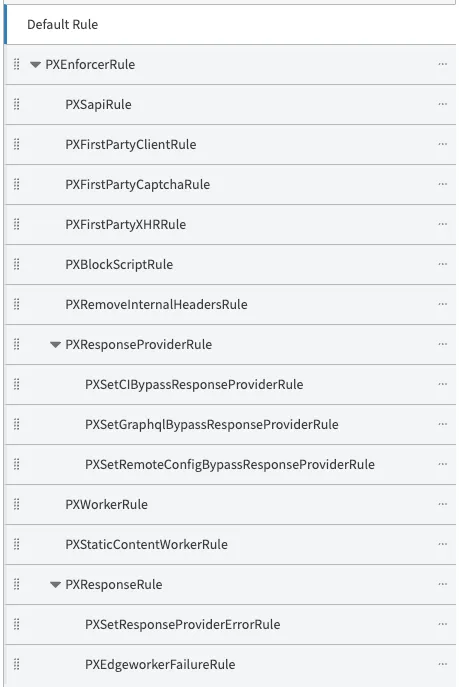
- PXEnforcerRule
- PXSapiRule
- PXFirstPartyClientRule
- PXFirstPartyCaptchaRule
- PXFirstPartyXHRRule
- PXBlockScriptRule
- PXRemoveInternalHeadersRule
- PXResponseProviderRule
- PXSetCIBypassResponseProviderRule
- PXSetGraphqlBypassResponseProviderRule
- PXSetRemoteConfigBypassResponseProviderRule
- PXWorkerRule
- PXStaticContentWorkerRule
- PXResponseRule
- PXSetResponseProviderErrorRule
- PXEdgeworkerFailureRule
The instructions below contain placeholder values that must be replaced with your actual values.
<app_id>should be replaced with your HUMAN application ID (e.g.,PX12345678).<app_id_without_px>should be replaced with your HUMAN application ID without the “PX” prefix (e.g.,12345678).<netstorage_cp-code>should be replaced with your Akamai NetStorage CP code.<edgeworker_id>should be replaced with your Akamai EdgeWorker ID.
You can learn how to create each rule below. Click each heading to open it.
PXEnforcerRule
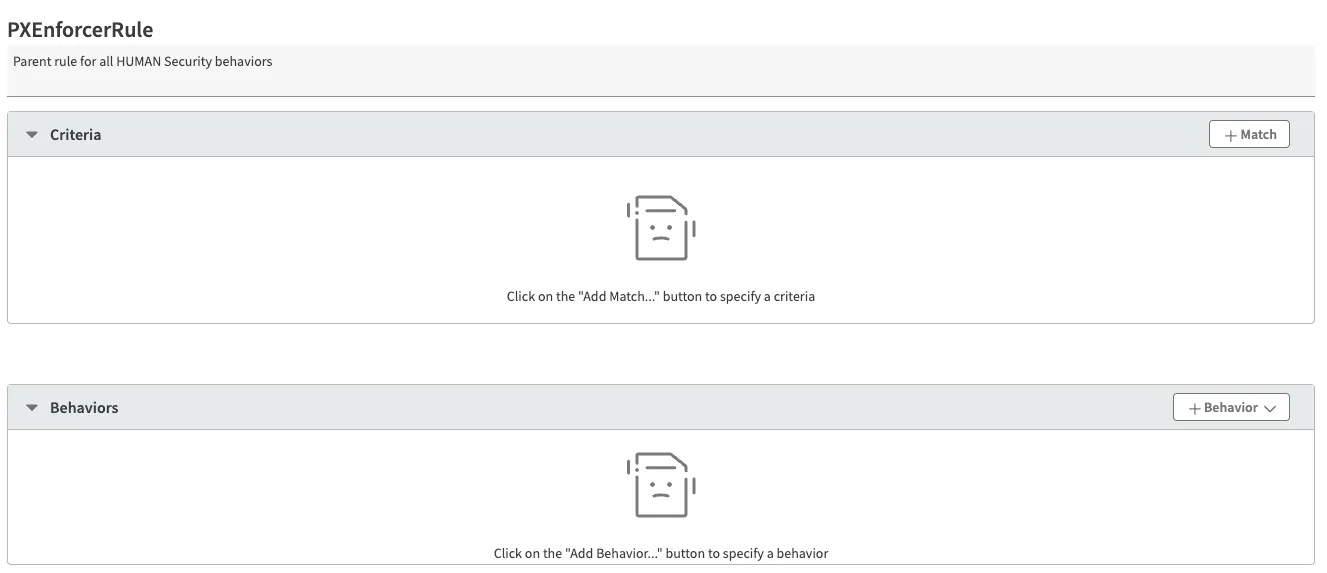
Parent rule for all HUMAN Security behaviors. To create this rule:
- Select + Rules.
- Select the Blank Rule Template and enter PXEnforcerRule as the rule name.
- Select Insert Rule.
- Select Save.
PXSapiRule
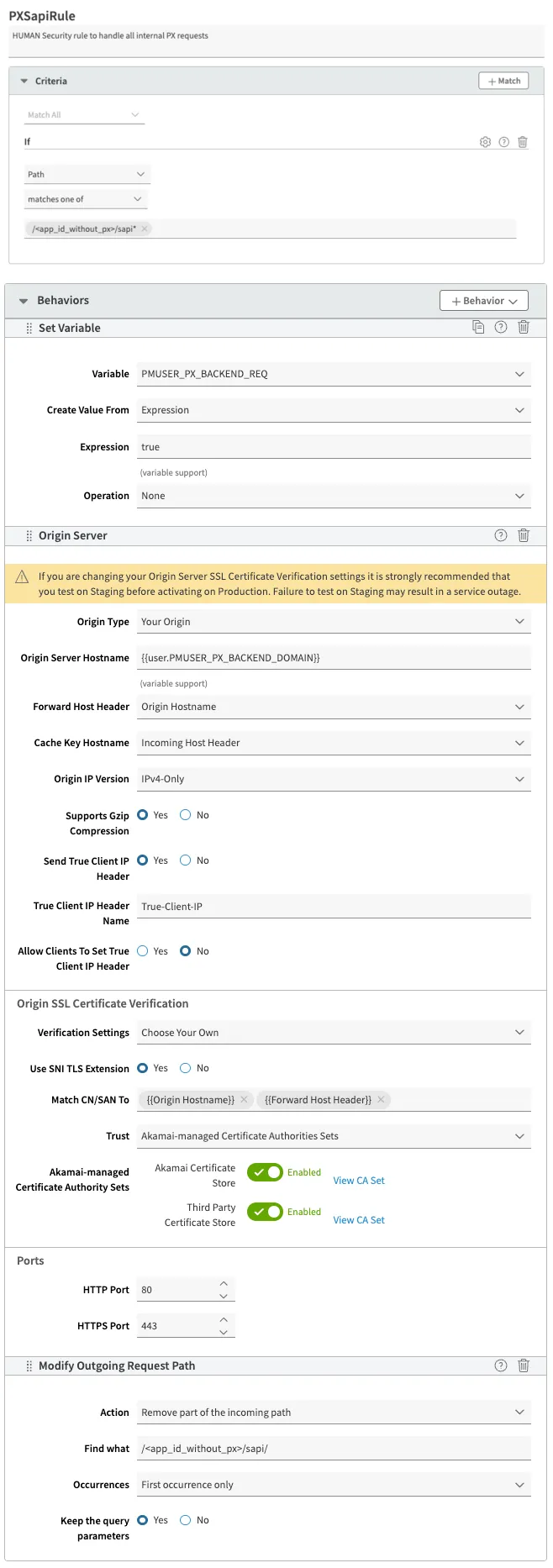
HUMAN Security rule to handle all internal PX requests. To create this rule:
- Select the PXEnforcerRule you created earlier. This will nest PXSapiRule inside when you create it.
- Select + Rules.
- Select the Blank Rule Template and enter PXSapiRule as the rule name.
- Select Insert Rule.
- In the Criteria section, select + Match and add the following 1 criterion:
- Criterion #1:
- Name: path
- Result: MATCHES_ONE_OF
- URL: /<app_id_without_px>/sapi*
- Criterion #1:
- In the Behaviors section, select + Behavior > Standard Property Behavior and create the following 4 behaviors:
- Behavior #1:
- Name: Set Variable
- Variable Name: PMUSER_PX_BACKEND_REQ
- Create Value From: Expression
- Expression: true
- Operation: None
- Behavior #2:
- Name: Origin
- Origin Type: Your Origin
- Origin Server Hostname:
{{user.PMUSER_PX_BACKEND_DOMAIN}} - Forward Host Header: Origin Hostname
- Cache Key Hostname: Incoming Host Header
- IPv6 Origin Support: IPv4-Only
- Supports Gzip Compression: Yes
- Send True Client IP Header: Yes
- True Client IP Header Name: True-Client-IP
- Allow Clients To Set True Client IP Header: No
- Verification Settings: Choose Your Own
- Use SNI TLS Extension: Yes
- Match CN/SAN To:
{{Origin Hostname}},{{Forward Host Header}} - Trust: Akamai-managed Certificate Authorities Sets
- Akamai-managed Certificate Authority Sets:
- Akamai Certificate Store: Enabled
- Third Party Certificate Store: Disabled
- HTTP Port: 80
- HTTPS Port: 443
- Behavior #3:
- Name: Modify Outgoing Request Path
- Action: Remove part of the incoming path
- Find What: /<app_id_without_px>/sapi/
- Occurrences: First occurrence only
- Keep The Query Parameters: Yes
- Behavior #4:
- Name: Caching
- Caching Option: No store
- Behavior #1:
- Select Save.
PXFirstPartyClientRule
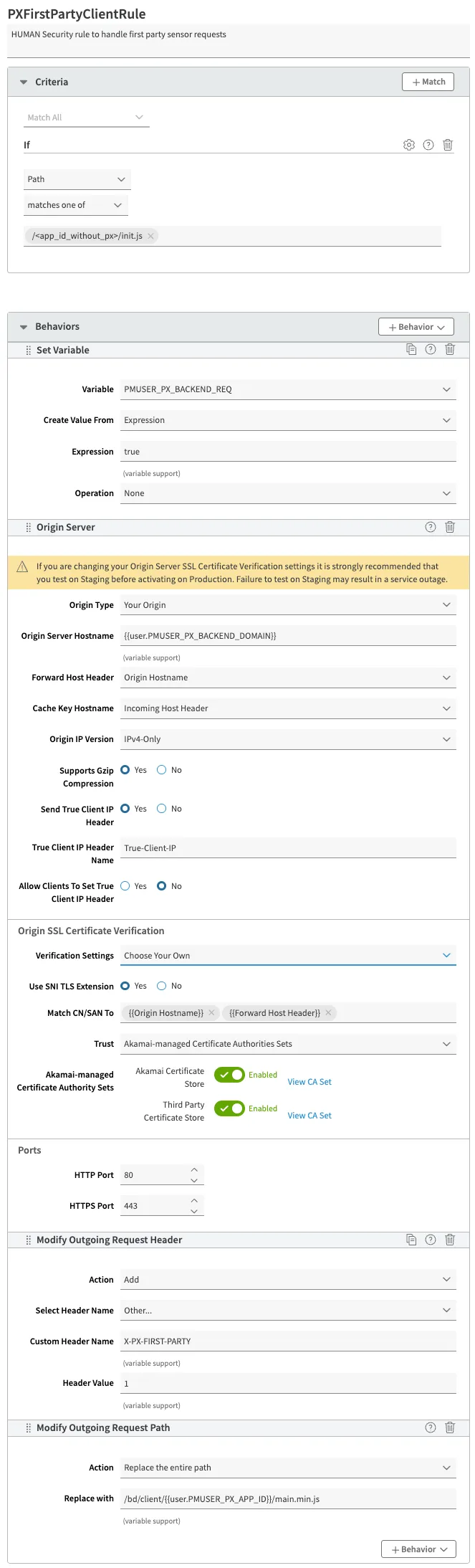
HUMAN Security rule to handle first party sensor requests. To create this rule:
- Select the PXEnforcerRule you created earlier. This will nest PXFirstPartyClientRule inside when you create it.
- Select + Rules.
- Select the Blank Rule Template and enter PXFirstPartyClientRule as the rule name.
- Select Insert Rule.
- In the Criteria section, select + Match and add the following 1 criterion:
- Criterion #1:
- Name: path
- Result: MATCHES_ONE_OF
- URL: /<app_id_without_px>/init.js
- Criterion #1:
- In the Behaviors section, select + Behavior > Standard Property Behavior and create the following 4 behaviors:
- Behavior #1:
- Name: Set Variable
- Variable Name: PMUSER_PX_BACKEND_REQ
- Create Value From: Expression
- Expression: true
- Operation: None
- Behavior #2:
- Name: Origin
- Origin Type: Your Origin
- Origin Server Hostname:
{{user.PMUSER_PX_BACKEND_DOMAIN}} - Forward Host Header: Origin Hostname
- Cache Key Hostname: Incoming Host Header
- IPv6 Origin Support: IPv4-Only
- Supports Gzip Compression: Yes
- Send True Client IP Header: Yes
- True Client IP Header Name: True-Client-IP
- Allow Clients To Set True Client IP Header: No
- Verification Settings: Choose Your Own
- Use SNI TLS Extension: Yes
- Match CN/SAN To:
{{Origin Hostname}},{{Forward Host Header}} - Trust: Akamai-managed Certificate Authorities Sets
- Akamai-managed Certificate Authority Sets:
- Akamai Certificate Store: Enabled
- Third Party Certificate Store: Disabled
- HTTP Port: 80
- HTTPS Port: 443
- Behavior #3:
- Name: Modify Outgoing Request Header
- Action: Add
- Select Header Name: Other…
- Custom Header Name: X-PX-FIRST-PARTY
- Header Value: 1
- Behavior #4:
- Name: Modify Outgoing Request Path
- Action: Replace the entire path
- Replace With: /bd/client/
{{user.PMUSER_PX_APP_ID}}/main.min.js
- Behavior #1:
- Select Save.
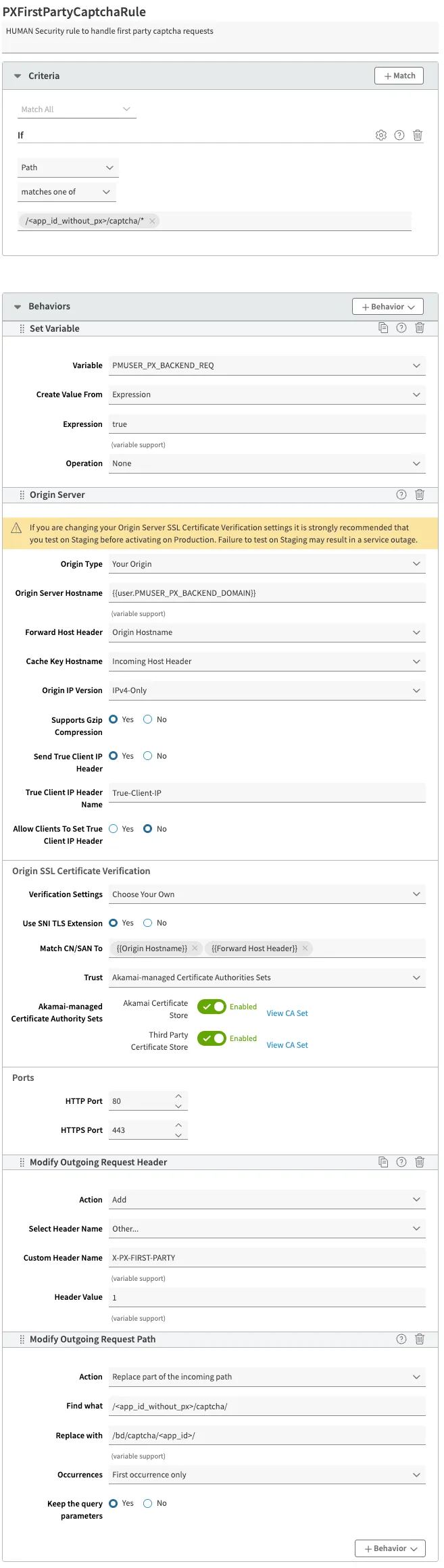
PXFirstPartyCaptchaRule
HUMAN Security rule to handle first party captcha requests. To create this rule:
- Select the PXEnforcerRule you created earlier. This will nest PXFirstPartyCaptchaRule inside when you create it.
- Select + Rules.
- Select the Blank Rule Template and enter PXFirstPartyCaptchaRule as the rule name.
- Select Insert Rule.
- In the Criteria section, select + Match and add the following 1 criterion:
- Criterion #1:
- Name: path
- Result: MATCHES_ONE_OF
- URL: /<app_id_without_px>/captcha/*
- Criterion #1:
- In the Behaviors section, select + Behavior > Standard Property Behavior and create the following 4 behaviors:
- Behavior #1:
- Name: Set Variable
- Variable Name: PMUSER_PX_BACKEND_REQ
- Create Value From: Expression
- Expression: true
- Operation: None
- Behavior #2:
- Name: Origin
- Origin Type: Your Origin
- Origin Server Hostname:
{{user.PMUSER_PX_BACKEND_DOMAIN}} - Forward Host Header: Origin Hostname
- Cache Key Hostname: Incoming Host Header
- IPv6 Origin Support: IPv4-Only
- Supports Gzip Compression: Yes
- Send True Client IP Header: Yes
- True Client IP Header Name: True-Client-IP
- Allow Clients To Set True Client IP Header: No
- Verification Settings: Choose Your Own
- Use SNI TLS Extension: Yes
- Match CN/SAN To:
{{Origin Hostname}},{{Forward Host Header}} - Trust: Akamai-managed Certificate Authorities Sets
- Akamai-managed Certificate Authority Sets:
- Akamai Certificate Store: Enabled
- Third Party Certificate Store: Disabled
- HTTP Port: 80
- HTTPS Port: 443
- Behavior #3:
- Name: Modify Outgoing Request Header
- Action: Add
- Select Header Name: Other…
- Custom Header Name: X-PX-FIRST-PARTY
- Header Value: 1
- Behavior #4:
- Name: Modify Outgoing Request Path
- Action: Replace part of the incoming path
- Find What: /<app_id_without_px>/captcha/
- Replace With: /bd/captcha/<app_id>/
- Occurrences: First occurrence only
- Keep The Query Parameters: Yes
- Behavior #1:
- Select Save.
PXFirstPartyXHRRule
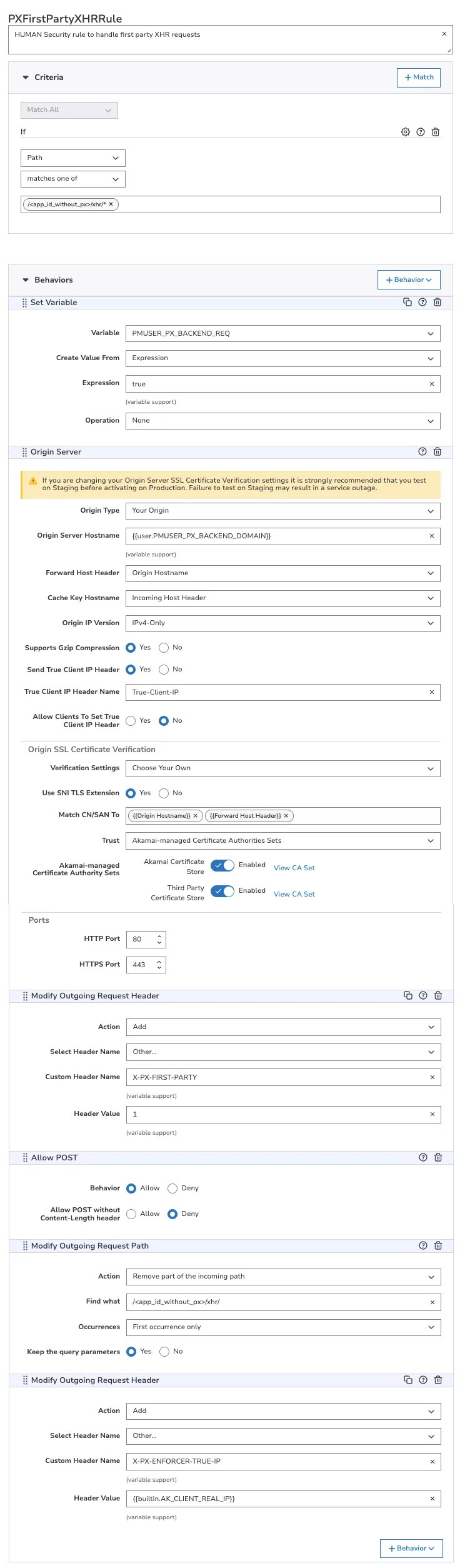
HUMAN Security rule to handle first party XHR requests. To create this rule:
- Select the PXEnforcerRule you created earlier. This will nest PXFirstPartyXHRRule inside when you create it.
- Select + Rules.
- Select the Blank Rule Template and enter PXFirstPartyXHRRule as the rule name.
- Select Insert Rule.
- In the Criteria section, select + Match and add the following 1 criterion:
- Criterion #1:
- Name: path
- Result: MATCHES_ONE_OF
- URL: /<app_id_without_px>/xhr/*
- Criterion #1:
- In the Behaviors section, select + Behavior > Standard Property Behavior and create the following 6 behaviors:
- Behavior #1:
- Name: Set Variable
- Variable Name: PMUSER_PX_BACKEND_REQ
- Create Value From: Expression
- Expression: true
- Operation: None
- Behavior #2:
- Name: Origin
- Origin Type: Your Origin
- Origin Server Hostname:
{{user.PMUSER_PX_BACKEND_DOMAIN}} - Forward Host Header: Origin Hostname
- Cache Key Hostname: Incoming Host Header
- IPv6 Origin Support: IPv4-Only
- Supports Gzip Compression: Yes
- Send True Client IP Header: Yes
- True Client IP Header Name: True-Client-IP
- Allow Clients To Set True Client IP Header: No
- Verification Settings: Choose Your Own
- Use SNI TLS Extension: Yes
- Match CN/SAN To:
{{Origin Hostname}},{{Forward Host Header}} - Trust: Akamai-managed Certificate Authorities Sets
- Akamai-managed Certificate Authority Sets:
- Akamai Certificate Store: Enabled
- Third Party Certificate Store: Disabled
- HTTP Port: 80
- HTTPS Port: 443
- Behavior #3:
- Name: Modify Outgoing Request Header
- Action: Add
- Select Header Name: Other…
- Custom Header Name: X-PX-FIRST-PARTY
- Header Value: 1
- Behavior #4:
- Name: Allow POST
- Behavior: Allow
- Allow POST Without Content-Length Header: Deny
- Behavior #5:
- Name: Modify Outgoing Request Path
- Action: Remove part of the incoming path
- Find What: /<app_id_without_px>/xhr/
- Occurrences: First occurrence only
- Keep The Query Parameters: Yes
- Behavior #6:
- Name: Modify Outgoing Request Header
- Action: Add
- Select Header Name: Other…
- Custom Header Name: X-PX-ENFORCER-TRUE-IP
- Header Value:
{{builtin.AK_CLIENT_REAL_IP}}
- Behavior #1:
- Select Save.
PXBlockScriptRule
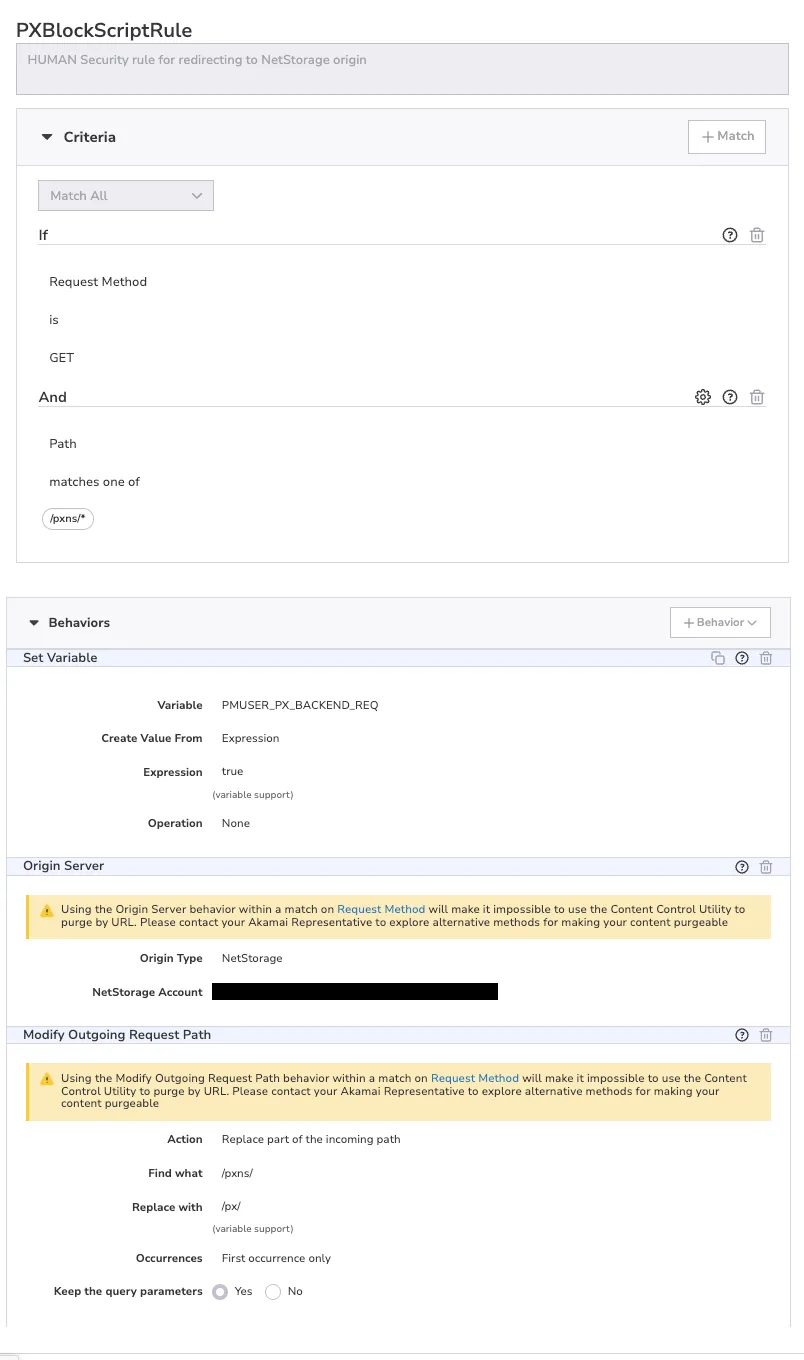
HUMAN Security rule for redirecting to NetStorage origin. To create this rule:
- Select the PXEnforcerRule you created earlier. This will nest PXBlockScriptRule inside when you create it.
- Select + Rules.
- Select the Blank Rule Template and enter PXBlockScriptRule as the rule name.
- Select Insert Rule.
- In the Criteria section, select Match All so that all the criteria must be met to trigger the behaviors. Select + Match and add the following 2 criteria:
- Criterion #1:
- Name: requestMethod
- Result: IS
- Value: GET
- Criterion #2:
- Name: path
- Result: MATCHES_ONE_OF
- URL: /pxns/*
- Criterion #1:
- In the Behaviors section, select + Behavior > Standard Property Behavior and create the following 3 behaviors:
- Behavior #1:
- Name: Set Variable
- Variable Name: PMUSER_PX_BACKEND_REQ
- Create Value From: Expression
- Expression: true
- Operation: None
- Behavior #2:
- Name: Origin
- Origin Type: NetStorage
- NetStorage Account: <netstorage_cp_code>
- Behavior #3:
- Name: Modify Outgoing Request Path
- Action: Replace part of the incoming path
- Find What: /pxns/
- Replace With: /px/
- Occurrences: First occurrence only
- Keep The Query Parameters: Yes
- Behavior #1:
- Select Save.
PXRemoveInternalHeadersRule
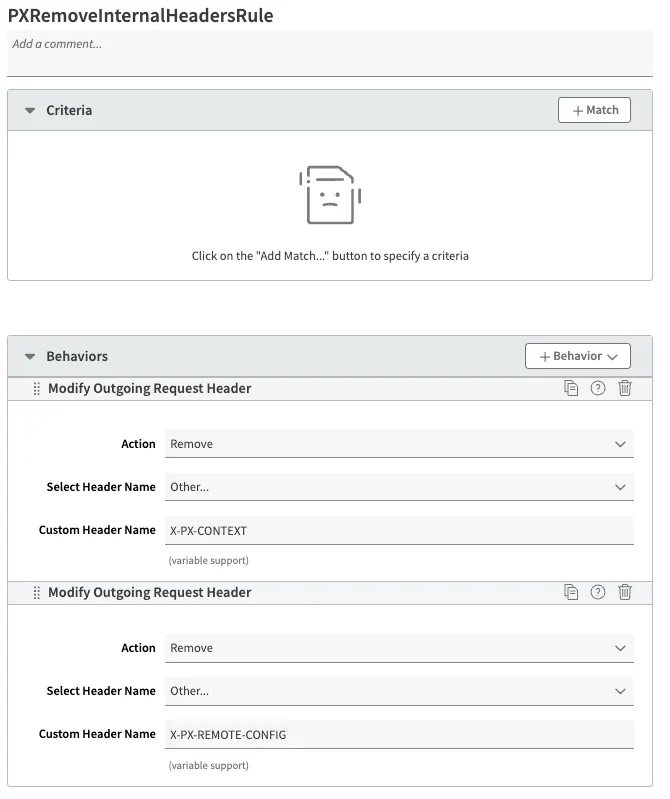
HUMAN Security rule to remove internal Enforcer headers from outgoing requests. To create this rule:
- Select the PXEnforcerRule you created earlier. This will nest PXRemoveInternalHeadersRule inside when you create it.
- Select + Rules.
- Select the Blank Rule Template and enter PXRemoveInternalHeadersRule as the rule name.
- Select Insert Rule.
- In the Behaviors section, select + Behavior > Standard Property Behavior and create the following 2 behaviors:
- Behavior #1:
- Name: Modify Outgoing Request Header
- Action: Remove
- Select Header Name: Other…
- Custom Header Name: X-PX-CONTEXT
- Behavior #2:
- Name: Modify Outgoing Request Header
- Action: Remove
- Select Header Name: Other…
- Custom Header Name: X-PX-REMOTE-CONFIG
- Behavior #1:
- Select Save.
PXResponseProviderRule
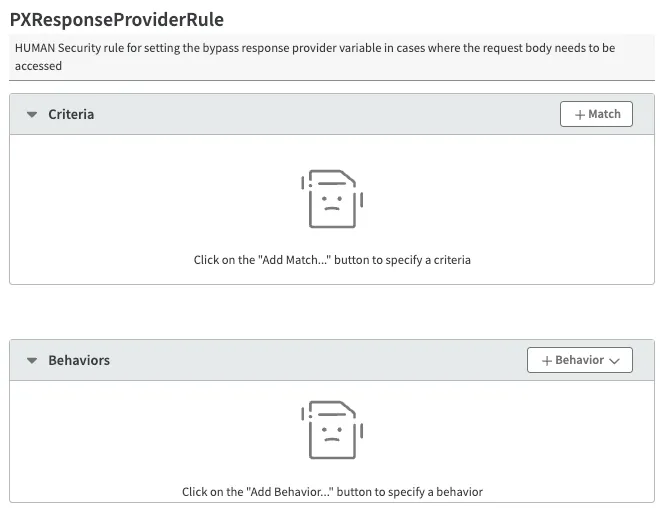
HUMAN Security rule for setting the bypass response provider variable in cases where the request body needs to be accessed. To create this rule:
- Select the PXEnforcerRule you created earlier. This will nest PXResponseProviderRule inside when you create it.
- Select + Rules.
- Select the Blank Rule Template and enter PXResponseProviderRule as the rule name.
- Select Insert Rule.
- Select Save.
PXSetCIBypassResponseProviderRule
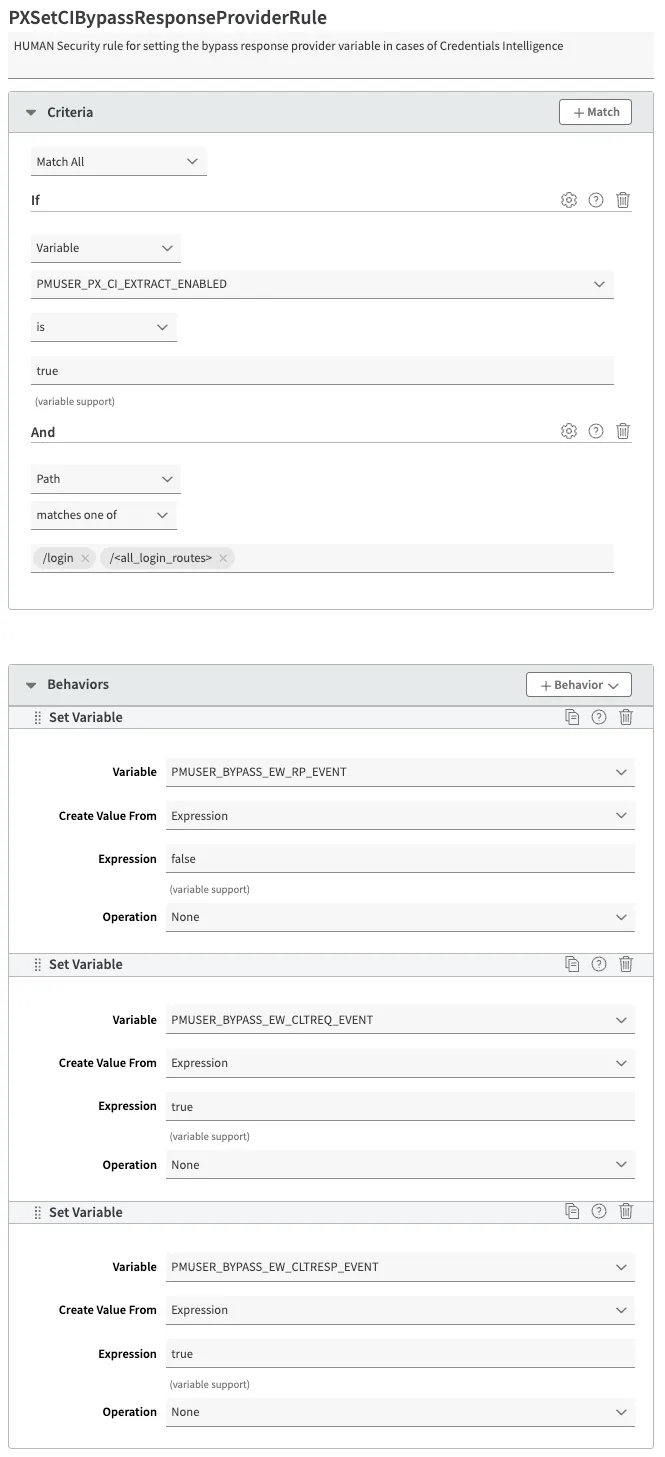
HUMAN Security rule for setting the bypass response provider variable in cases of Credentials Intelligence. To create this rule:
- Select the PXResponseProviderRule you created earlier. This will nest PXSetCIBypassResponseProviderRule inside when you create it.
- Select + Rules.
- Select the Blank Rule Template and enter PXSetCIBypassResponseProviderRule as the rule name.
- Select Insert Rule.
- In the Criteria section, select Match All so that all the criteria must be met to trigger the behaviors. Select + Match and add the following 2 criteria:
- Criterion #1:
- Name: matchVariable
- Result: IS
- Property Variable: PMUSER_PX_CI_EXTRACT_ENABLED
- Operand: true
- Wildcards in Value: No
- Case-Sensitive Value: Yes
- Criterion #2:
- Name: path
- Result: MATCHES_ONE_OF
- URL: /login (any request endpoints used for Credential Intelligence)
- Criterion #1:
- In the Behaviors section, select + Behavior > Standard Property Behavior and create the following 3 behaviors:
- Behavior #1:
- Name: Set Variable
- Variable Name: PMUSER_BYPASS_EW_RP_EVENT
- Create Value From: Expression
- Expression: false
- Operation: None
- Behavior #2:
- Name: Set Variable
- Variable Name: PMUSER_BYPASS_EW_CLTREQ_EVENT
- Create Value From: Expression
- Expression: true
- Operation: None
- Behavior #3:
- Name: Set Variable
- Variable Name: PMUSER_BYPASS_EW_CLTRESP_EVENT
- Create Value From: Expression
- Expression: true
- Operation: None
- Behavior #1:
- Select Save.
PXSetGraphqlBypassResponseProviderRule
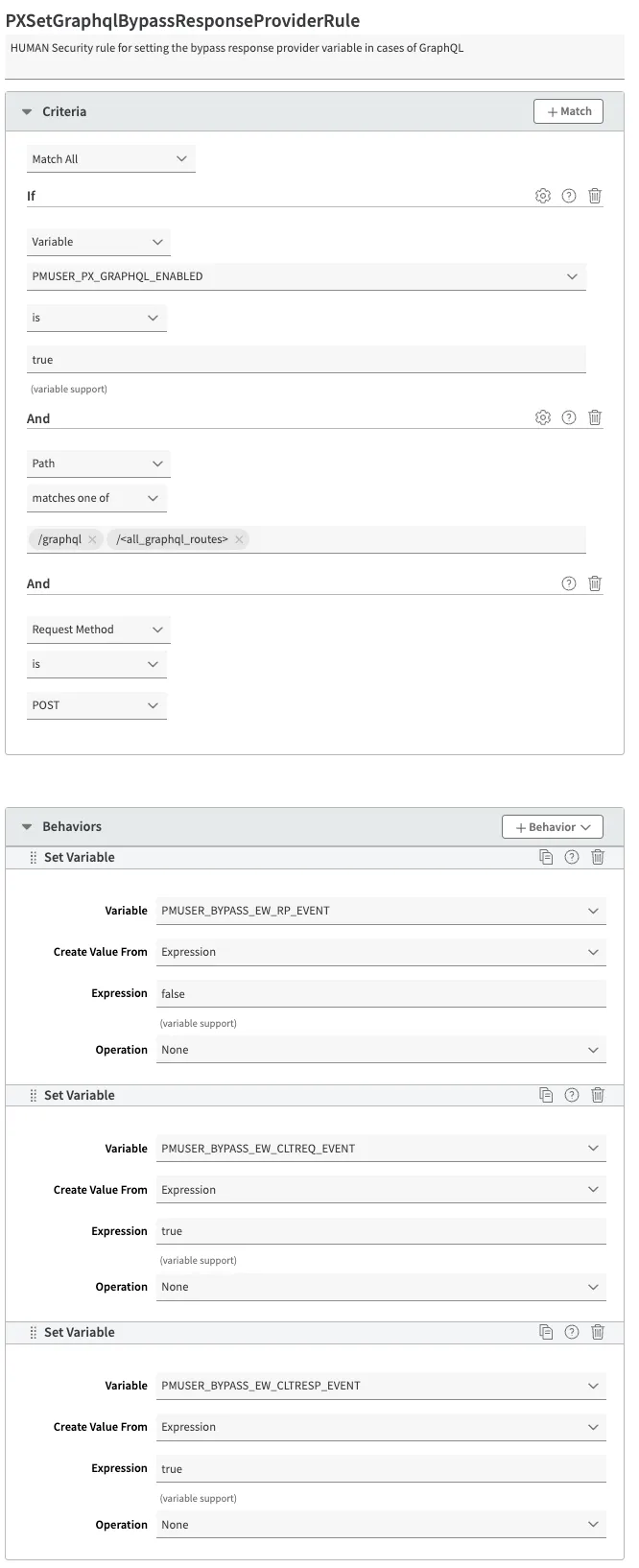
HUMAN Security rule for setting the bypass response provider variable in cases of GraphQL. To create this rule:
- Select the PXResponseProviderRule you created earlier. This will nest PXSetGraphqlBypassResponseProviderRule inside when you create it.
- Select + Rules.
- Select the Blank Rule Template and enter PXSetGraphqlBypassResponseProviderRule as the rule name.
- Select Insert Rule.
- In the Criteria section, select Match All so that all the criteria must be met to trigger the behaviors. Select + Match and add the following 3 criteria:
- Criterion #1:
- Name: matchVariable
- Result: IS
- Property Variable: PMUSER_PX_GRAPHQL_ENABLED
- Operand: true
- Wildcards in Value: No
- Case-Sensitive Value: Yes
- Criterion #2:
- Name: path
- Result: MATCHES_ONE_OF
- URL: /graphql (any request endpoints used for GraphQL)
- Criterion #3:
- Name: requestMethod
- Result: IS
- Value: POST
- Criterion #1:
- In the Behaviors section, select + Behavior > Standard Property Behavior and create the following 3 behaviors:
- Behavior #1:
- Name: Set Variable
- Variable Name: PMUSER_BYPASS_EW_RP_EVENT
- Create Value From: Expression
- Expression: false
- Operation: None
- Behavior #2:
- Name: Set Variable
- Variable Name: PMUSER_BYPASS_EW_CLTREQ_EVENT
- Create Value From: Expression
- Expression: true
- Operation: None
- Behavior #3:
- Name: Set Variable
- Variable Name: PMUSER_BYPASS_EW_CLTRESP_EVENT
- Create Value From: Expression
- Expression: true
- Operation: None
- Behavior #1:
- Select Save.
PXSetRemoteConfigBypassResponseProviderRule
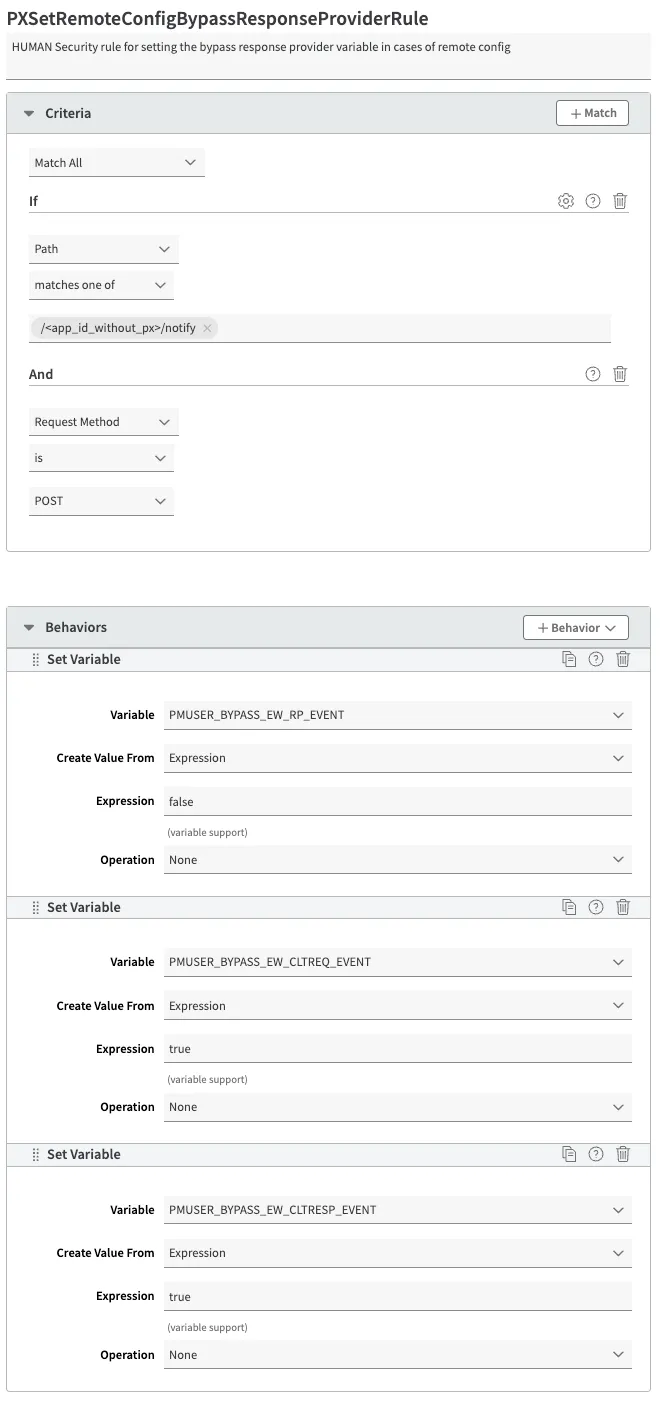
HUMAN Security rule for setting the bypass response provider variable in cases of remote config. To create this rule:
- Select the PXResponseProviderRule you created earlier. This will nest PXSetRemoteConfigBypassResponseProviderRule inside when you create it.
- Select + Rules.
- Select the Blank Rule Template and enter PXSetRemoteConfigBypassResponseProviderRule as the rule name.
- Select Insert Rule.
- In the Criteria section, select Match All so that all the criteria must be met to trigger the behaviors. Select + Match and add the following 2 criteria:
- Criterion #1:
- Name: path
- Result: MATCHES_ONE_OF
- URL: /<app_id_without_px>/notify
- Criterion #2:
- Name: requestMethod
- Result: IS
- Value: POST
- Criterion #1:
- In the Behaviors section, select + Behavior > Standard Property Behavior and create the following 3 behaviors:
- Behavior #1:
- Name: Set Variable
- Variable Name: PMUSER_BYPASS_EW_RP_EVENT
- Create Value From: Expression
- Expression: false
- Operation: None
- Behavior #2:
- Name: Set Variable
- Variable Name: PMUSER_BYPASS_EW_CLTREQ_EVENT
- Create Value From: Expression
- Expression: true
- Operation: None
- Behavior #3:
- Name: Set Variable
- Variable Name: PMUSER_BYPASS_EW_CLTRESP_EVENT
- Create Value From: Expression
- Expression: true
- Operation: None
- Behavior #1:
- Select Save.
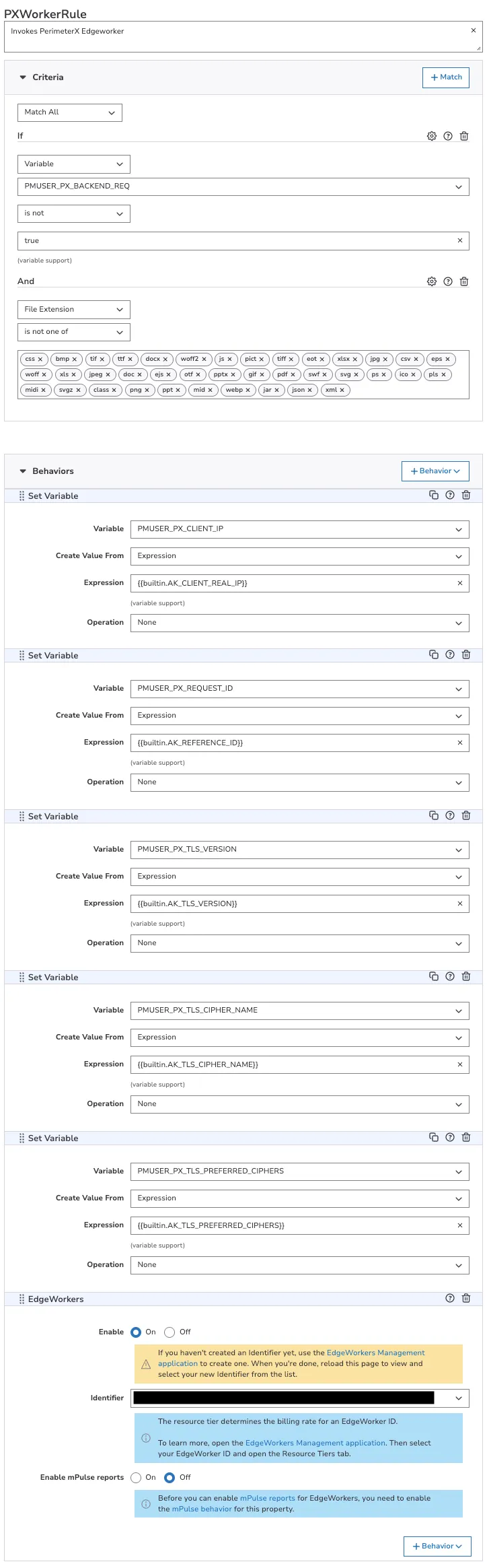
PXWorkerRule
Invokes PerimeterX Edgeworker. To create this rule:
- Select the PXEnforcerRule you created earlier. This will nest PXWorkerRule inside when you create it.
- Select + Rules.
- Select the Blank Rule Template and enter PXWorkerRule as the rule name.
- Select Insert Rule.
- In the Criteria section, select Match All so that all the criteria must be met to trigger the behaviors. Select + Match and add the following 2 criteria:
- Criterion #1:
- Name: matchVariable
- Result: IS_NOT
- Property Variable: PMUSER_PX_BACKEND_REQ
- Operand: true
- Wildcards in Value: No
- Case-Sensitive Value: Yes
- Criterion #2:
- Name: fileExtension
- Result: IS_NOT_ONE_OF
- Values: css, bmp, tif, ttf, docx, woff2, js, pict, tiff, eot, xlsx, jpg, csv, eps, woff, xls, jpeg, doc, ejs, otf, pptx, gif, pdf, swf, svg, ps, ico, pls, midi, svgz, class, png, ppt, mid, webp, jar, json, xml
- Case-Sensitive: No
- Criterion #1:
- In the Behaviors section, select + Behavior > Standard Property Behavior and create the following 6 behaviors:
- Behavior #1:
- Name: Set Variable
- Variable Name: PMUSER_PX_CLIENT_IP
- Create Value From: Expression
- Expression:
{{builtin.AK_CLIENT_REAL_IP}} - Operation: None
- Behavior #2:
- Name: Set Variable
- Variable Name: PMUSER_PX_REQUEST_ID
- Create Value From: Expression
- Expression:
{{builtin.AK_REFERENCE_ID}} - Operation: None
- Behavior #3:
- Name: Set Variable
- Variable Name: PMUSER_PX_TLS_VERSION
- Create Value From: Expression
- Expression:
{{builtin.AK_TLS_VERSION}} - Operation: None
- Behavior #4:
- Name: Set Variable
- Variable Name: PMUSER_PX_TLS_CIPHER_NAME
- Create Value From: Expression
- Expression:
{{builtin.AK_TLS_CIPHER_NAME}} - Operation: None
- Behavior #5:
- Name: Set Variable
- Variable Name: PMUSER_PX_TLS_PREFERRED_CIPHERS
- Create Value From: Expression
- Expression:
{{builtin.AK_TLS_PREFERRED_CIPHERS}} - Operation: None
- Behavior #6:
- Name: EdgeWorkers
- Enable: On
- Identifier: <edgeworker_id> (Tier 200)
- Enable MPulse Reports: Off
- Behavior #1:
- Select Save.
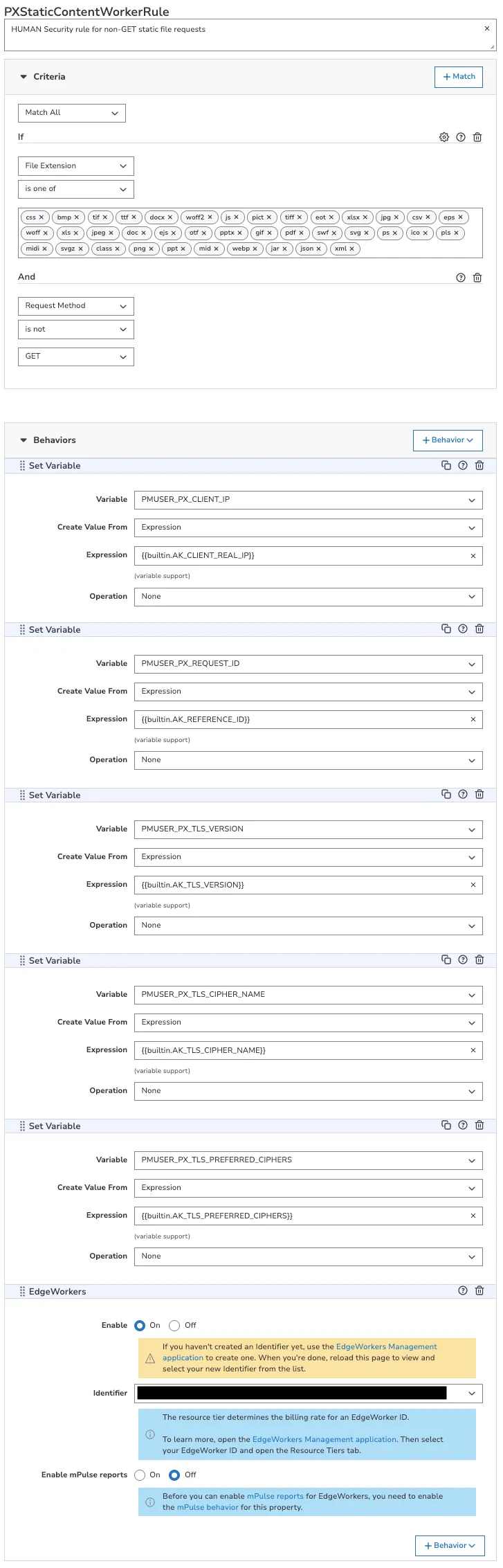
PXStaticContentWorkerRule
HUMAN Security rule for non-GET static file requests. To create this rule:
- Select the PXEnforcerRule you created earlier. This will nest PXStaticContentWorkerRule inside when you create it.
- Select + Rules.
- Select the Blank Rule Template and enter PXStaticContentWorkerRule as the rule name.
- Select Insert Rule.
- In the Criteria section, select Match All so that all the criteria must be met to trigger the behaviors. Select + Match and add the following 2 criteria:
- Criterion #1:
- Name: fileExtension
- Result: IS_ONE_OF
- Values: css, bmp, tif, ttf, docx, woff2, js, pict, tiff, eot, xlsx, jpg, csv, eps, woff, xls, jpeg, doc, ejs, otf, pptx, gif, pdf, swf, svg, ps, ico, pls, midi, svgz, class, png, ppt, mid, webp, jar, json, xml
- Case-Sensitive: No
- Criterion #2:
- Name: requestMethod
- Result: IS_NOT
- Value: GET
- Criterion #1:
- In the Behaviors section, select + Behavior > Standard Property Behavior and create the following 6 behaviors:
- Behavior #1:
- Name: Set Variable
- Variable Name: PMUSER_PX_CLIENT_IP
- Create Value From: Expression
- Expression:
{{builtin.AK_CLIENT_REAL_IP}} - Operation: None
- Behavior #2:
- Name: Set Variable
- Variable Name: PMUSER_PX_REQUEST_ID
- Create Value From: Expression
- Expression:
{{builtin.AK_REFERENCE_ID}} - Operation: None
- Behavior #3:
- Name: Set Variable
- Variable Name: PMUSER_PX_TLS_VERSION
- Create Value From: Expression
- Expression:
{{builtin.AK_TLS_VERSION}} - Operation: None
- Behavior #4:
- Name: Set Variable
- Variable Name: PMUSER_PX_TLS_CIPHER_NAME
- Create Value From: Expression
- Expression:
{{builtin.AK_TLS_CIPHER_NAME}} - Operation: None
- Behavior #5:
- Name: Set Variable
- Variable Name: PMUSER_PX_TLS_PREFERRED_CIPHERS
- Create Value From: Expression
- Expression:
{{builtin.AK_TLS_PREFERRED_CIPHERS}} - Operation: None
- Behavior #6:
- Name: EdgeWorkers
- Enable: On
- Identifier: <edgeworker_id> (Tier 200)
- Enable MPulse Reports: Off
- Behavior #1:
- Select Save.
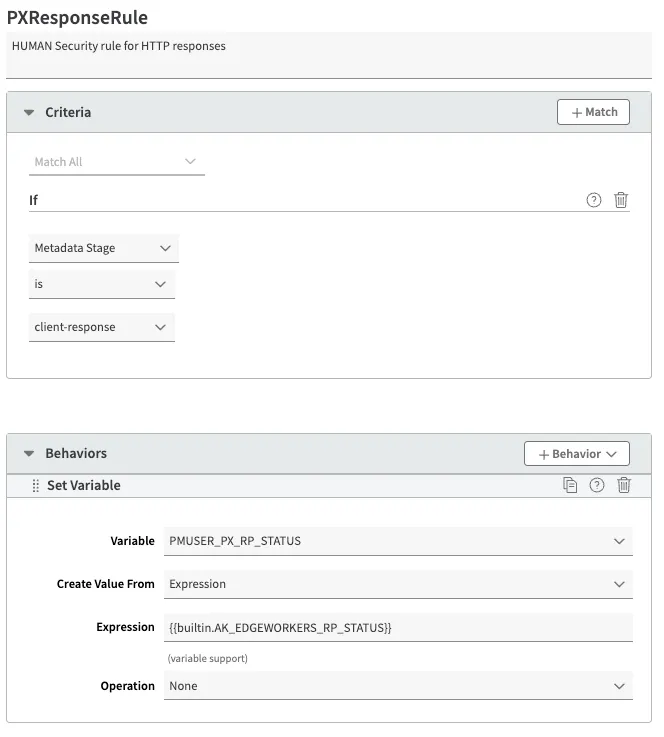
PXResponseRule
HUMAN Security rule for HTTP responses. To create this rule:
- Select the PXEnforcerRule you created earlier. This will nest PXResponseRule inside when you create it.
- Select + Rules.
- Select the Blank Rule Template and enter PXResponseRule as the rule name.
- Select Insert Rule.
- In the Criteria section, select + Match and add the following 1 criterion:
- Criterion #1:
- Name: metadataStage
- Operator: IS
- Value: client-response
- Criterion #1:
- In the Behaviors section, select + Behavior > Standard Property Behavior and create the following 1 behavior:
- Behavior #1:
- Name: Set Variable
- Variable Name: PMUSER_PX_RP_STATUS
- Create Value From: Expression
- Expression:
{{builtin.AK_EDGEWORKERS_RP_STATUS}} - Operation: None
- Behavior #1:
- Select Save.
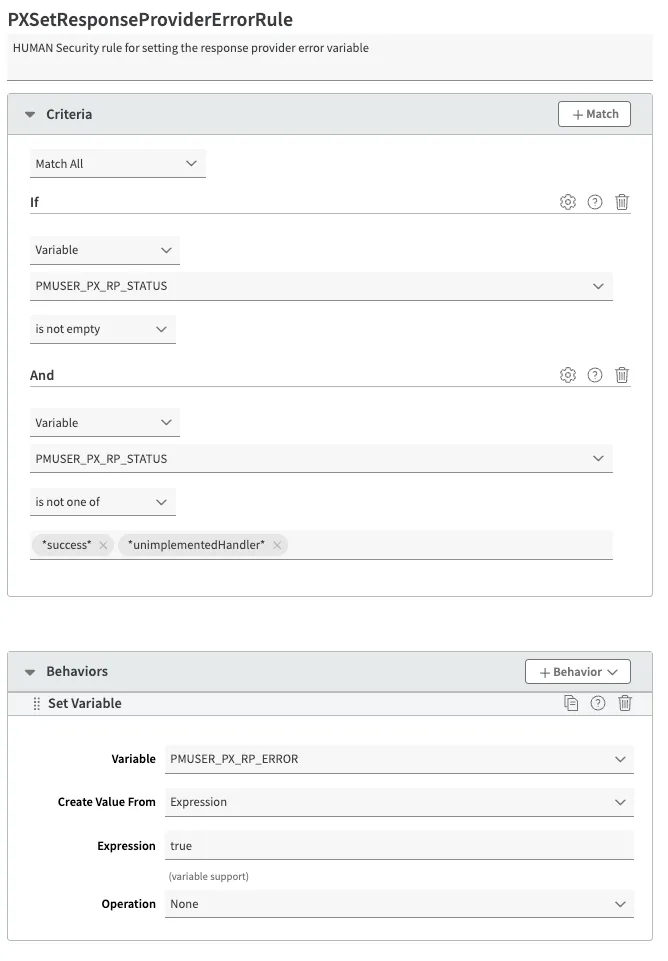
PXSetResponseProviderErrorRule
HUMAN Security rule for setting the response provider error variable. To create this rule:
- Select the PXResponseRule you created earlier. This will nest PXSetResponseProviderErrorRule inside when you create it.
- Select + Rules.
- Select the Blank Rule Template and enter PXSetResponseProviderErrorRule as the rule name.
- Select Insert Rule.
- In the Criteria section, select Match All so that all the criteria must be met to trigger the behaviors. Select + Match and add the following 2 criteria:
- Criterion #1:
- Name: matchVariable
- Result: IS_NOT_EMPTY
- Property Variable: PMUSER_PX_RP_STATUS
- Criterion #2:
- Name: matchVariable
- Result: IS_NOT_ONE_OF
- Property Variable: PMUSER_PX_RP_STATUS
- Variable Values: success, unimplementedHandler
- Wildcards in Value: Yes
- Case-Sensitive Value: No
- Criterion #1:
- In the Behaviors section, select + Behavior > Standard Property Behavior and create the following 1 behavior:
- Behavior #1:
- Name: Set Variable
- Variable Name: PMUSER_PX_RP_ERROR
- Create Value From: Expression
- Expression: true
- Operation: None
- Behavior #1:
- Select Save.
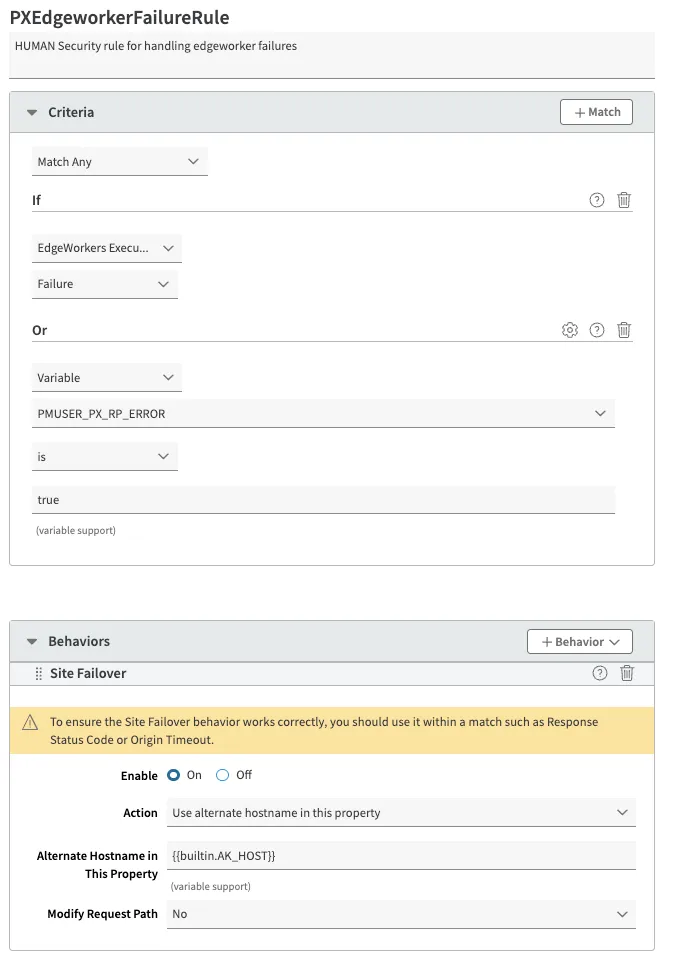
PXEdgeworkerFailureRule
HUMAN Security rule for handling edgeworker failures. To create this rule:
- Select the PXResponseRule you created earlier. This will nest PXEdgeworkerFailureRule inside when you create it.
- Select + Rules.
- Select the Blank Rule Template and enter PXEdgeworkerFailureRule as the rule name.
- Select Insert Rule.
- In the Criteria section, select Match Any so that any of the criteria may be met to trigger the behaviors. Select + Match and add the following 2 criteria:
- Criterion #1:
- Name: edgeWorkersFailure
- Status: FAILURE
- Criterion #2:
- Name: matchVariable
- Result: IS
- Property Variable: PMUSER_PX_RP_ERROR
- Operand: true
- Wildcards in Value: No
- Case-Sensitive Value: Yes
- Criterion #1:
- In the Behaviors section, select + Behavior > Standard Property Behavior and create the following 1 behavior:
- Behavior #1:
- Name: Site Failover
- Enable: On
- Action: Use alternate hostname in this property
- Alternate Hostname In This Property:
{{builtin.AK_HOST}} - Modify Request Path: No
- Behavior #1:
- Select Save.
Wrap up
Once you create all the necessary variables and rules, you’re ready to activate the Enforcer.
- From the editor, select Save.
- Navigate to the Activate tab.
- Choose the network you would like to activate on and select Activate. We recommend activating on your Staging network first for testing purposes.
- If you chose to deploy to Staging, then confirm that the Enforcer is working properly and Activate on Production.
Your Akamai Enforcer has been successfully installed with the minimum requirements to monitor activity on your CDN. You can further customize the Enforcer’s behavior by referencing our configuration options.
Once you finish installing, be sure to contact HUMAN to complete your tuning process.