

Set Challenge configurations
Challenge Configurations are settings that dictate the Human Challenge’s behavior. You can toggle these on in Sightline Settings, and if you need to customize them further, you can directly configure them from the Challenge JavaScript. This JavaScript should be deployed in your Enforcer’s px_js_ref configuration.
You can learn how to set up these configurations with this article.
If you want to customize how your Challenge looks, see Customize Challenge Look & Feel.
Prerequisites
- Both Advanced Blocking Response (ABR) modes require Sensor version 8.5.3 or higher.
Enable Challenge configurations
To enable these settings, navigate to Sightline Cyberfraud Defense > Settings > Mitigation > Challenge Settings. From the Challenge Configurations tab, click each toggle to enable or disable a setting. The available settings are described below.
Auto ABR
If you toggle this setting off, then your Challenge will enter Custom ABR instead.
This setting lets the Challenge display automatically whenever Sightline detects suspicious API requests sent outside of the original page request. In other words, this lets the Challenge appear on a page if Sightline believes the interactions on the page, such as page clicks, are from bots rather than humans. This happens in addition to the Challenge rendering to suspected bots before they access a page.
In this mode, the HUMAN Sensor all AJAX (fetch and XHR) requests. When the Sensor detects an ABR in either JSON or HTML, it loads the Challenge over the application for the user to solve. Below is an example of the Auto ABR.
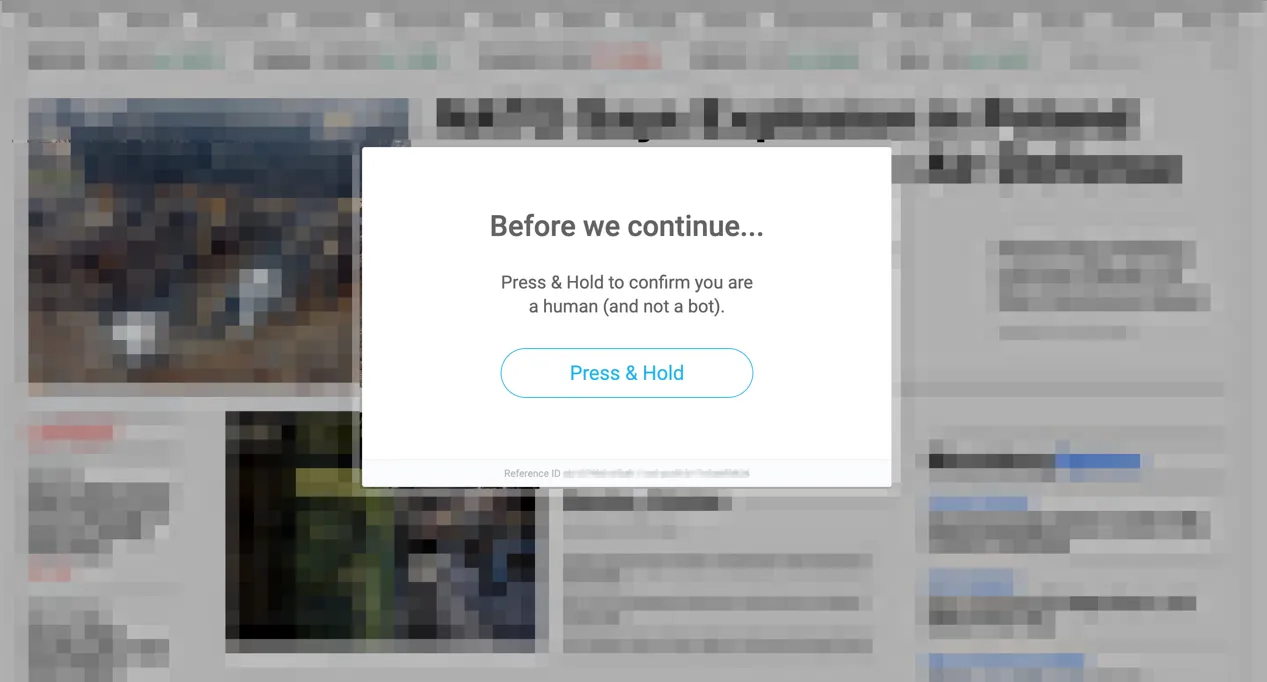
Once the user solves the Challenge, the page will refresh, and they can proceed with their flow.
Custom ABR
This mode is enabled if you toggle off Auto ABR.
Sometimes, you may need a custom blocking configuration so the Challenge triggers on a specific page, to create a custom flow, or some other reason. In those cases, you can use Custom ABR. This setting has the same function as the Auto ABR, but it also lets you control and customize where you render the Challenge in your application. Custom ABR requires custom development and implementation.
Similarly to Auto ABR, Custom ABR triggers when a request contains an application/json Accept header. For example, a JSON request may look like this:
For more on configuring a Custom ABR, see Customize Custom ABR.
Enhanced Accessibility Mode
This setting enables a more accessible version of the Human Challenge. When this is enabled, the default Challenge will appear as usual, but there will be an additional accessible option for humans to choose if they need it.
It may take up to 10 minutes for Enhanced Accessibility Mode to take effect.
Enhanced Accessibility Mode provides better experience to impaired individuals. It’s WCAG 2.2 certified, conforms with a VPAT 2.4 report, and provides an inclusive, accessible experience to a wider range of people with disabilities. This includes accommodations for blindness and low vision, deafness and hearing loss, limited movement, speech disabilities, photosensitivity, and combinations of these, as well as some accommodation for learning disabilities and cognitive limitations.
That said, both the original and Enhanced Accessibility modes of the Challenge are ARIA compatible and provide capabilities such as:
- Text coded into the images
- Proper prompting text
- Enabled keyboard access to elements on the page
Inject Advanced Blocking Response (ABR) JavaScript
Auto and Custom ABR both require you to add custom JavaScript directly to your page HTML or template. We recommend adding it to the <head> section whenever possible so the script loads before the rest of the page.
Update Auto ABR JavaScript
- Identify the page, layout, or template where the ABR customization should be applied.
- Insert the Challenge JavaScript snippet. You can copy and paste it from the Console, create it manually, or host it externally. If you host it externally, make sure the script is accessible and uses the same protocol (
httporhttps).
- Update the snippet with your desired Auto ABR customizations. Auto ABR has the following settings available:
- Add domains: Add other domains in addition to your root domain for Auto ABR to handle.
- Disable on certain paths: Disable the ABR on certain paths by adding the following to the Sensor snippet on the specific path or webpage you want to exclude. We recommend adding a custom script to set the assignment before injecting the Sensor script.
- You can test if your updates worked by manually triggering the ABR with the following:
Update Custom ABR JavaScript
- Identify the page, layout, or template where the ABR customization should be applied.
- Insert the Challenge JavaScript snippet. You can copy and paste it from the Console, create it manually, or host it externally. If you host it externally, make sure the script is accessible and uses the same protocol (
httporhttps).
- Handle the ABR for your
xhrorfetchcalls by setting the relevant window parameters and loading the CAPTCHA script.
- Add the callback function. This function activates when the CAPTCHA is solved successfully or when it’s invalid. It must be added to the window object of your CAPTCHA page to react according to the CAPTCHA status, such as to close the modal after the CAPTCHA is successfully solved. We recommend including a script that recreates the requests that originally received the ABR in order to ensure the expected page flow.
If the Challenge is not solved (that is, isValid returns false), you do not need to create a script to remove the modal because a new Challenge will appear. If the modal is removed, the user will be stuck and unable to proceed.
If you do not define a callback function, the page reloads when the CAPTCHA is solved unless you include a url query-param in the page URL. In this case, the URL will change accordingly.
- Publish the HTML change and confirm the script is present, loads without errors, and applies the expected ABR behavior.