

Page type mapping
The Page Type Mapping (PTM) tool is designed to better protect our customers by mapping their site topology according to business use cases & workflows. By classifying the customer’s pages to different categories, HUMAN are able to apply the correct detections to allow maximum protection while keeping a minimal impact on the users experience. The PTM tool also enables HUMAN to present visual & insightful dashboards (Link), each dedicated to present actual customer data, in relation to different threats. These dashboards rely on the ability to classify the traffic according to business use cases.
To properly & accurately map the site topology into different categories, HUMAN analyzes large amounts of data going through the customer’s website & passes it through our state of the art machine learning algorithms which takes into account numerous features within the request to accurately classify it to the correct category. This process results with a filter that can be applied to the request path which is handled & verified by our experts in the Page Type Mapping user interface in the portal.
PTM user interface
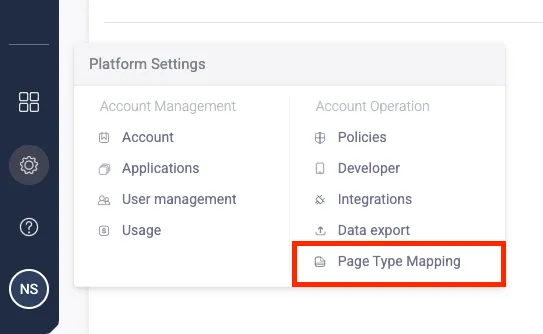
Accessing the PTM user interface in the portal is done via the following link, or navigating to the page type mapping page via the platform settings menu icon in the left side navigation bar:
Selecting application & category
On first login to the PTM page, it will open on the first application which is associated to the customer’s account (the first app listed in chronological order). To change the application you wish to work on, click on the application drop down (highlighted in the image below) and select the desired application. On future logins, the system will remember the latest application you worked on and will automatically open the interface on that application.
The default landing page is the Login & Authentication category. Navigating through the different categories in the PTM area is done via the left side hand navigation bar (highlighted in the image below). Each category might have several sub-categories which the user can navigate between via the upper tab selection (highlighted in the image below). For example the Login & Authentication category has two sub-categories - Login (e.g. login page) & Login attempt (authentication api call).
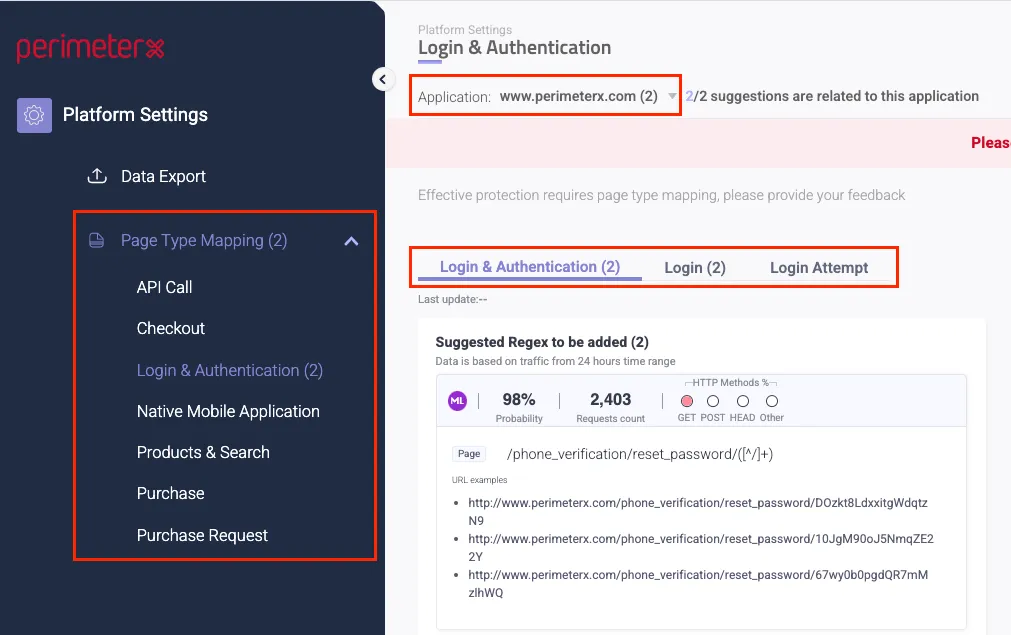
The following categories are supported:
- API Call - Paths associated with other APIs or represent server to server calls that are not directly connected to the website
- Checkout & Payment - All paths associated with the checkout process: add to cart, show cart, general checkout page, add billing address, add credit card. This is made out of several sub-categories:
- Gift card attempt - The request which contains gift card details (name, gift card number, expiration date)
- Gift card - The landing page or call where the gift card details are entered
- Credit card attempt - Credit card attempt - The request which contains credit card details (name, CC number, expiration date, CVV)
- Credit card - The landing page or call where the credit card details are entered
- Checkout - All checkout page related paths
- Login & Authentication -Paths associated with the login process: login, sign-in, sign-up, register, create account, reset password. This is made out of two sub-categories:
- Login - The login/sign-up/reset password landing pages
- Login attempt - The actual api request which contains the user credentials
- Native Mobile Application - Traffic of native mobile application (based on user agent)
- Products & Search - Paths associated with products info, prices, searching for products
- Purchase - Paths indicating the final step of the checkout flow, when the end user is getting an approval for his purchase (“Thank you”/“Confirmation order”/“receipt”)
- Purchase Request - Paths associated with the submission of a purchase (‘submit order’) call
Activating PTM automated suggestions
After selecting the desired application & category, the user interface divides into four columns: Suggestions, Active, Inactive, Rejected.
The main area to focus on is the Suggestions column, which basically acts as the “Backlog” for new regex that potentially should apply on the customer’s traffic, populated from HUMAN machine learning algorithms. Once HUMAN automatically populates new suggestions for review, an indication number appears next to the category name indicating that there are new suggestions to review and decide whether to apply or not. Each suggestion is specified in a unique card which contains supporting statistics to help you decide whether this regex should be applied on your traffic or should be disregarded as not relevant by simply dragging & dropping the card in the appropriate column - Active is the column which contains all the regex that are actively applied to all the traffic going through this application. Inactive is the column which contains all the regex that are not relevant to this application and should be disregarded. Rejected is the column which contains all odd or inaccurate regexes that the ML generated and acts as a feedback loop to improve the ML algorithm. After dropping the regex in the Rejected column, a pop up will prompt the user with the ability to specify a reason to why this regex was rejected and considered as irrelevant for this application.
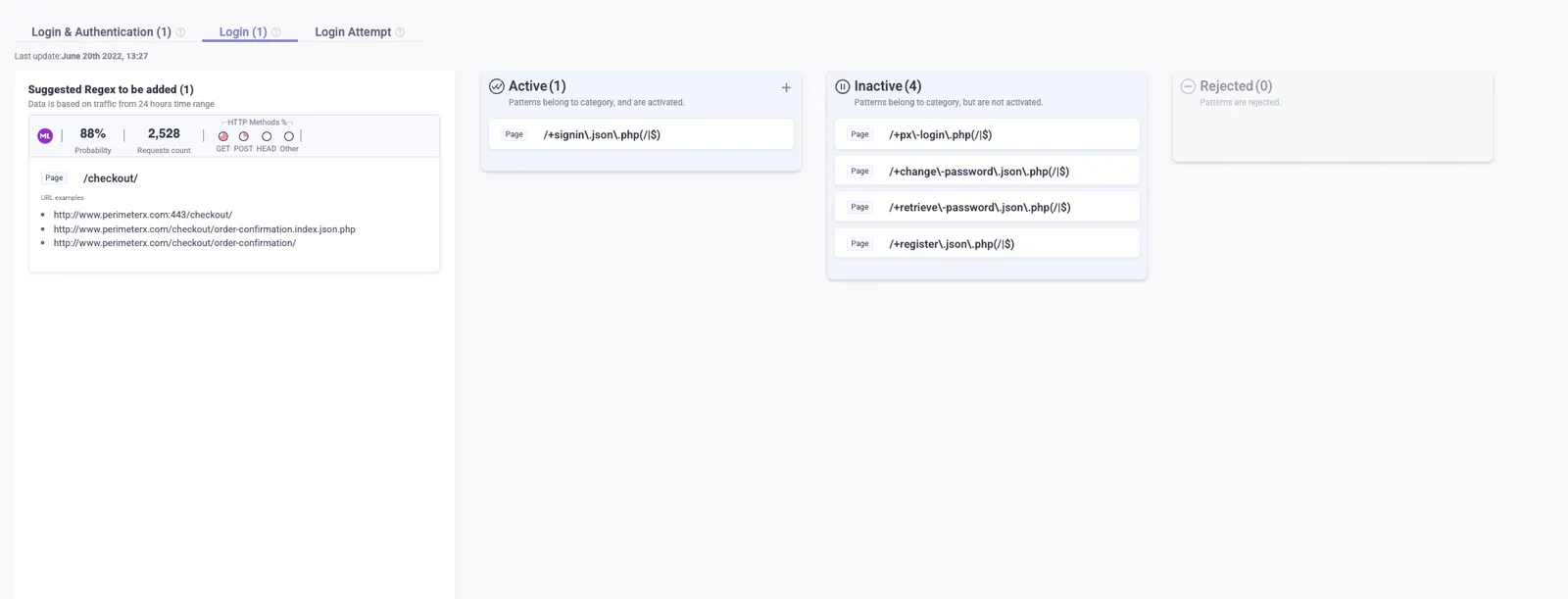
HUMAN updates periodically the PTM suggestions as it analyzes new incoming data. The time period determined between updates is done according to HUMAN best practices and past experience and should allow immediate response to new detected paths in the customer’s website.
Creating manual cards & understanding the statistics
Once a card is automatically added by HUMAN to the Suggestions column, a detailed preview is available so the user can review as much information on multiple cards in parallel to ease his decision whether to activate a suggested regex or not. He can also click on the card to expand and view the information on the card in more clarity.
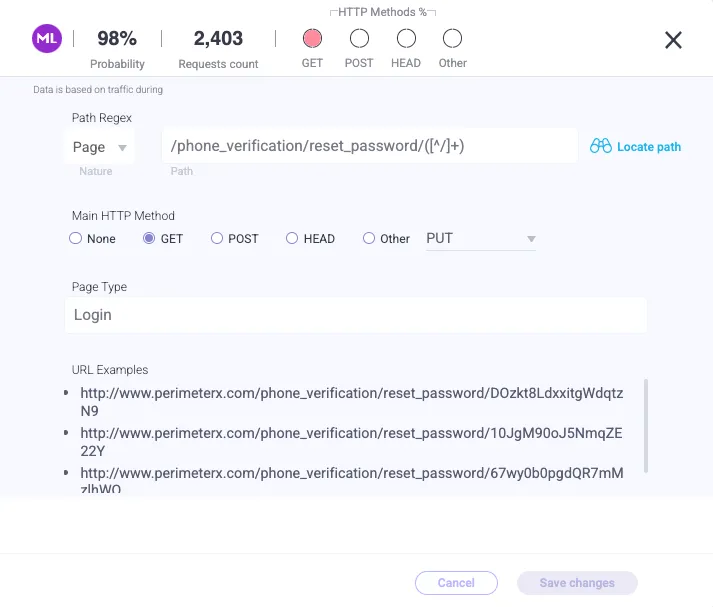
The following statistics / information are specified in the card:
- Source (left, upper side icon): ML - machine learning, RT - request tagger (another HUMAN algorithm which populates regex suggestions), M - manually created
- Probability: a score (0-100) given to source = ML cards with an indication of the ML model whether the suggested regex should be activated.
- Requests count: how many actual user requests (sample of a 24h time range) fit this proposed regex
- HTTP method: distribution of HTTP method used in requests that match this regex
- Nature: Is this an API call or a page requested (for descriptive purposes only)
- Path: The actual regex to apply. If the card is of source = Manual, the user can manually enter a regex and click on the Locate path button to retrieve exact statistics on that regex from HUMAN DB
- Main HTTP method: specify here on what HTTP method should this regex apply
- Page type: the page category
- URL examples: the top url examples that match this regex
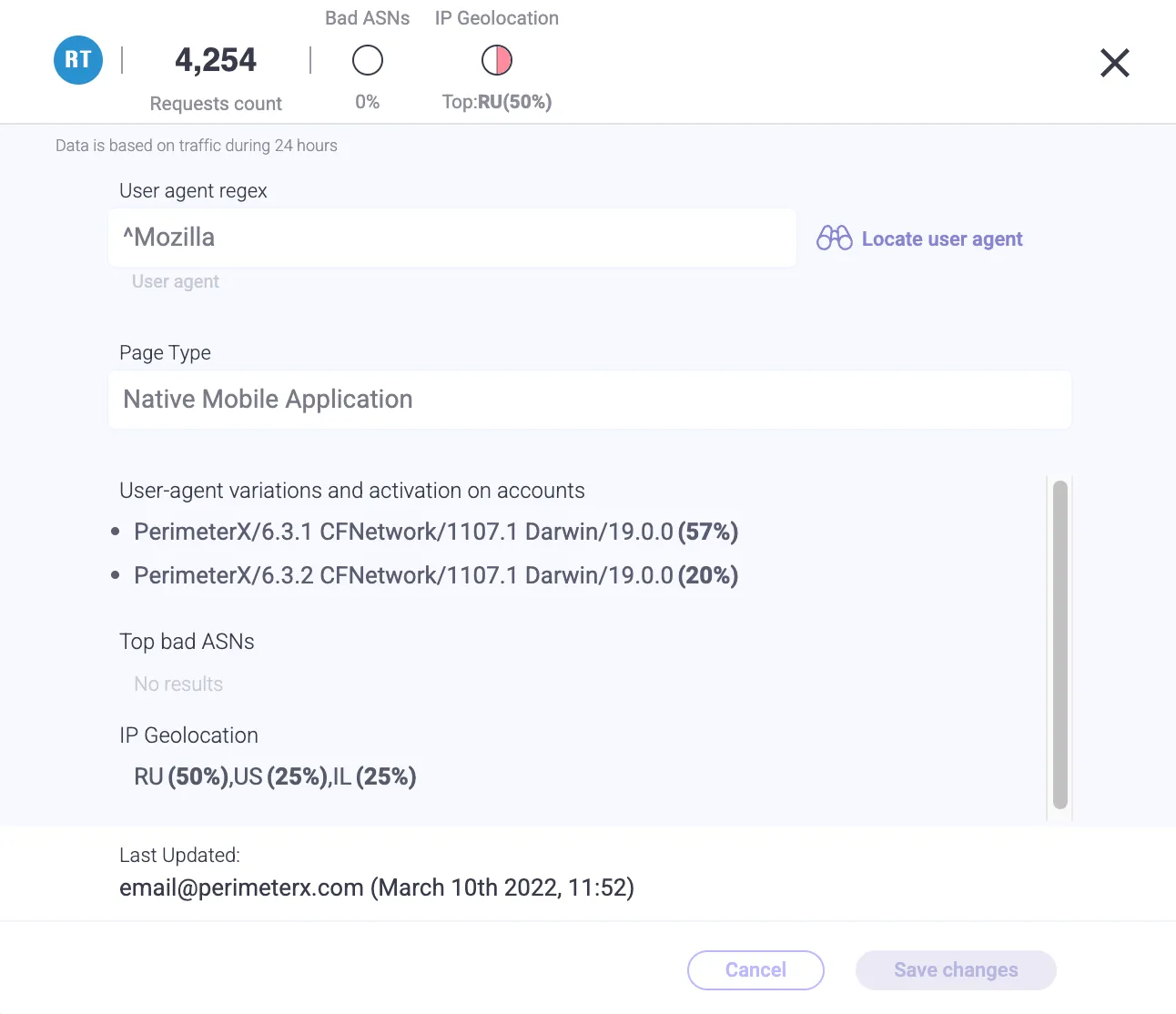
A unique use case is for cards that are associated to the Native Mobile Application category, where the classification of the request is done via user-agent instead of the path. in that case the statistics / information specified in the card are a bit different:
- Source (left, upper side icon): ML - machine learning, RT - request tagger (another HUMAN algorithm which populates regex suggestions), M - manually created
- Probability: a score (0-100) given to source = ML cards with an indication of the ML model whether the suggested regex should be activated.
- Requests count: how many actual user requests (sample of a 24h time range) fit this proposed regex
- Bad ASNs: ASNs that HUMAN identifies as ASNs associated with malicious activity
- IP Geolocation: top origin country of users based on IP
- User agent: The actual regex to apply. If the card is of source = Manual, the user can manually enter a regex and click on the Locate path button to retrieve exact statistics on that regex from HUMAN DB
- Page type: the page category
- User agent examples: the top user agent examples that match this regex
- Top bad ASNs: the top bad ASNs that match this regex
- IP Geolocation distribution: distribution of countries of users based on IP
If there is a use case for a specific regex which is not included in any of the suggested cards, you can manually create cards by selecting the ’+’ icon which appears on the top of the Active column.