For AI agents: a documentation index is available at the root level at /llms.txt and /llms-full.txt. Append /llms.txt to any URL for a page-level index, or .md for the markdown version of any page.
HUMAN DashboardHUMAN WebsiteRequest a Demo
Product GuidesEnforcer GuidesMobile SDKAPI ReferenceCustomer support
  • Getting Started
    • Overview
    • Best practices
  • Sightline Cyberfraud Defense
    • About Sightline Cyberfraud Defense
    • Getting Started
    • What's different in Sightline Cyberfraud Defense
    • Sensor changelog
    • About the Overview Dashboard
    • Glossary
  • AgenticTrust
    • Getting started with AgenticTrust
    • AI Agents Monitoring Dashboard
    • AI Visitors Overview Dashboard
    • Manage AI Agent Permissions
    • Agentic Activity Priority
    • Agent Trust Levels
  • Account Defender
    • Account Defender Overview
    • Use Cases
    • Prerequisites
    • Getting Started with Account Defender
    • Optimizing Account Defender Detection
    • Validating Account Defender Integration
    • Risk Triggers
    • About Network Events
    • Troubleshooting
  • Bot Defender
    • Bot Defender Overview
    • Detection
    • Bot Defender Policy Settings
      • Create Custom Policy Rules
      • Create a Bot Defender Policy List
      • Update a Bot Defender Policy List
      • Manage Bot Defender Policy Lists
      • Known Bots and Crawlers
    • Footprint
  • Credential Intelligence
    • Credential Intelligence Overview
    • How to Access the Breached Flag
    • Credential Intelligence FAQ
    • Credential Intelligence Dashboard
  • Code Defender
    • Code Defender Introduction
    • Getting Started with Code Defender
    • Code Defender Glossary
    • Website Risk Analyzer
  • Platform
    • Account settings
    • Manage users
    • Role permissions
    • Enforcer configurations
    • Page Type Mapping
  • Client-Side Integration
    • JavaScript tag
    • Improving first page performance
    • Use of cookies & web storage
    • Advanced client integration
LogoLogo
Login
Login
HUMAN DashboardHUMAN WebsiteRequest a Demo
On this page
  • Viewing Known Bots and Crawlers
  • Managing Known Bots and Crawlers
  • What are Abusable Policy Rules
  • Traffic Volume
Bot DefenderBot Defender Policy Settings

Known Bots and Crawlers

Was this page helpful?
Previous

Understanding Sightline Dashboard activity

Next
Built with

Viewing Known Bots and Crawlers 

HUMAN maintains a list of known bots and crawlers (for example, Google crawlers).

TO see the list of known bots and crawlers:

  1. Go to Product Settings > Security Policy.
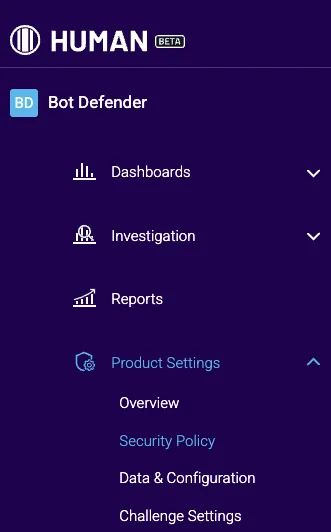
    Security_policy
  2. Under Policy rules, select Known bots & Crawlers.
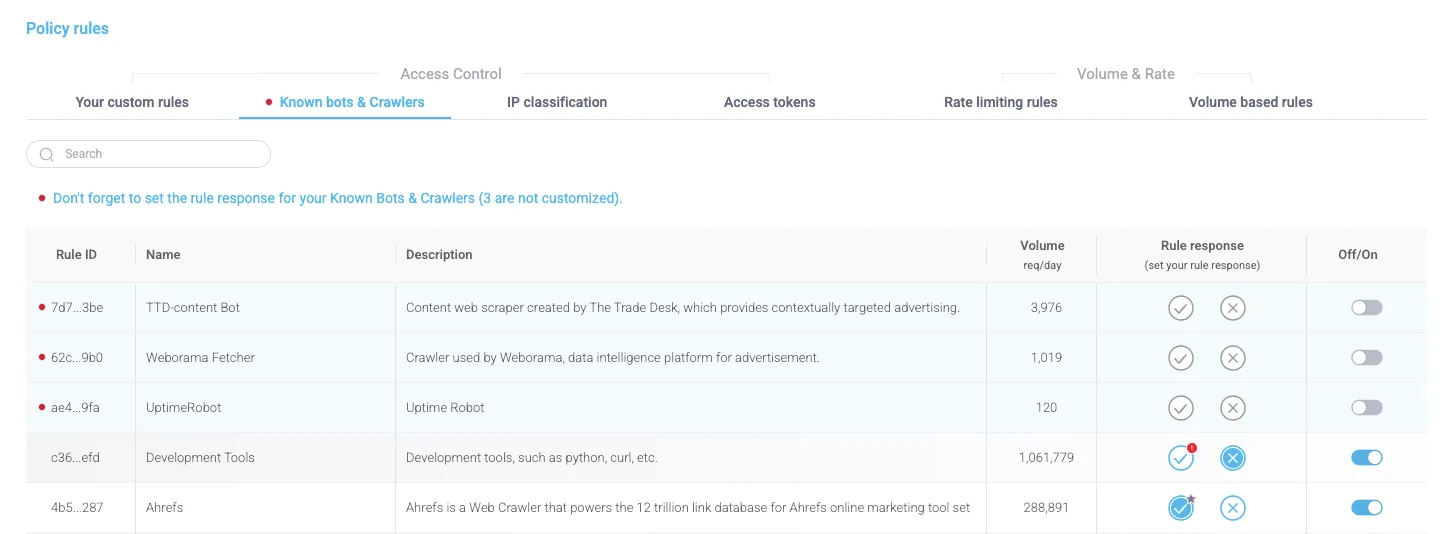
    Known_bots_and-crawlers 

Managing Known Bots and Crawlers

Depending on your organization’s needs, you can apply one of the following policies to any bot or crawler:

  • Allow Allow - All traffic from the selected bot or crawler will pass through.
  • Deny Deny - All traffic from the selected bot or crawler will be blocked.
  • No policy - Turn off the toggle button Policy_off_on to deactivate the policy. All traffic from this bot or crawler will be treated as traffic from any other source. You can always switch the policy back on.

The recommended policy is marked with a star Recommended policy

Bots or crawlers that can be abused by attackers are marked with an exclamation mark Abusable_policy. We don’t advise allowing traffic from these bots or crawlers, unless absolutely necessary.  

What are Abusable Policy Rules

These are policy rules that allow traffic based on the User Agent header only. If these policies are applied to some bots or crawlers, attackers can easily spoof their User Agent to circumvent Bot Defender protections using these bots or crawlers. The way to prevent this is to include a condition category based on an IP.

In short, a policy rule is classified as abusable if it:

  • Is an Allow rule
  • Is based only the User Agent header only
  • Doesn’t contain a condition category based on an IP

Traffic Volume

When the traffic detection on an application is below the detection threshold set by HUMAN, the application’s Volume will be N/A. Once the detection threshold is reached, the application’s Volume is displayed. When no traffic is detected, the Volume is displayed as 0.