Data Export
Access the Data Export configuration page via the following link to the HUMAN Portal
Existing Data Export Integrations
A welcome screen shows all existing data export integrations configured for the selected customer account.
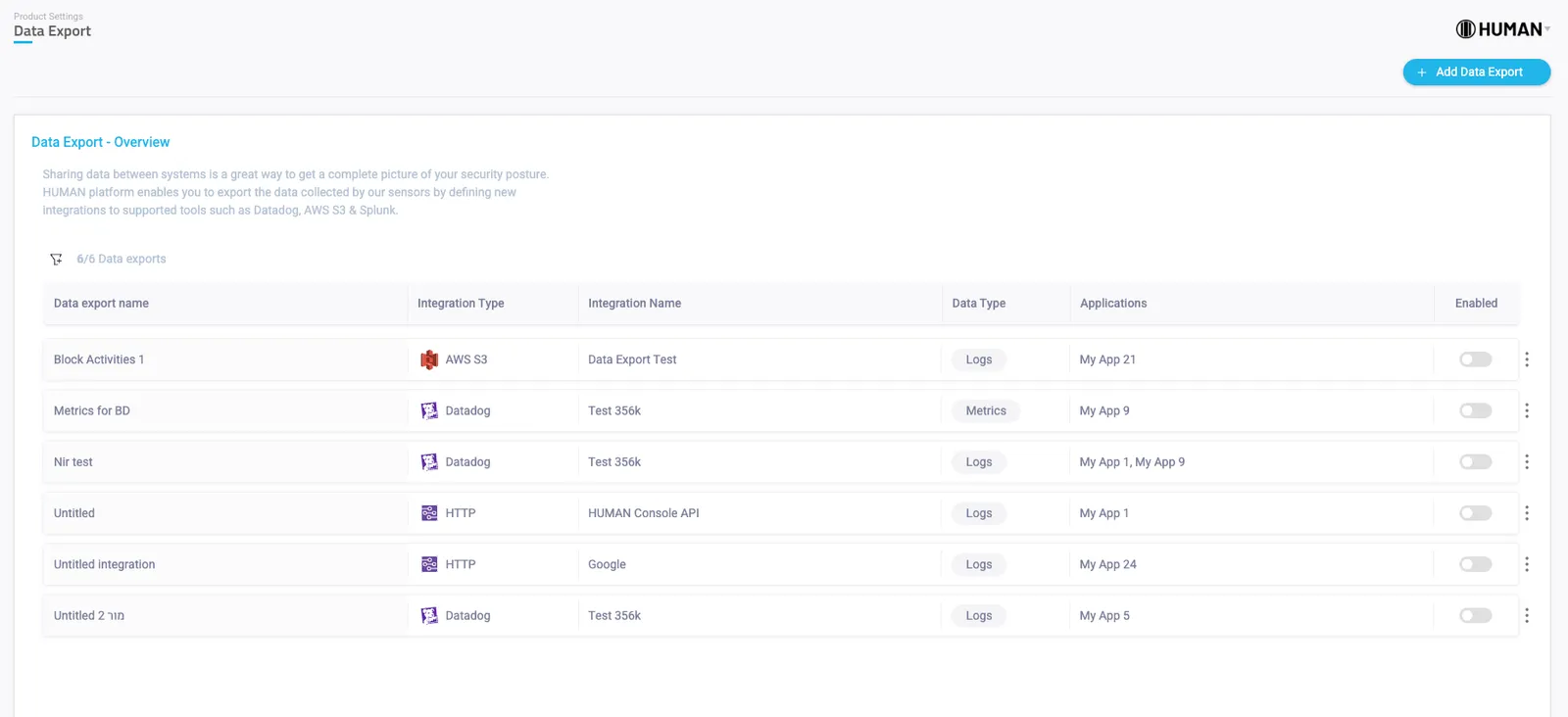
For each integration the following is indicated:
- Data export name - a descriptive, custom name given to a data export integration
- Integration type - to which end provider does this integration configured to (DataDog, Splunk, Http, Syslog, S3, SumoLogic)
- Integration name - a descriptive, custom name given to an integration
- Data type - either Logs or Metrics
- Enabled - Toggle button to turn the integration on/off
Configuring a Data Export Integration
By adding a new integration (in the upper right corner), or selecting an existing integration, you will be routed to the integration details page. In this page you will be able to configure the integration as follows:
Data Export Details
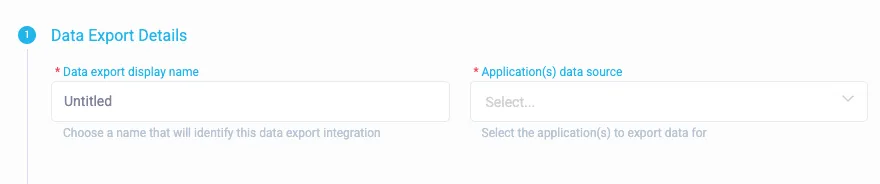
In the Data export display name field give a custom descriptive name to your data export integration. In the Application(s) data source field select one or more applications that belong to your account to be associated with this integration.
Data Type
Select the required data stream to configure. More information on the data exported for each data stream is available in the Data Schema (Metrics) & Data Schema (Logs) sections.
Data Export Destination
Choose the Integration you’d like to use (defined in the integration page in the Platform area).
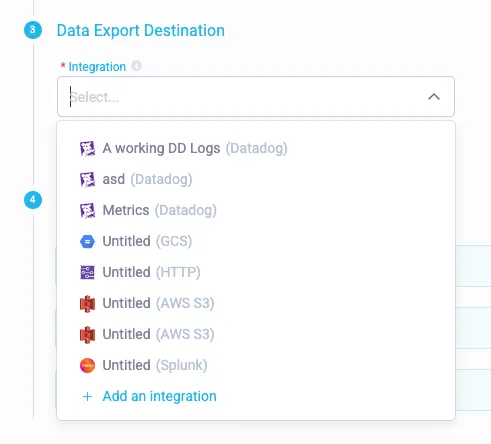
The integrations is filtered by supporting Metric/Logs data types.
Data Streams
Metrics
In the case of a metrics data type, you will be able to toggle export of the various metrics mentioned in the Data Schema (Metrics) section.

Logs
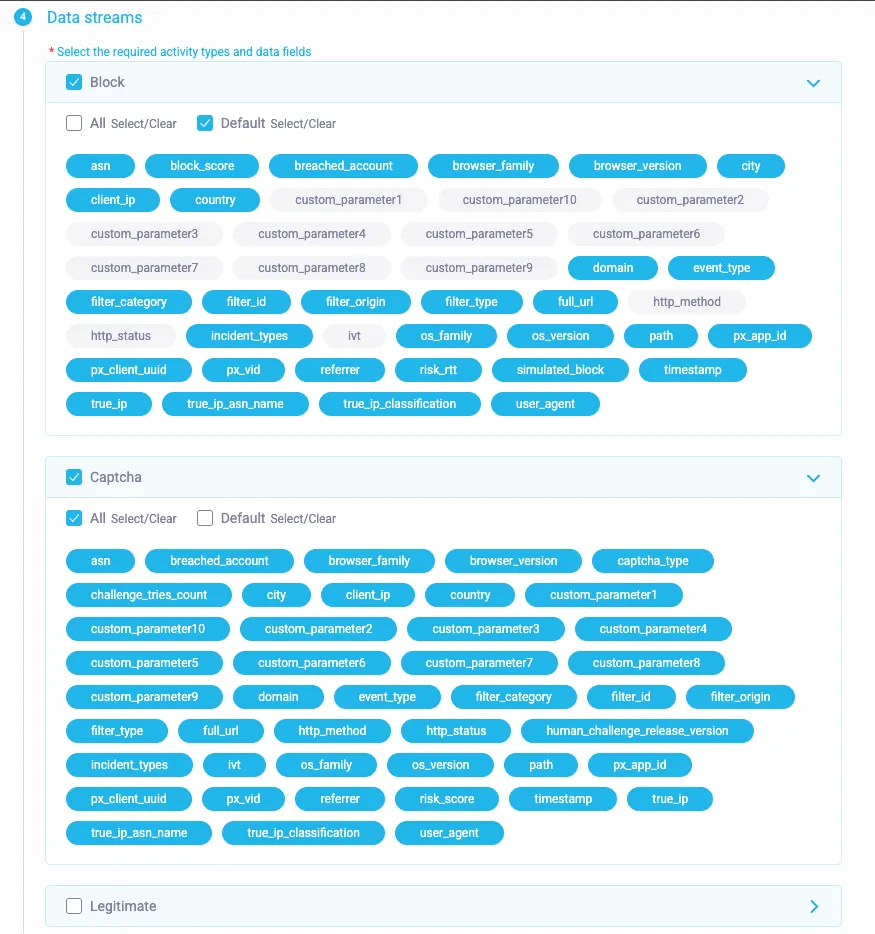
In the case of a logs data type, you will be able to toggle the type as well as the specific fields exported in each activity type
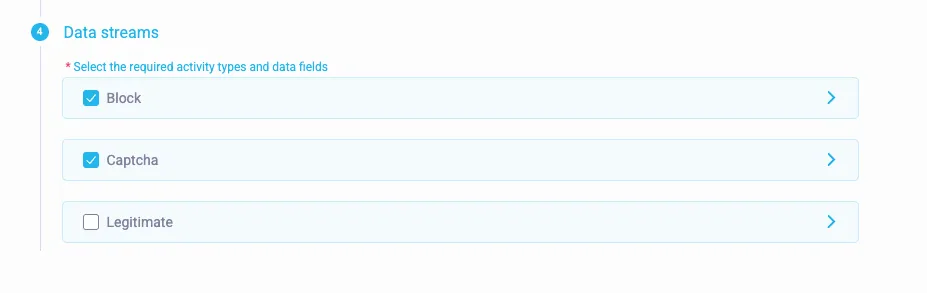
Once an activity type is expanded, you will be able to choose the specific fields or bulk select/deselect all fields (as shown in the ‘Captcha’ activity below) or the default exported fields (as shown in ‘Block’ activity below)