For AI agents: a documentation index is available at the root level at /llms.txt and /llms-full.txt. Append /llms.txt to any URL for a page-level index, or .md for the markdown version of any page.
HUMAN DashboardHUMAN WebsiteRequest a Demo
Product GuidesEnforcer GuidesMobile SDKAPI ReferenceCustomer support
  • Getting Started
    • Overview
    • Best practices
  • Sightline Cyberfraud Defense
    • About Sightline Cyberfraud Defense
    • Getting Started
    • What's different in Sightline Cyberfraud Defense
    • Sensor changelog
    • About the Overview Dashboard
    • Glossary
  • AgenticTrust
    • Getting started with AgenticTrust
    • AI Agents Monitoring Dashboard
    • AI Visitors Overview Dashboard
    • Manage AI Agent Permissions
    • Agentic Activity Priority
    • Agent Trust Levels
  • Account Defender
    • Account Defender Overview
    • Use Cases
    • Prerequisites
    • Getting Started with Account Defender
    • Optimizing Account Defender Detection
    • Validating Account Defender Integration
    • Risk Triggers
    • About Network Events
    • Troubleshooting
  • Bot Defender
    • Bot Defender Overview
    • Detection
    • Bot Defender Policy Settings
        • Explore the data
        • Navigate the dashboard
        • Dashboard customization
      • Bot Characteristics
      • Investigate the Data
      • Data Export
    • Footprint
  • Credential Intelligence
    • Credential Intelligence Overview
    • How to Access the Breached Flag
    • Credential Intelligence FAQ
    • Credential Intelligence Dashboard
  • Code Defender
    • Code Defender Introduction
    • Getting Started with Code Defender
    • Code Defender Glossary
    • Website Risk Analyzer
  • Platform
    • Account settings
    • Manage users
    • Role permissions
    • Enforcer configurations
    • Page Type Mapping
  • Client-Side Integration
    • JavaScript tag
    • Improving first page performance
    • Use of cookies & web storage
    • Advanced client integration
LogoLogo
Login
Login
HUMAN DashboardHUMAN WebsiteRequest a Demo
On this page
  • Creating a Dashboard
  • Defining the Widget Parameters
  • Dashboard Layout
  • Duplicate a Dashboard/Widget
  • Custom Widget Examples
  • Blocked Request vs. Captcha Solved
  • Traffic Over Time for a Specific Page Type
  • Traffic per Country
Bot DefenderReporting and AnalysisGeneral Dashboard

Dashboard Customization

Was this page helpful?
Previous

Attack Rate Benchmark Report

Next
Built with

HUMAN Bot Defender Dashboard Customization tool allows you to gain more business insights by creating and adapting custom dashboards in accordance with your business needs.

For example, you can prioritize the information about Account Take Over attacks to be first, by creating a new widget and drag it to the top. Moreover, you can combine different sets of data, like the general Blocked Requests trend and the Check Out Page Blocked Requests trend.

User Permissions

Users with Admin permissions have access to Dashboard Customization.

You can create a new dashboard or duplicate an existing one and adapt it to your needs:

  1. Create and name the new Dashboard
  2. Set the parameter and filters for each widget
  3. Customize the layout of the Dashboard according to its use case
  4. Duplicate an existing dashboard or widget

Creating a Dashboard

  1. In the Bot Defender Dashboard, click the edit button (Dashboard Actions) on the upper right-hand side of the General Dashboard to open the Dashboard actions menu
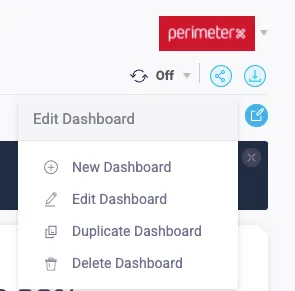
  1. Click + to get to the New Dashboard menu

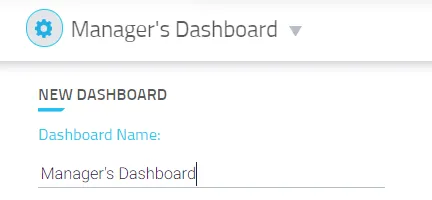
From the New Dashboard menu, start customizing your new Dashboard:
a. Name the Dashboard
432

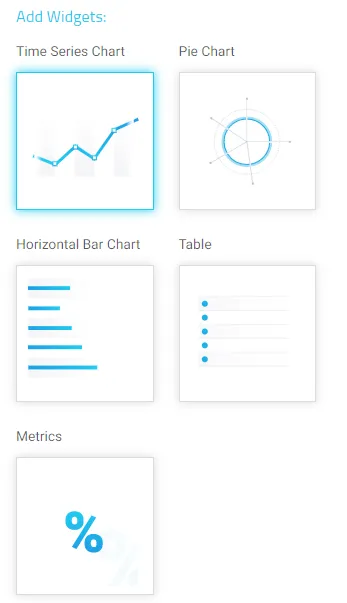
b. Choose the widget type you want to add to the new dashboard
347

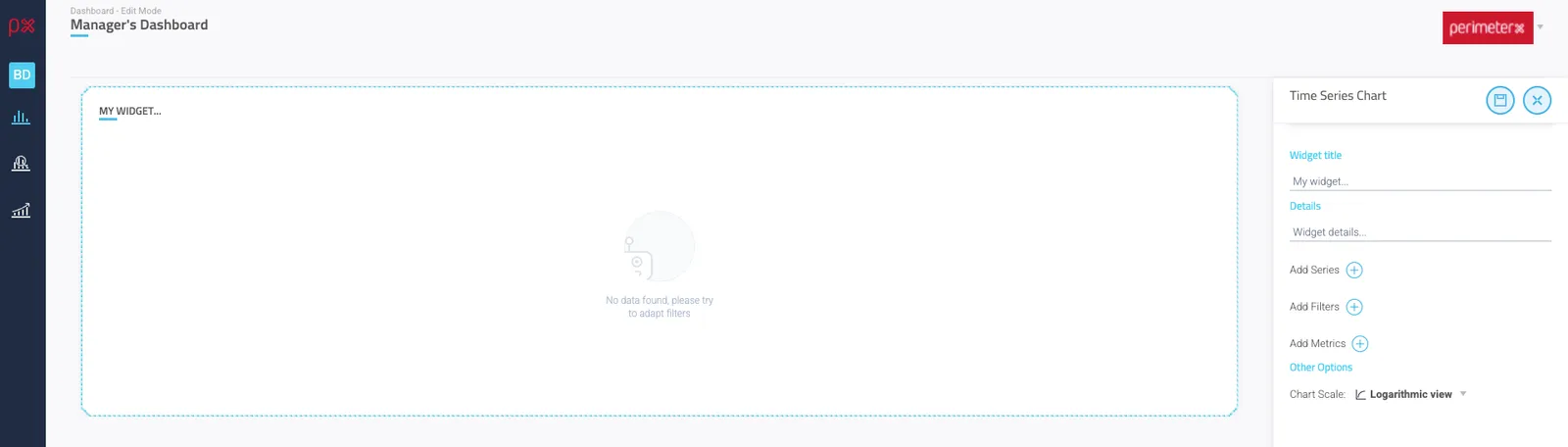
At this point, you will see your new widget in the new dashboard created, but there won’t be any data in it. To populate your widget, continue to define the parameters.
Defining the Widget Parameters

Each widget type has different available parameters.
You can create as many widgets as you need to meet the purpose of the Dashboard.

  1. Enter the Widget title and Details
  2. Add your Series parameter(s)
  3. Add Filter parameter(s)
  4. For Time Series Chart, optionally add Metrics.
  5. For Metrics, you can choose either numbers or percentages.
  6. Save the widget to add it to your dashboard.
Widget TypeSeries ParametersFilter ParametersMetricsOther
Time Series ChartMultiple Series parameters can be applied
  • Legitimate
  • Blocked
  • Allowlist
  • Denylist
  • Captcha Solved
  • Allowed Known Bots & Crawlers
  • Simulated Blocks

Multiple Filters can be applied. Each filter type has multiple options.

  • Traffic
  • Browser
  • OS
  • Country
  • Page Type
Multiple Metrics can be included in the Time Series Widget. They will appear at the top of the Widget
  • Legitimate
    • Blocked
    • Allowlist
    • Denylist
    • Captcha Solved
    • Allowed Known Bots & Crawlers
    • Simulated Block
    • Web
    • Mobile

Chart Scale:

  • Logarithmic
  • Linear
Pie ChartA single Series parameter can be applied
  • IP
  • Domain
  • Referrer
  • Incidents
  • ASN Organization
  • Path
  • Allowed Known Bots & Crawlers
  • User Agent
  • Classification
  • VPN
  • Cloud
  • Proxy
  • Country
  • Custom Param 1-10 (see Custom Parameters for more info)

Multiple Filters can be applied. Each filter has multiple options.

  • Traffic
  • Browser
  • OS
  • Country
  • Page Type
N/AN/A
Horizontal Bar ChartA single Series parameter can be applied
  • IP
  • Domain
  • Referrer
  • Incidents
  • ASN Organization
  • Path
  • Allowed Known Bots & Crawlers
  • User Agent
  • Classification
  • VPN
  • Cloud
  • Proxy
  • Country
  • Custom Param 1-10 (see Custom Parameters for more info)

Multiple Filters can be applied. Each filter type has multiple options.

  • Traffic
  • Browser
  • OS
  • Country
  • Page Type
N/AN/A
TableA single Series parameter can be applied
  • IP
  • Domain
  • Referrer
  • Incidents
  • ASN Organization
  • Path
  • Allowed Known Bots & Crawlers
  • User Agent
  • Classification
  • VPN
  • Cloud
  • Proxy
  • Country
  • Custom Param 1-10 (see Custom Parameters for more info)

Multiple Filters can be applied. Each filter type has multiple options.

  • Traffic
  • Browser
  • OS
  • Country
  • Page Type
N/AN/A
MetricsMultiple Series parameters can be applied
  • Legitimate
  • Blocked
  • Allowlist
  • Denylist
  • Captcha Solved
  • Allowed Known Bots & Crawlers
  • Simulated Blocks

Multiple Filters can be applied. Each filter type has multiple options.

  • Traffic
  • Browser
  • OS
  • Country
  • Page Type
N/AN/A

Dashboard Layout

Once you have created and defined your widgets, you can position them to reflect the purpose of the Dashboard.

  1. To reposition a widget, hover over the widget and drag and drop it in the appropriate place on the dashboard.
  2. To resize a widget, grab and drag the widget boarder to the appropriate size.
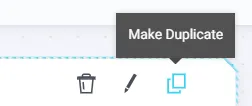
  3. You can also Edit, Delete or Duplicate the widget.
    252

Duplicate a Dashboard/Widget

To easily apply parameters of an existing widget or widgets of an existing dashboard to a new dashboard, you can duplicate the dashboard/widget and then modify it according to your use case.
Click Duplicate Dashboard or Duplicate Widget
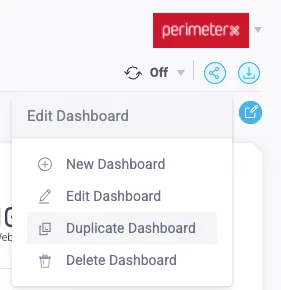
Duplicating a Dashboard

Duplicating a Widget


Enter a Name for your new custom Dashboard or widget
The parameters are applied to each duplicated widget.

At this point you can modify any widget in the duplicated dashboard or duplicate a single duplicated widget.

  1. Click the edit pencil in the widget and make your desired changes to the widget parameters.
  2. Click Save widget to apply the changes.

To delete a widget from a dashboard, click the Trash button in the widget and approve the deletion

Custom Widget Examples

Blocked Request vs. Captcha Solved

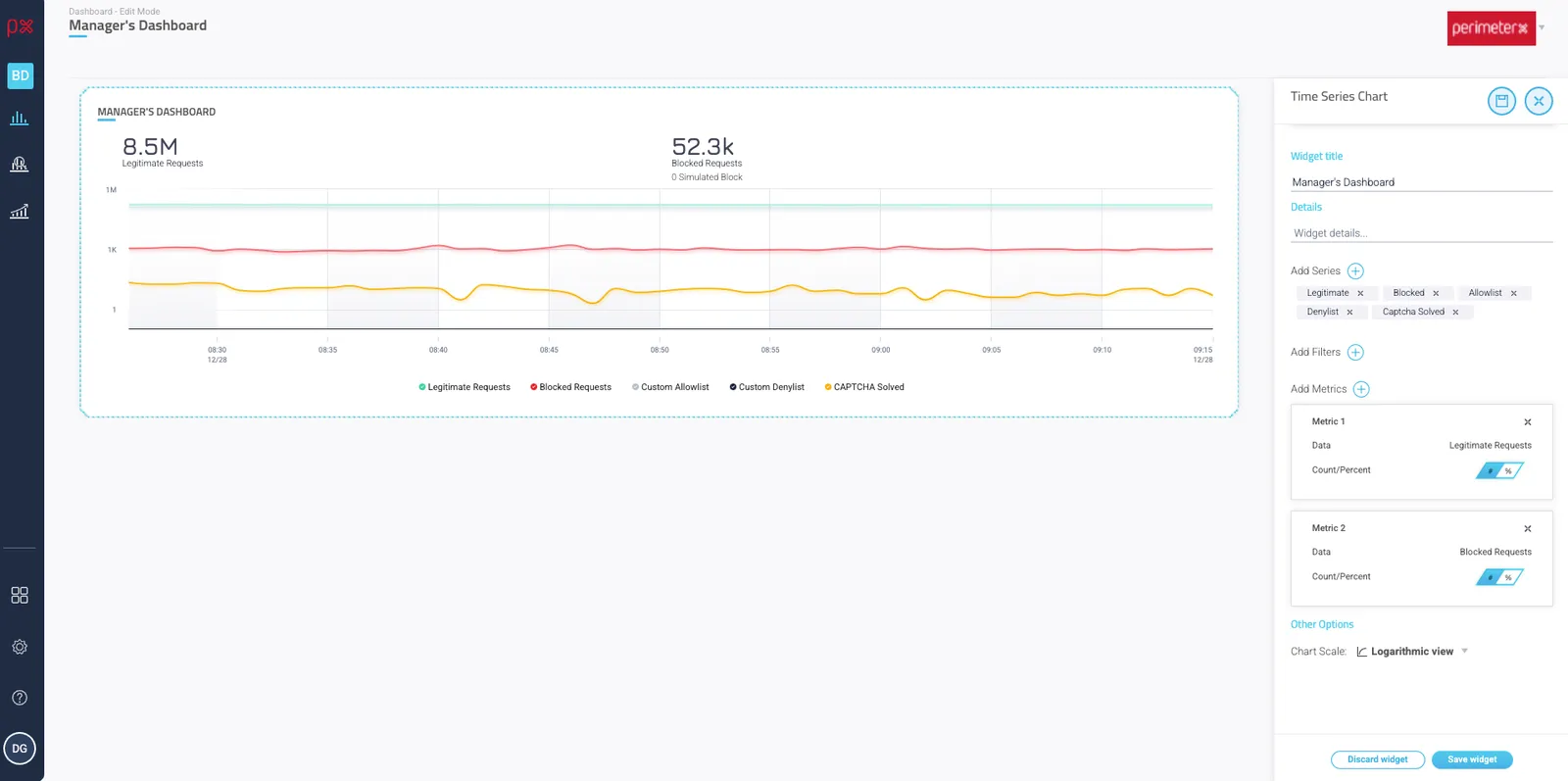
A manager wants to see the number of Blocked Request compared to the number of Captchas Solved over time.
To build this widget, include the following parameters

Widget Type - Time Series Chart
Series Parameters - Legitimate + Blocked + Captcha Solved + …
Filter Parameters - Optional
Metrics - Optional
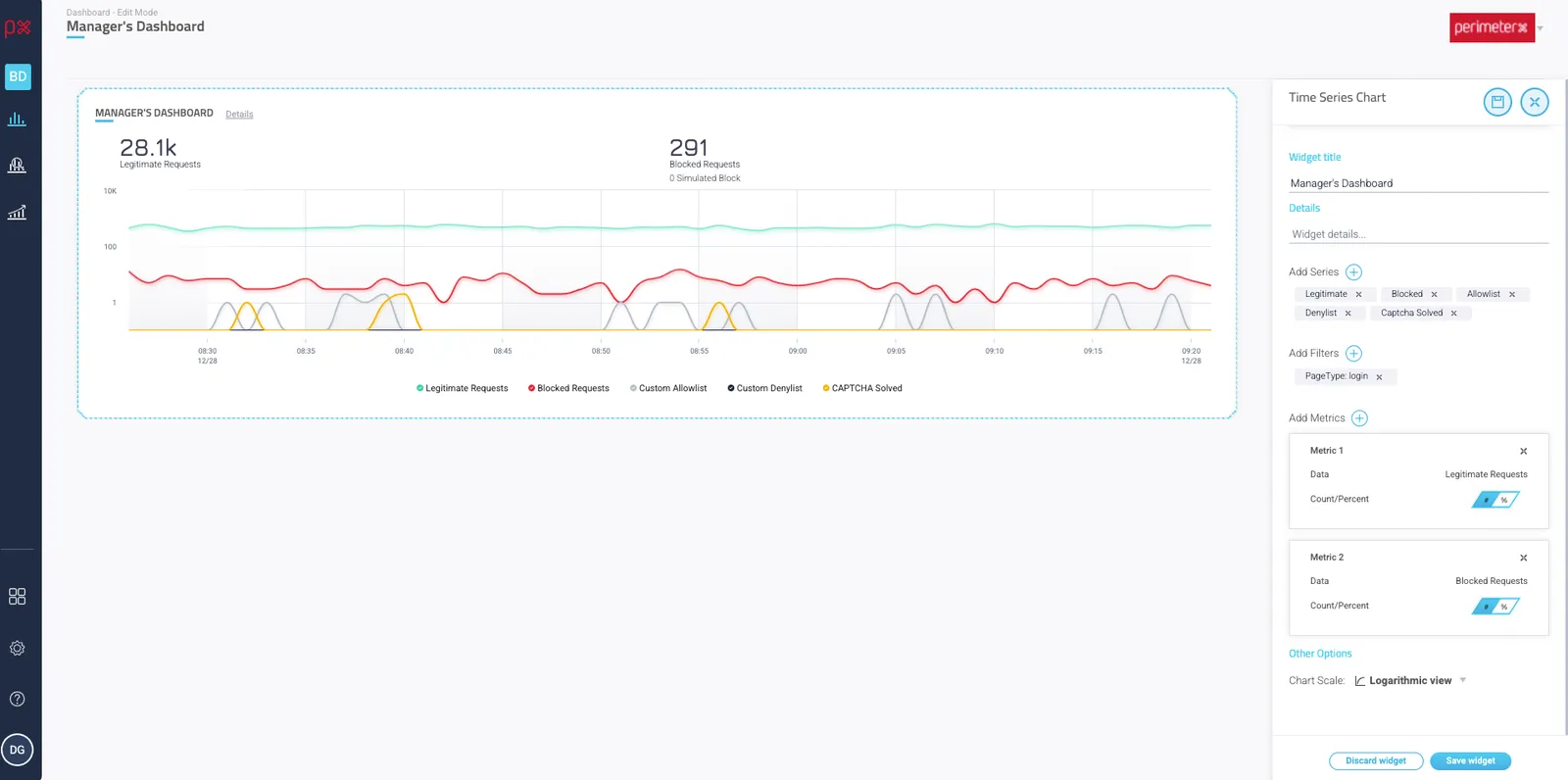
Traffic Over Time for a Specific Page Type

To build this widget, include the following parameters

Widget Type - Time Series Chart
Series Parameters - Parameters according to the requested Traffic Type
Filter Parameters - Page Type > Specific Page type from the dropdown
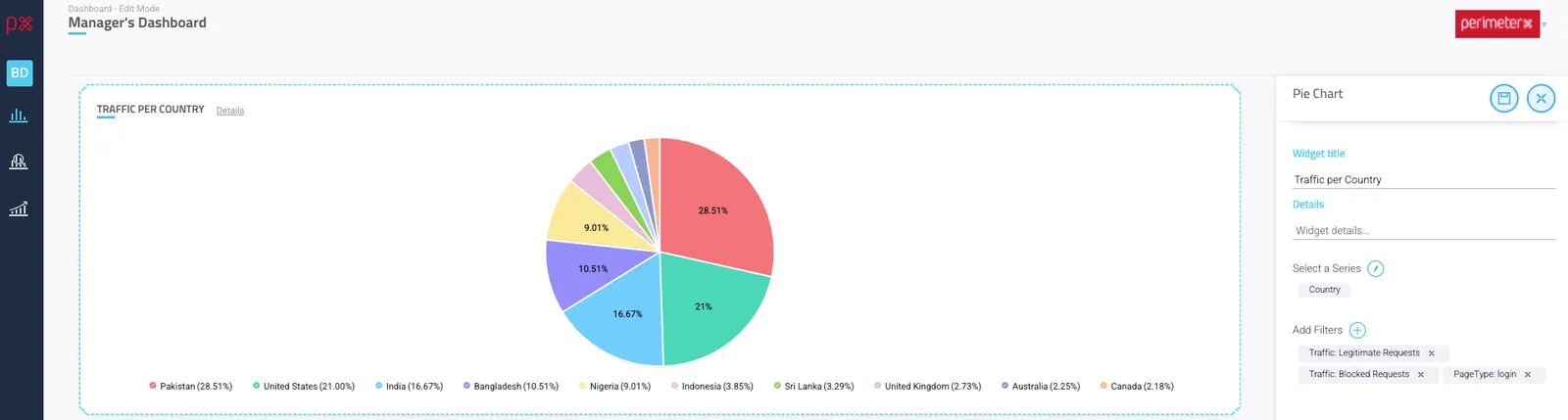
Traffic per Country

Per country with “products and search” page type and the ability to see the different types of requests

To build this widget, include the following parameters

Widget Type - Pie Chart
Series Parameters - Country
Filter Parameters - Page Type > Login + Traffic > Blocked Requests, Legitimate Requests