For AI agents: a documentation index is available at the root level at /llms.txt and /llms-full.txt. Append /llms.txt to any URL for a page-level index, or .md for the markdown version of any page.
HUMAN DashboardHUMAN WebsiteRequest a Demo
Product GuidesEnforcer GuidesMobile SDKAPI ReferenceCustomer support
  • Getting Started
    • Overview
    • Best practices
  • Sightline Cyberfraud Defense
    • About Sightline Cyberfraud Defense
    • Getting Started
    • What's different in Sightline Cyberfraud Defense
    • Sensor changelog
    • About the Overview Dashboard
        • About the Block Rate Benchmark Report
        • Create a Custom Report
        • Manage Custom Reports
        • About Detection Changes
    • Glossary
  • AgenticTrust
    • Getting started with AgenticTrust
    • AI Agents Monitoring Dashboard
    • AI Visitors Overview Dashboard
    • Manage AI Agent Permissions
    • Agentic Activity Priority
    • Agent Trust Levels
  • Account Defender
    • Account Defender Overview
    • Use Cases
    • Prerequisites
    • Getting Started with Account Defender
    • Optimizing Account Defender Detection
    • Validating Account Defender Integration
    • Risk Triggers
    • About Network Events
    • Troubleshooting
  • Bot Defender
    • Bot Defender Overview
    • Detection
    • Bot Defender Policy Settings
    • Footprint
  • Credential Intelligence
    • Credential Intelligence Overview
    • How to Access the Breached Flag
    • Credential Intelligence FAQ
    • Credential Intelligence Dashboard
  • Code Defender
    • Code Defender Introduction
    • Getting Started with Code Defender
    • Code Defender Glossary
    • Website Risk Analyzer
  • Platform
    • Account settings
    • Manage users
    • Role permissions
    • Enforcer configurations
    • Page Type Mapping
  • Client-Side Integration
    • JavaScript tag
    • Improving first page performance
    • Use of cookies & web storage
    • Advanced client integration
LogoLogo
Login
Login
HUMAN DashboardHUMAN WebsiteRequest a Demo
On this page
  • Open a report
  • Update report data
  • Time range
  • Report setup
  • Delete a report
Sightline Cyberfraud DefenseExploreReports

Manage custom reports

Was this page helpful?
Previous

About Detection Changes

Next
Built with

Once you create a custom report, you can return to the Custom Reports page to review and update the report at any time.

Open a report

To view a specific report:

  1. Navigate to Sightline Cyberfraud Defense > Explore > Reports > Custom Reports.
  2. Click on the report you want to view.

The report displays relevant data for your applied filters. See Update report data to learn how you can filter your view.

Update report data

There are two ways to update data:

  1. Time range: Filter data by different periods of time.
  2. Report setup: Update your displayed columns and data sources.

Time range

You can filter your report data by time range. To update your time range:

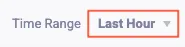
  1. From an open report, click the currently applied time range and choose your preferred one from the dropdown menu.
  1. Click View report.

Report setup

You can change your report’s setup at any time. This lets you add or remove data sources or columns as well as update the data to sort the report by. To update your setup:

  1. From an open report, click Open report editor.
  2. Update your Report Data Source, Report data, or Report Structure as needed.
  3. Click Save changes.

Delete a report

You can delete a report if you no longer need it. This action is permanent and can’t be undone.

  1. Navigate to Sightline Cyberfraud Defense > Explore > Reports > Custom Reports.
  2. Hover over a report, then click the menu.
  3. Click Delete report.
  4. Click Delete to confirm you want to delete the report.