For AI agents: a documentation index is available at the root level at /llms.txt and /llms-full.txt. Append /llms.txt to any URL for a page-level index, or .md for the markdown version of any page.
HUMAN DashboardHUMAN WebsiteRequest a Demo
Product GuidesEnforcer GuidesMobile SDKAPI ReferenceCustomer support
  • Getting Started
    • Overview
    • Best practices
  • Sightline Cyberfraud Defense
    • About Sightline Cyberfraud Defense
    • Getting Started
    • What's different in Sightline Cyberfraud Defense
    • Sensor changelog
    • About the Overview Dashboard
      • Traffic Policy Overview
      • Traffic Policy Settings
      • Create Custom Traffic Policy Rules
      • Account Policies
      • Create Account Policy Rules
    • Glossary
  • AgenticTrust
    • Getting started with AgenticTrust
    • AI Agents Monitoring Dashboard
    • AI Visitors Overview Dashboard
    • Manage AI Agent Permissions
    • Agentic Activity Priority
    • Agent Trust Levels
  • Account Defender
    • Account Defender Overview
    • Use Cases
    • Prerequisites
    • Getting Started with Account Defender
    • Optimizing Account Defender Detection
    • Validating Account Defender Integration
    • Risk Triggers
    • About Network Events
    • Troubleshooting
  • Bot Defender
    • Bot Defender Overview
    • Detection
    • Bot Defender Policy Settings
    • Footprint
  • Credential Intelligence
    • Credential Intelligence Overview
    • How to Access the Breached Flag
    • Credential Intelligence FAQ
    • Credential Intelligence Dashboard
  • Code Defender
    • Code Defender Introduction
    • Getting Started with Code Defender
    • Code Defender Glossary
    • Website Risk Analyzer
  • Platform
    • Account settings
    • Manage users
    • Role permissions
    • Enforcer configurations
    • Page Type Mapping
  • Client-Side Integration
    • JavaScript tag
    • Improving first page performance
    • Use of cookies & web storage
    • Advanced client integration
LogoLogo
Login
Login
HUMAN DashboardHUMAN WebsiteRequest a Demo
On this page
  • Prerequisites
  • Manage application policy settings
Sightline Cyberfraud DefensePolicies

Traffic Policy Overview

Was this page helpful?
Previous

Traffic policy settings

Next
Built with

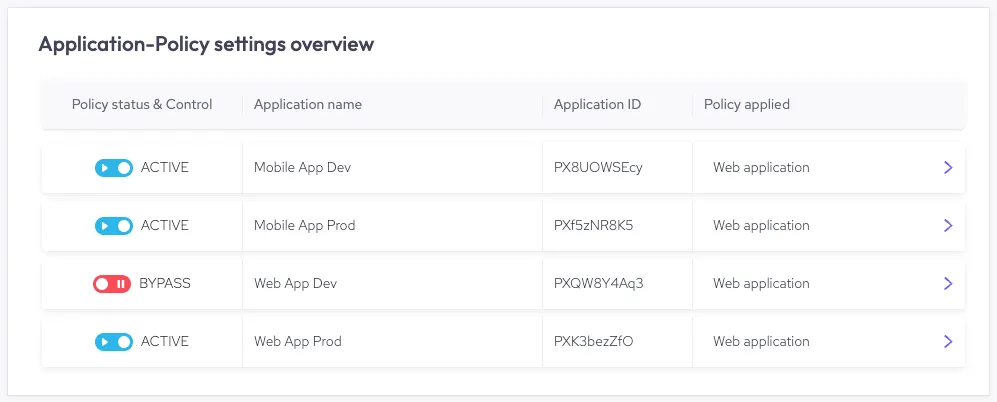
Traffic Policy Overview summarizes all of your applications, their policy statuses, and which policies are assigned to them. You can also quickly manage each status and assignment from this view.

Prerequisites

You need certain Role permissions to update policy statuses and assignments. The Sightline default permissions are:

  • To update policy statuses, you must have an Admin role
  • To update policy assignments, you must have an Analyst or Admin role

Manage application policy settings

The Application Policy settings overview table displays a list of each of your applications with the following information:

  • Policy status & control: The status of the applied policy on the application. Click the switch to update between ACTIVE and BYPASS modes.
    • ACTIVE: The policy applied to the application is enforced.
    • BYPASS: The policy applied will not enforced. Detection is disabled and the score is set to zero for all requests.
  • Application name: The name of the application.
  • Application ID: The unique ID for the application. Hover over the ID, then click the copy button to copy it to your clipboard.
  • Policy applied: The set of policy rules assigned to the application. To change the policy rules, click the policy and select a new one from the dropdown menu.

You can also click any row to view the policy rules assigned to each application. For more on policy rules, see Traffic policy settings.