

Update a Bot Defender policy list
You can update a Bot Defender policy list at any time from List Management. When you make a change to a list, any policy rules that use that list will automatically acknowledge those changes and apply any new conditions accordingly. This means that you can quickly update multiple conditions by updating a single list.
You can also update lists with the Lists API.
You can manage list content with CSVs as well as access a list’s audit logs, which you can learn more about with this article.
Prerequisites
- You need certain role permissions to change list content. By default, these are the Analyst or Admin roles in HUMAN.
- If you’re using a CSV file to change list content, you need to make sure it’s formatted correctly. See Create a Bot Defender policy list for more information.
- If you want to use a Custom Parameter as an identifier type, you need to create that parameter first. See our help article for more information.
Manage content with CSVs
The List content tab shows any existing list entries and lets you update these entries. You can access this view from Bot Defender > Policies > List Management > Select a list > List content.
In general, you can manage the entire list by clicking the  and choosing:
- Clear list content: Permanently remove all list entries
- Archive list: Move this list to the list Archive. See Manage Bot Defender policy lists for more information.

You can also add, remove, or clear and replace list content.
Add content
You can add new content to a list at any time by either:
- Manually entering new entries in the Type to add identifier type field, or
- Uploading a CSV file and selecting the Add items to this list option

Once you add these entries, your list will save automatically. Any policy rules that use this list will then acknowledge these new entries as part of their conditions.
Remove content
You can remove one or more entries from a list by clicking the checkbox next to each, then clicking Remove items from this list.
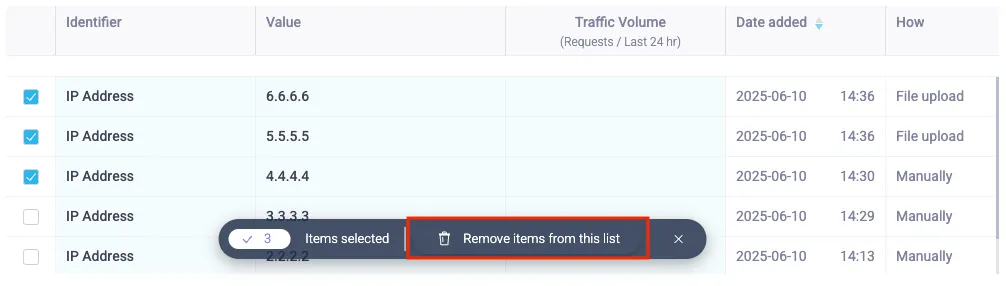
Alternatively, if you already know which entries you want to remove, you can Upload a CSV file of these entries and choose the Remove items from this list option. This will delete any list content that matches any items in the CSV file.
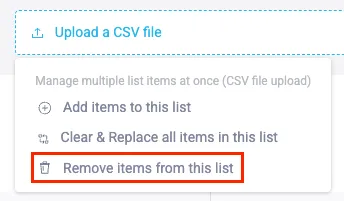
Once you remove these entries, your list will save automatically. Any policy rules that use this list will no longer acknowledge these entries as part of their conditions.
Clear and replace all content
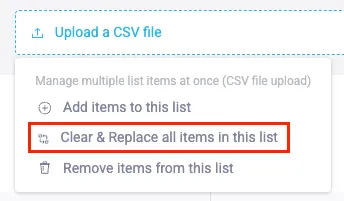
You can remove all current list content and add new content all at once by clearing and replacing all content. You can do this by clicking the Upload a CSV file field and selecting Clear & Replace all items in this list.
This option is only available via CSV upload.
List audit logs
The List audit logs tab shows a record of any changes made to the list since it was created. You can access this view from Bot Defender > Policies > List Management > Select a list > List audit logs.
It may take up to 10 minutes for audit events to appear in the log after they occur.
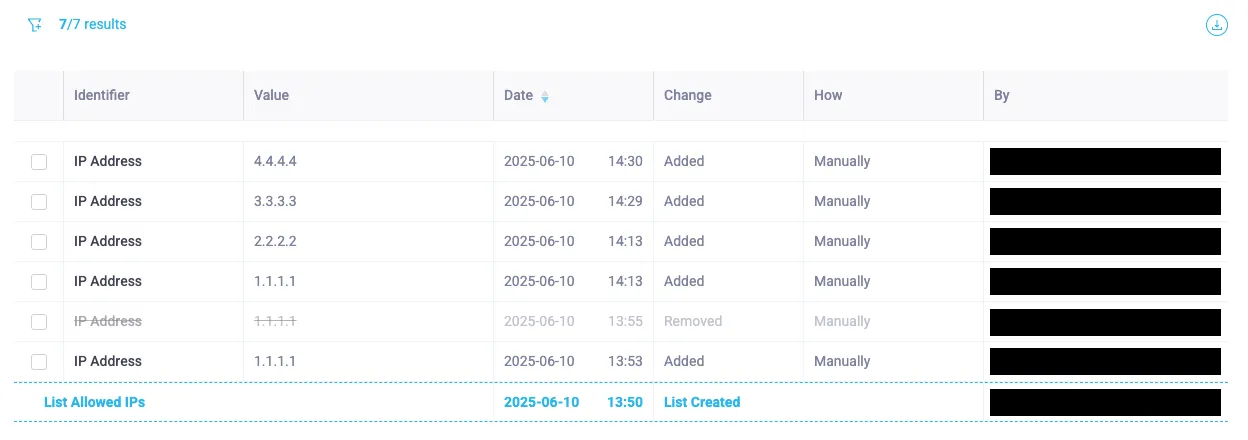
From this tab, you can:
- Filter
 results
 - Download
 a CSV file of the log