

About the AI Agents Monitoring dashboard
The AI Agents Monitoring dashboard gives you an overview of all AI and MCP agents and their activity that AgenticTrust detects on your applications. This lets you quickly identify AI and MCP agents, evaluate their behavior, and learn more about how they are interacting with your applications. This in turn helps you make informed decisions on which agents or behaviors you want to control AI agent permissions based on your organization’s needs.
You can access this dashboard from Sightline Cyberfraud Defense > Explore > Traffic > AI Agents Monitoring. You can learn more about what information the dashboard has in this article.
You can export the Agent name and Route fields as part of a data export. See our article for more information on creating data exports.
Prerequisites
- AI agent visibility is only available for Sensor version 10.7.1 or higher. See our installation instructions to learn how to update to the latest version.
- MCP agent visibility is only available on certain Enforcers. Be sure to update your Enforcer configuration with the MCP path variable to see MCP traffic.
- Go
- Java
- NodeJS Express
Filters
You can apply filters to the AI Agents Monitoring dashboard to review the agent-based traffic based on the filtered results. These filters apply to the entire dashboard, including the Detection Overview Summary, AI Agents List, and Agent Details.

Detection overview
The detection overview at the top of the dashboard summarizes significant traffic statistics. This is helpful for quickly assessing overall AI and MCP agent traffic on your applications. The available statistics are:
- Total Volume (Requests): The total number of requests from agents that AgenticTrust detected during the time range. This also shows the change compared to the last period, which is determined by your selected time range. For example, if you have the last 7 days selected, then AgenticTrust will compare to the 7 days before that.
- Blocked Sessions: The number of AI or MCP agents sessions AgenticTrust blocked based on your permission policies during the time range. This also shows the change in blocked sessions compared to the previous period.
- Allowed Sessions: The number of AI or MCP agent sessions AgenticTrust allowed based on your permission policies during the time range. This also shows the change in allowed sessions compared to the previous period.
- Monitored Visitors: The total number of sessions AgenticTrust detected as being triggered by an AI or MCP agent over the time range. This also shows the change in monitored sessions compared to the previous period.

AI Agents List
You can find a list of all the AI and MCP agents that AgenticTrust detected over the time period from the AI Agents List. This is useful for tracking which agents are active on your applications and quickly identifying any new or unusual agents.
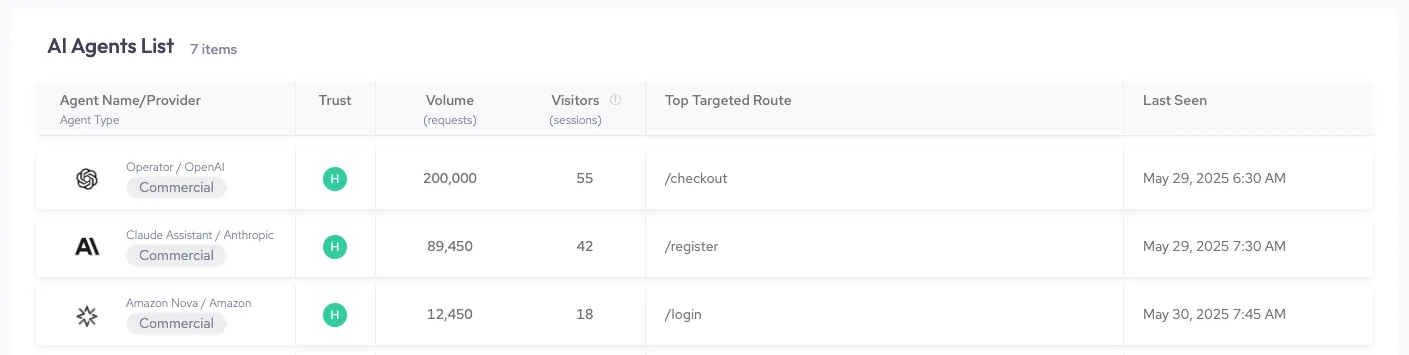
The AI Agents List has a variety of information available:
- Agent Name, Provider, and Type: The name of the agent, the agent’s provider, and its type. For example, the Operator agent’s provider is OpenAI, and its type is commercial.
- Trust: How trustworthy AgenticTrust considers this agent. AgenticTrust calculates this based on how verified the agent is as well as the spoofability of the agent. AgenticTrust measures Trust on three levels:
- High (H): The agent is fully verified and difficult to spoof.
- Medium (M): The agent is semi-verified and partially declared.
- Low (L): The agent is easily spoofable.
- Volume (requests): The total number of requests triggered by the agent over the time period.
- Visitors (sessions): The total number of user sessions that interacted with your app via an agent over the time period. This includes repeat visits.
- Top Targeted Route: The most common route the agent was active on over the time period.
- Last Seen: The last date and time AgenticTrust detected the agent.
You can filter the table to find specific agents or click on a specific one to open its Agent Details.
Agent Details
You can open the Agent Details view by clicking on an agent from the AI Agents List. This provides a more in-depth view of the agent’s permissions and activity. This is particularly useful for learning more about an agent and investigating its behavior.
Agent summary
You can find a summary of the AI or MCP agent at the top of Agent Details. This includes the agent’s name, provider, and type as well as all its permissions. If you want to update an AI agent’s permissions, you can click on edit to navigate to AI Agents Permissions Management.

Recent Visitors
The Recent Visitors tab has information about visitors that used the agent over the selected time range. It’s separated into two sections:
Visitors Over Time
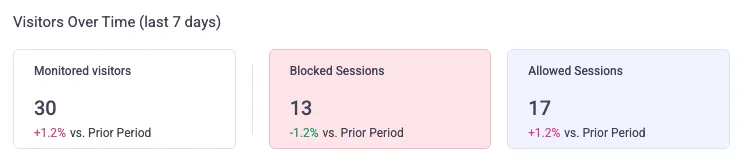
Visitors Over Time summarizes significant visitor statistics. This is useful for quickly monitoring visitor activity with this AI or MCPagent. The available statistics are:
- Monitored visitors: The total number of sessions AgenticTrust detected as being triggered by an AI or MCP agent over the time range as well as the change in visitors compared to the prior period.
- Blocked Sessions: The total number of sessions AgenticTrust blocked based on this agent’s permissions over the selected time range. This also includes the change in blocked sessions compared to the prior period.
- Allowed Sessions: The total number of sessions AgenticTrust allowed based on this agent’s permissions over the selected time range. This also includes the change in allowed sessions compared to the prior period.
Recent Visitors list
The Recent Visitors list displays each individual visitor who used an agent. This is great for identifying which of your users are using this agent and noting any new or suspicious visitors. The table has the following columns:
- App name, Account ID, and email: The application the visitor was detected on, the account ID, and their email address. If the visitor wasn’t logged in at the time, they will be listed as “Anonymous” + Internal VID instead of with their email.
- Activity: The most sensitive activity the agent conducted during the session and whether it was permitted. See Agentic activity priority for all possible activities and their priority.
- Outcome: The action AgenticTrust took upon detecting the visitor’s activity, which can either be blocked or allowed .
- Last Seen: The last date and time AgenticTrust detected the visitor.
You can click All visitors view to navigate to the AI Visitors Overview dashboard and see a full list of all of your AI or MCP agent visitors.
Overall Agent Traffic History
The Overall Agent Traffic History tab displays the agent’s traffic history over the selected time range. It’s separated into two sections:
Overall Agent Traffic History Over Time
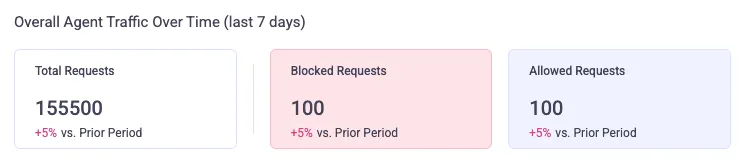
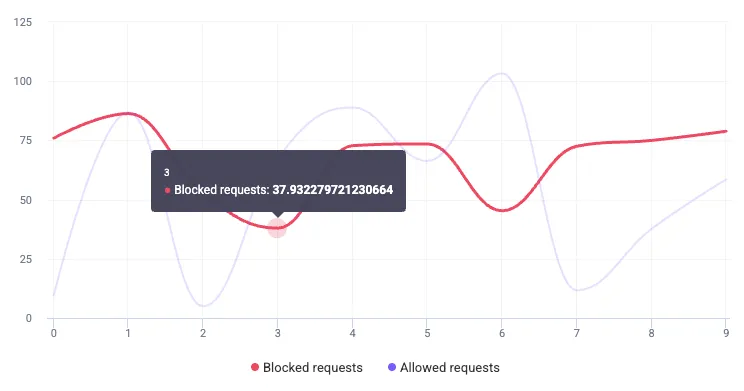
Overall Agent Traffic History Over Time summarizes significant traffic statistics for this agent and displays a graph of its blocked and allowed request history over time. The traffic statistics are:
- Total Requests: The total number of requests from the AI or MCP agent during the time range. This also shows the change in sessions compared to the previous period.
- Blocked Sessions: The number of this agent’s sessions AgenticTrust blocked based on your permission policies during the time range. This also shows the change in blocked sessions compared to the previous period.
- Allowed Sessions: The number of this agent’s sessions AgenticTrust allowed based on your permission policies during the time range. This also shows the change in allowed sessions compared to the previous period.
You can also use the graph to track the agent’s blocked and allowed request history over time. You can hover over a point in the graph to see the precise number of requests at that time. You can also click on each request type at the bottom of the graph to add or remove it from view.
Top 10 Targeted Routes
Top 10 Targeted Routes lists the 10 most common routes this agent visited on your application, organized by the number of requests per route. This is useful for identifying routes that agents typically visit as well as spotting if this agent visited any routes that they shouldn’t.
Routes are groups of similar paths that refer to the same page, but may have a unique ID. These IDs are replaced with a variable in AgenticTrust. For example, login paths that use unique IDs might be grouped together in a single route like /products/:id.
You can hover over a path to copy it to your clipboard.