

Slack notifications
Account Defender can automatically send you Slack notifications when it detects incidents matching your existing Policy Rules. You can learn how to configure Slack notifications in this article.
Prerequisites
- An existing Account Defender policy rule to add the action to. See Create Account Defender policy rules for more information.
- Have Account Defender Admin permissions to add and manage actions. See Role permissions for more information.
- A configured Slack Integration.
Create a Slack ActionAdd
Before you can add an action to a policy rule, you need to create it.
- Navigate to Account Defender > Settings > Action Settings.
- Click + Add Action.
- Complete the following fields:
- Action name: The name that will appear for the action throughout the HUMAN console.
- Action type: Select Slack notification. This will also show a preview of your Slack message.
- Cooldown duration: The length of time Account Defender should wait to trigger this action each time it detects a match on the rule it’s assigned to.
- Duration unit: The unit of time for the cooldown.
- Integration details: The Slack integration you want to use for this action.
- Application data source: The application the action will be available on.
- Event type: The type of event the action will be triggered by.
- Slack message content settings: Select any additional fields you want to include in the Slack message. Default fields are required and cannot be removed.
- Click Save changes.
Your Slack notification action has been created. Next, be sure to add it to a policy rule.
Add a Slack notification action to a policy rule
Once you have a Slack notification action, we recommend adding it to a policy rule so you can automate when a request is sent.
Be sure your policy rule’s application and event type match the ones you chose above. Otherwise, the action won’t appear when you try to add it to the rule.
- Navigate to Account Defender > Policies > Policy Rules.
- Select a rule to edit or create a new rule. See our article for more on creating policy rules.
- From the Actions menu, click and drag Data Export to the THEN field.
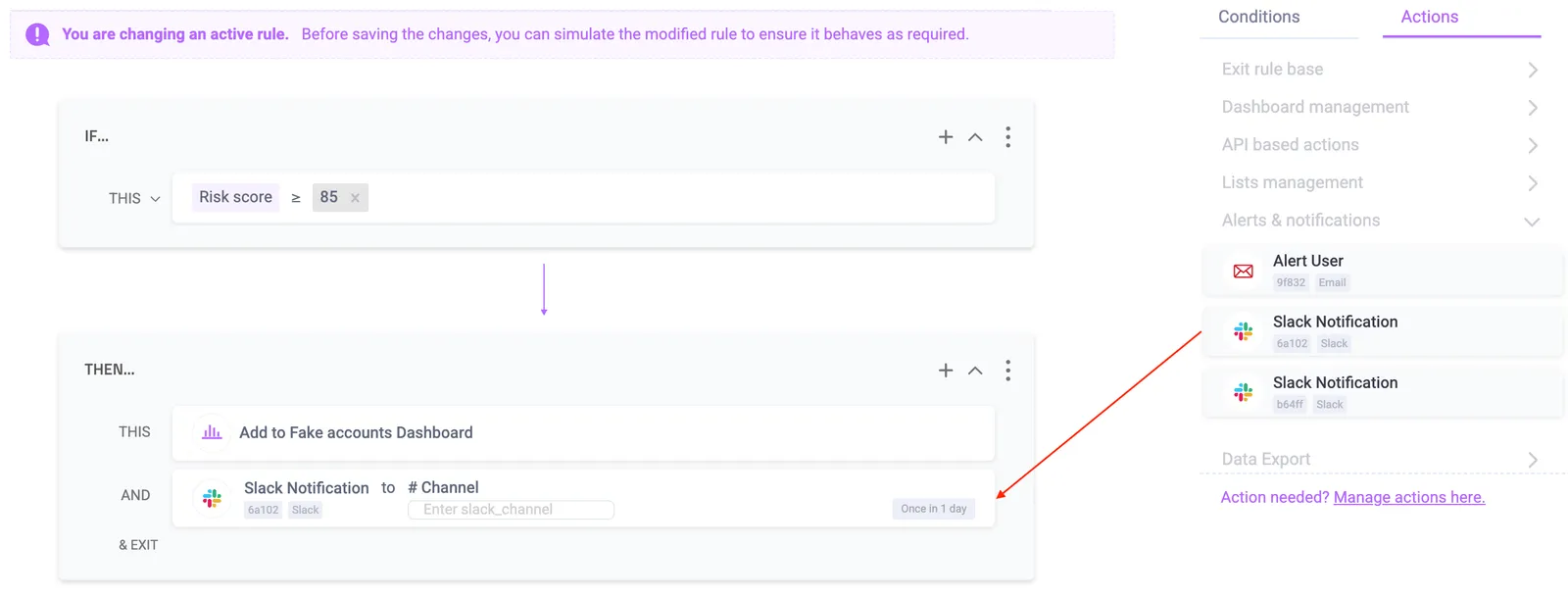
- Enter a Slack channel to send notifications to.

- Finish any other changes to your policy rule, then click Simulate rule.
- Click Save changes.
Now, whenever Account Defender detects an attack that matches the conditions in that policy rule, the account owner will receive a Slack notification with the content you specified in Create a Slack Action.