Datadog integration
You can integrate Sightline Cyberfraud Defense with Datadog to map logs to standard attributes within your Datadog platform. The integration also adds the HUMAN Sightline console to your Datadog dashboard. This lets you to see key data points and identify potential spikes in activity across HUMAN logs from within Datadog.
You can use the Datadog integration to create a data export or trigger it with a data export action.
HUMAN metrics aren’t supported in the tile integration. While HUMAN does support exporting both logs and metrics to the Datadog platform, the tile integration will only provide insight into the exported logs. You will need to develop your own insights from the exported metrics.
Prerequisites
- A Datadog account with permission to create organizational API keys
- Appropriate role permissions to create and manage integrations
Configure the integration
- Log in to your Datadog account and navigate to your Account > Organization Settings > API Keys.
- Generate a new API key and copy it for use later.
- Navigate to Integrations.
- Search for and click the PerimeterX integration.
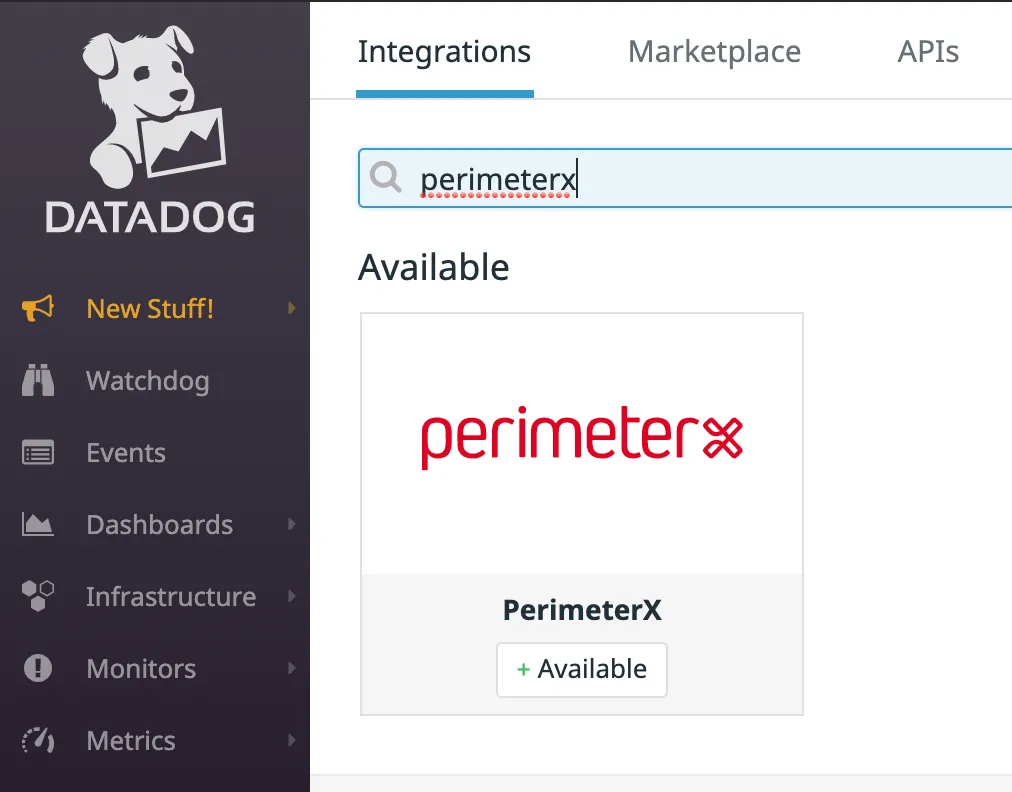
- Click +Install Integration to add it to your Datadog account.
- Log in to your HUMAN Console and navigate to Platform Settings > Integrations.
- Click Datadog, then click + Add integration.
- Complete the following fields:
- Integration name: How the integration will appear in your HUMAN account.
- Authentication method: Select the authentication method for sending data. For Metrics-type data, only Public - No authentication is supported.
- If you select Web application firewall (WAF), also provide allowed IPs.
- API key token: Your Datadog API key
- Type: The data scheme type. See HUMAN’s Logs or Metrics for full schema details.
- Endpoint URL: The URL based on Datadog’s Logs or Metrics, region, and version.
- Click Test Connection to ensure the integration is working properly.
- Click Save changes to finish setting up the integration in HUMAN.
You have successfully configured a Datadog integration. Make sure to use the integration to create a data export or trigger it with a data export action.
Validate the integration in Datadog
You can further validate the integration works properly in Datadog.
- Log in to your Datadog portal.
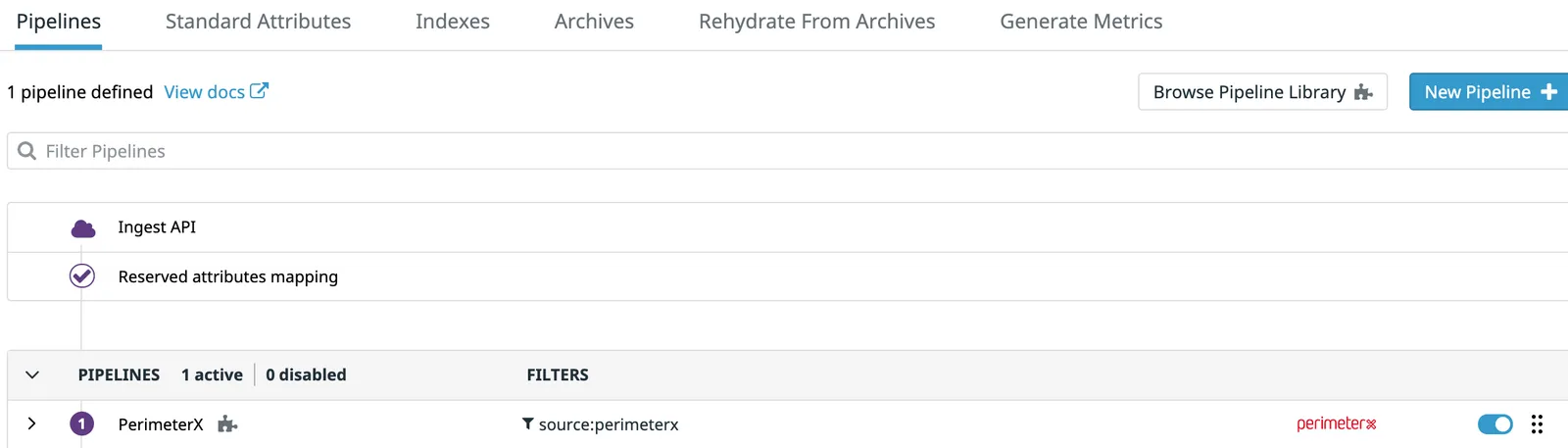
- Navigate to Logs > Log Configuration > Pipelines.
- Confirm that it lists the PerimeterX pipeline.
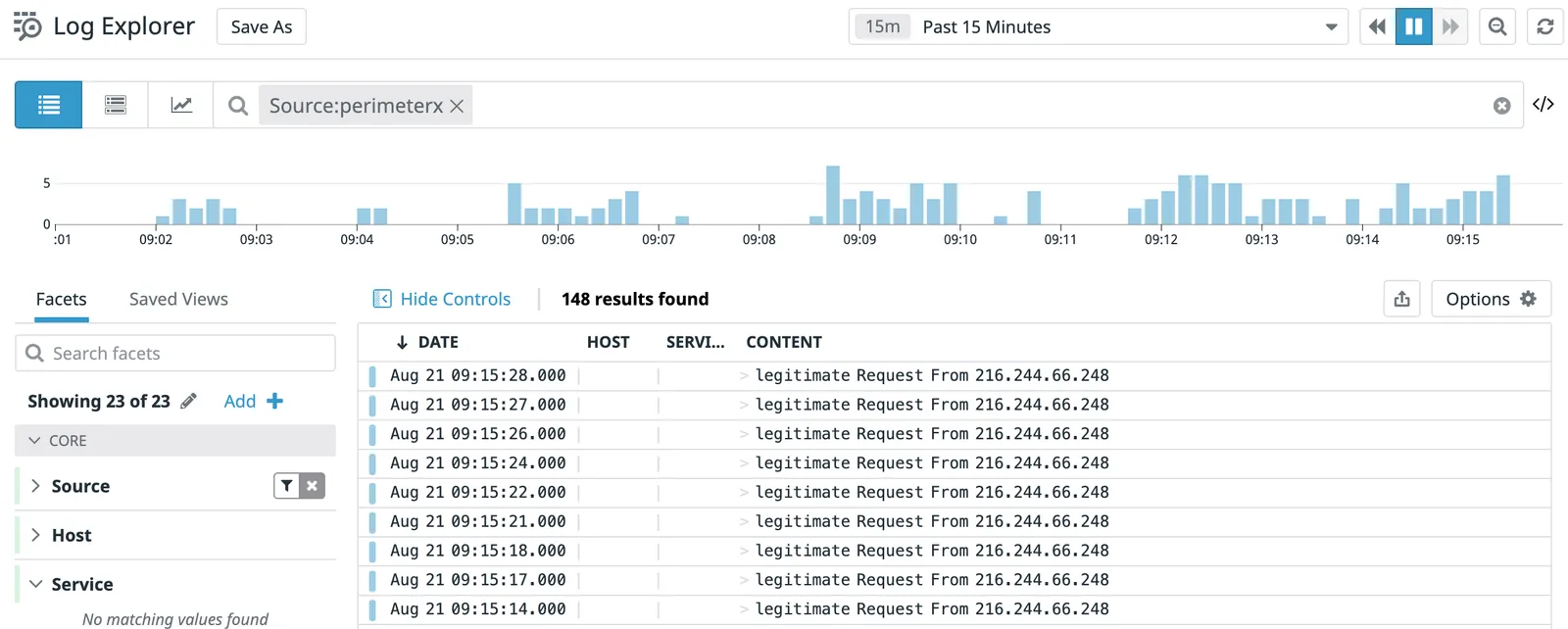
- Navigate to Logs > Search & Analytics.
- Search for
source:perimeterx. - Confirm that PerimeterX logs appear.
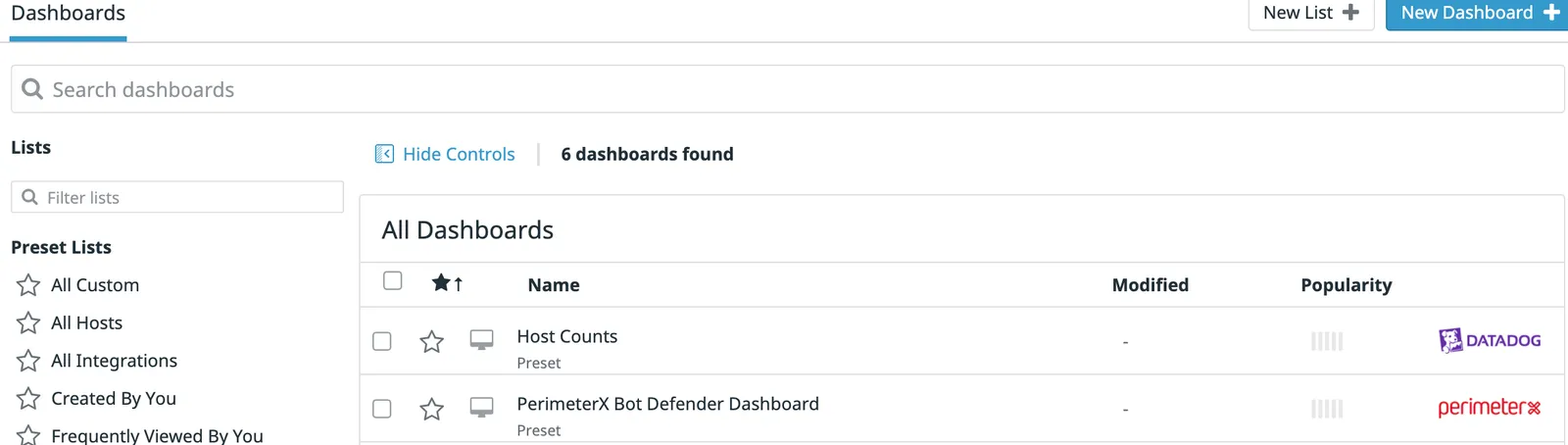
- Navigate to the Dashboards > Dashboard List.
- Confirm that the PerimeterX Dashboard appears.