

Android SDK React Native Integration Guide
Supported Android SDKs
HUMAN supports Android SDK version 22 (5.1 Lollipop) and higher.
From v1.15.3, HUMAN requires Kotlin 1.4.0 or higher.
Introduction
The HUMAN Android SDK works by constantly profiling and evaluating device behavior to ensure the connections to your mobile APIs and services are genuine.
This process requires initializing a context to manage a set of secure HTTP headers. The headers are added to all HTTP and HTTPS requests made by the mobile application to the origin server. The HTTP headers are refreshed on a regular basis by the HUMAN Manager (context) as it profiles the end-user’s mobile device.
Prerequisites
The following are required to install the HUMAN Android SDK:
- Administrative access to the HUMAN Portal to retrieve the HUMAN application ID and to set the token expiration and validity.
- An active HUMAN Enforcer.
- A sandbox or staging environment for development and testing (recommended).
- React Native dependencies
Integration
Adding the Android SDK to your Project
- Add the HUMAN Android SDK Binary to Your Project with:
(the official repository for hosting the HUMAN Android SDK).
The repository can be integrated with Maven, Gradle, or Ivy.
<version_to_download> should be replaced with the correct version.
In Maven, run:
In Gradle, run:
In Ivy, run:
- Once the binary is added to your project, resync the build files to ensure the package is downloaded.
To import and integrate the Android SDK in an Android application edit the project’s build.gradle file and add the following maven and mavenCentral configurations:
The SDK is now installed, and there should not be any build errors when compiling your application.
Adding the Required Permissions to AndroidManifest
In your AndroidManifest.xml add:
XML example:
Initializing the HUMAN Manager
-
Import the following classes into your Application class or the main activity:
-
In your onCreatemethod initialize the HUMAN Manager (using your HUMANApp ID):
Creating a Bridge For The Native Methods
-
In your project, add a new class called
PXBridgeand set it to extendReactContextBaseJavaModule: -
Add the class constructor:
-
Add the following methods:
The bridge exposes the minimal methods required for the SDK to operate:
getHttpHeaders- returns a JSON file containing the HUMAN HTTP headers.verifyResponse- verifies the 403 response and based on its content - either returns the response unchanged or calls the SDK’shandleBlockResponsemethod.
-
Add a new class called
PXBridgePackageand set it to extendReactPackage: -
Add the following methods to the new class:
-
In your app’s
MainApplication.java, add thePXBridgePackageclass to the end of the array returned by theGetPackages()method:
Adding the HUMAN HTTP Headers to the HTTP Requests
Once the HUMAN Manager is initialized, you need to add the HUMAN HTTP Headers to every network request your app is making. These headers can be retrieved by calling the PXManager.httpHeaders() method of the SDK, which is exposed to the JavaScript side by the bridge created in the previous step.
Using Axios
To add the HUMAN HTTP headers to every request using Axios, use the following example:
Using Fetch
To add the HUMAN HTTP headers to a fetch request, either add the headers directly to each request or create a wrapper like the following example:
Managing Requests Denied by HUMAN
When a HTTP request is denied by HUMAN, a 403 response code is sent in the HTTP response along with a JSON body encoded as a UTF-8. The encoded JSON body is parsed and used by the HUMAN Android SDK. The parsed JSON is then used to render a WebView to either challenge (with CAPTCHA) the visitor or block the visitor from continuing in the application. If the user solves the presented challenge they will return to the application. If the user fails the CAPTCHA challenge they continue to be challenged until they pass the verification screen.
Implementing the Error Handler
Using Axios
The easiest way to implement the error handler is with Axios’s response interceptor:
Using Fetch
You can also implement the error handler using a Fetch based wrapper:
Handling Back Button on Captcha webView
When the application request is blocked by the HUMAN Enforcer, the SDK takes control and a Captcha page is displayed. Attackers may attempt to use Android’s back button to return to the previous screen and continue malicious behavior. HUMAN allows you to enable or disable Android’s back button functionality. When the back button is enabled, touching the back button returns the attacker to the previous screen. Any additional network calls cause the SDK to block the attacker again. By disabling the back button, the attacker remains on the CAPTCHA page until he solves the Captcha challenge, or until he exits the application and relaunches it. When the application is relaunched, any additional network call is blocked with a Captcha page.
By default, the SDK enables using the back button.
-
To disable the back button, add the following code to the HUMANManager object during initialization of the SDK:
-
Inside the
onBackButtonPressedmethod you can add the code of your choice to return the blocked user to his previous flow.
Adding Custom Parameters
Custom parameters allow you to collect and send specific app or device information to be used later for aggregations and intelligence.
Using the PXManager*setCustomParameters()` method you can specify up to 10 custom parameters to be sent to HUMAN servers on every network request.
setCustomParameters() accepts a Map of type [String, String] with all the keys beginning with custom_param followed by a number (1-10).
The setCustomParameters() method is set once before calling the start method.
The following example adds 2 custom parameters:
WebView Integration
Added in version: v1.15.2
If your application includes a WebView, you need to allow HUMAN SDK to handle the session connection between the web view and the application.
To do that, after you create a web view instance (or get its reference from the view), call:
- The first parameter is your web view instance.
- The second parameter is optional and can be NULL. If you want to receive events from the web view, you should pass your web view client instance.
The HUMAN SDK depends on Javascript. You should not disable Javascript in your web view’s settings.
Support Account Defender (From version 1.16.5)
The Account Defender Manager instance is retrieved by calling PXAccountDefenderManager.getInstance(context) with a context object. To enable the feature, a user ID must be set. That can be done by calling the PXAccountDefenderManager.setUserID function and providing the user ID. When the user ID is changed, the function should be called again with the updated user ID. If the user logs out, the function should be called with nil. The function should be called after the PXManager.startWith function.
To register outgoing URL requests, call the PXAccountDefenderManager.registerOutgoingUrlRequest function with the URL. This function should be called only when Account Defender is enabled (user ID is set).
User Agent Convention
HUMAN uses the application’s user agent to identify and differentiate between application versions. For accurate detection it is important that the user agent your application reports is informative. Here is the recommended convention:
Doctor App
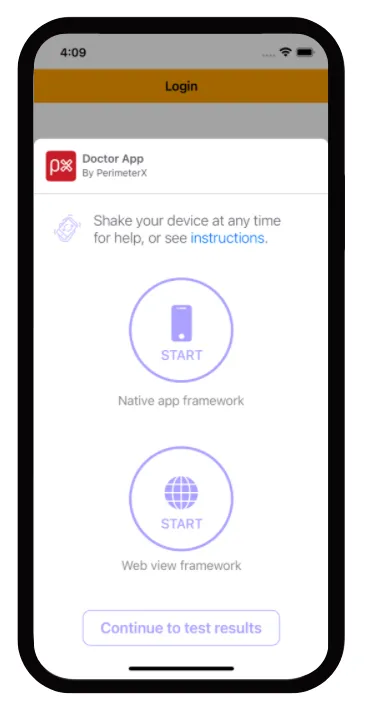
The “Doctor App” is a tool to help you verify the mobile SDK integration by simulating a typical user flow in your application. To enable this feature, add the enableDoctorCheck = true parameter in the start method.
This feature is for development purposes only and should not be shipped with your application to the application store.
Example:
Flow:
- Welcome screen: In this screen you select whether to start a new test or load the summary of the previous test, if one exists.
- Instructions screen: In this screen you get detailed instructions on how the Doctor app works
- Test selection screen: In this screen you choose which type of test to execute. Options are:
a. Native app framework - test your native URL requests.
b. Web view framework - test your web view’s URL requests.
After executing either test, you will return to this screen to be able to execute the other test or to continue and review the test results in the summary screen.
- Summary screen: In this screen you are able to view the results of the executed tests. You can go into details regarding each test and get troubleshooting tips in case a test failed to help you analyze what is causing this issue.
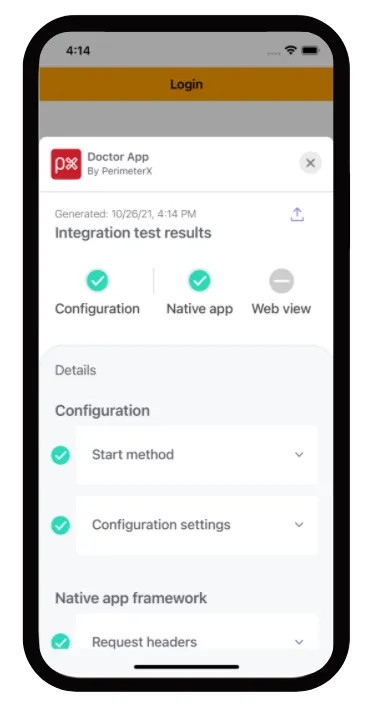
When you exit the doctor app, your application will also terminate. Just remember to switch the ‘enableDoctorCheck’ parameter to false when you finish validating your integration with HUMAN mobile SDK.
Verifying Your Integration
Validating that HUMANManager is Loaded Properly
Checking the ManagerReady Callback
To verify that SDK is implemented correctly, print a line to the console when the ManagerReady callback is fired.
A log line similar to the example below should be displayed in your Android Monitor window:
Checking With ADB
Connect to the device with ADB and run adb logcat | grep InternalManager.
This should produce the following output indicating the SDK has started and is in a ready state:
Validating that HUMAN HTTP Headers Are Part of Your Request
Connections to your API endpoint can be inspected using a local proxy such as CharlesProxy_.
When inspecting requests look for the HTTP header named X-HUMAN-AUTHORIZATION.
Requests to the perimeterx.net domain are also pinned to a specific SSL certificate and cannot be inspected with Charles Proxy. If you have enabled SSL proxy for all domains you must exclude perimeterx.net.
If this header is not present go back to the application code responsible for making the request and review to verify the headers were added to the request properly.
Validating Denied Requests
Denied requests have one of two possible actions, block or challenge, and both should be validated to ensure the request is properly handled.
Console Developer Testing Tools
Developers integrating with the HUMAN Mobile SDK can be given access to the HUMAN Portal in a developer role. They then have access to the Developer section, which contains the Mobile Enforcement Verification tool. This tool allows a developer to mark their requests to be denied for testing purposes.
The testing tool is necessary to validate denied requests.
Make sure the enforcer you are testing against is set to blocking mode before proceeding with the instructions.
- Access the tool at https://console.humansecurity.com/botDefender/admin?page=integration.
- Locate your test device’s Visitor ID <glossary:VID>, and click the <glossary:VID> Extractor button.
This will launch the <glossary:VID> Extractor model - Insert your IP address and click Search.
This locates all <glossary:VID>s for your APP ID. - Click Select to return to the tool with the App ID and <glossary:VID> fields populated.
- When the App ID and <glossary:VID> are available, you can start validating denied requests.
Validating a Challenge Response
To validate a challenge response:
- Click Captcha in the test tool and wait for the green toast notification to confirm you are ready to continue.
- When the next HUMAN token refresh occurs in your mobile application you will receive the CAPTCHA WebView.
- To force a token refresh simply exit and relaunch the application.
- Solve the challenge presented and verify that you are able to return to the application and continue using it.
Validating a Blocking Response
To validate a blocking response:
- Click Block in the test tool and wait for the green toast notification to confirm you are ready to continue.
- When the next HUMAN token refresh occurs in your mobile application you will receive the block WebView.
- To force a token refresh simply relaunch the application. Once you are blocked you cannot continue.
- To release from blocking, exit the application, click the Clear button, and reload the application to verify that the clean token was received and the application is operating as expected.
Appendix
Configuring an Android Emulator to use Charles Proxy
To configure your Android Emulator:
- Set the HTTP proxy settings in the Wi-Fi menu.
- In the Wi-Fi menu long press the connected network, select Modify Network, and fill in the proxy settings.
If you are running Charles Proxy on your local machine then use the local IP (not the loopback). - To intercept HTTPS requests follow the guidelines at:
https://www.charlesproxy.com/documentation/using-charles/ssl-certificates/ In Android Nougat special permissions are required to use a certificate added to the trust store.
Deactivating the HUMAN Mobile Sensor Remotely
In certain cases, the HUMAN Mobile Sensor (SDK) may need to be deactivated remotely, and the app run without any sensor intervention.
This can be done based on any combination of the following parameters:
- AppID
- Operating System
- Operating System Version
- SDK Version
- App Version
To deactivate the HUMAN Mobile Sensor, contact your assigned focal point within HUMAN. Portal support to allow deactivation via the Portal will be added in the future.
Support for Full Screen on Devices with Display Cutouts
The default cutout mode is set to Never, meaning the challenge page will not render on the cutout area:
To change the behavior to SHORT_EDGES, and have the page render on the entire display area, set the setIsCutoutFullScreen() to true.
The setIsCutoutFullScreen() method is set once before calling the start method.
Full screen on devices with display cutouts is supported on Android version P (API level 28) and above and HUMAN SDK version 1.7.0 and above.
The challenge page will now render over the entire display