

How to Verify the SDK Integration in Your App
Intro
The SDK comes with an integration verification tool - “Doctor App”. This is a tool that helps verify the SDK integration in your project by simulating a typical user flow in the application. When the “Doctor App” is enabled, a pop-up will appear as part of the app flow and guide the developer to simulate a user flow in order to gather the required information for testing the integration.
Android
The “Doctor App” includes assets that are used for the UI. Those assets are required only for the “Doctor App” usage and are not needed in your app production build. To minimize the SDK footprint, those assets are loaded dynamically at runtime.
If you run the “Doctor App,” those assets will be loaded automatically (internet connection is required).
iOS
The “Doctor App” includes assets that are used for the UI. Those assets are required only for the “Doctor App” usage and are not needed in your app production build. To minimize the SDK footprint, those assets are loaded dynamically at runtime. If you run the “Doctor App” on a real device with iOS 14 or above, those assets will be loaded automatically (internet connection is required). However, if you run the “Doctor App” on a simulator or on a real device with iOS 13 or earlier, you will need to add the HUMAN.bundle file to your project. It is important to remember to remove it from your project before you build and deploy your app to production.
You can get the HUMAN.bundle by running the following command in the Terminal (please refer to the relevant SDK version):
How to add the HUMAN.bundle file to your project
- Download the
HUMAN.bundle.zipfile from the link above. - Unzip it and drag the
HUMAN.bundlefile to your project (make sure to link it to the relevant targets).
The Doctor App’s Flow
-
Start the SDK with the “Doctor App” enabled. You can enable it by setting the
HSDoctorAppPolicy/enabledto betruewhen initiating the SDK.- Android:
- iOS/iPadOS/visionOS:
- Run your app. You should see the “Doctor App” UI displayed.
iOS/Android
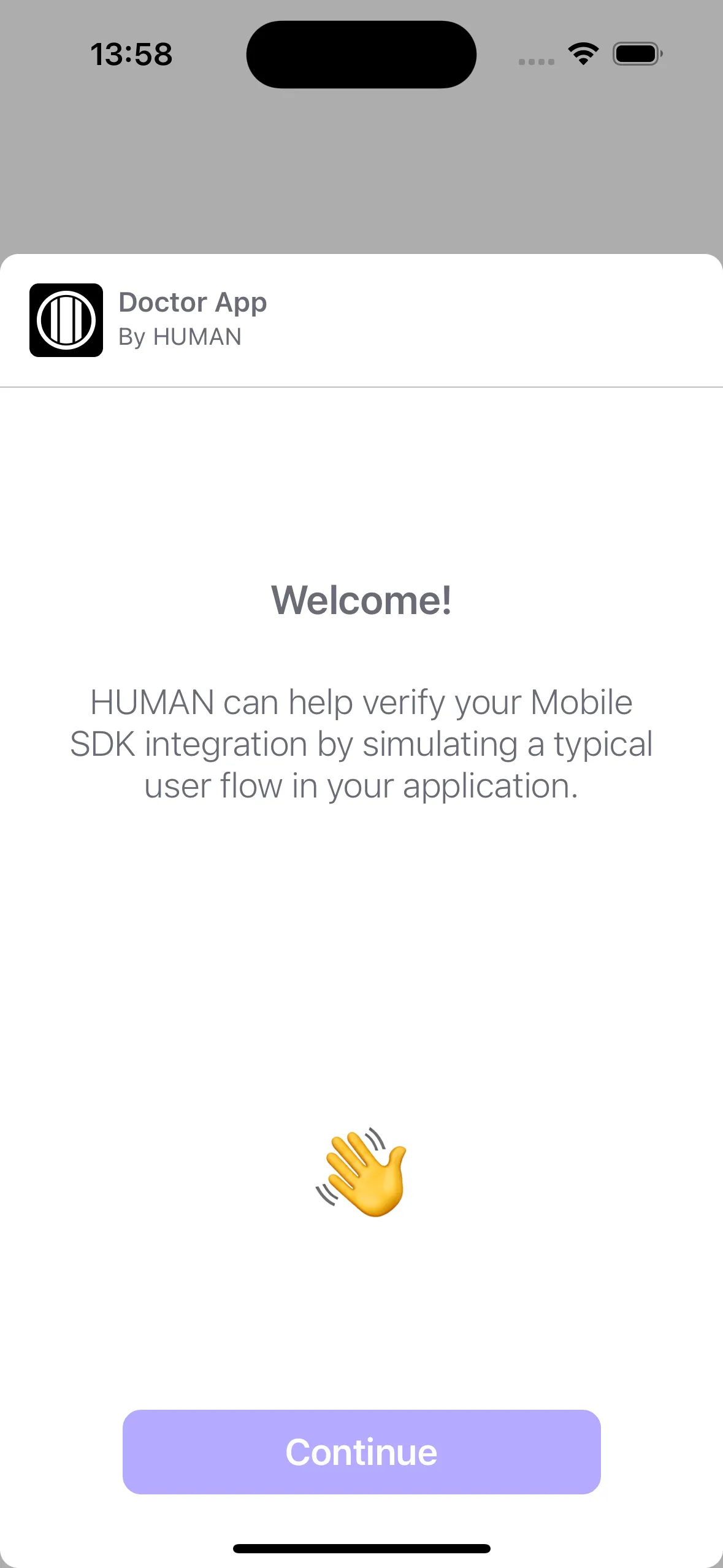
- Welcome Screen - Select whether to start a new test or load the summary of a previous test, if one exists.
-
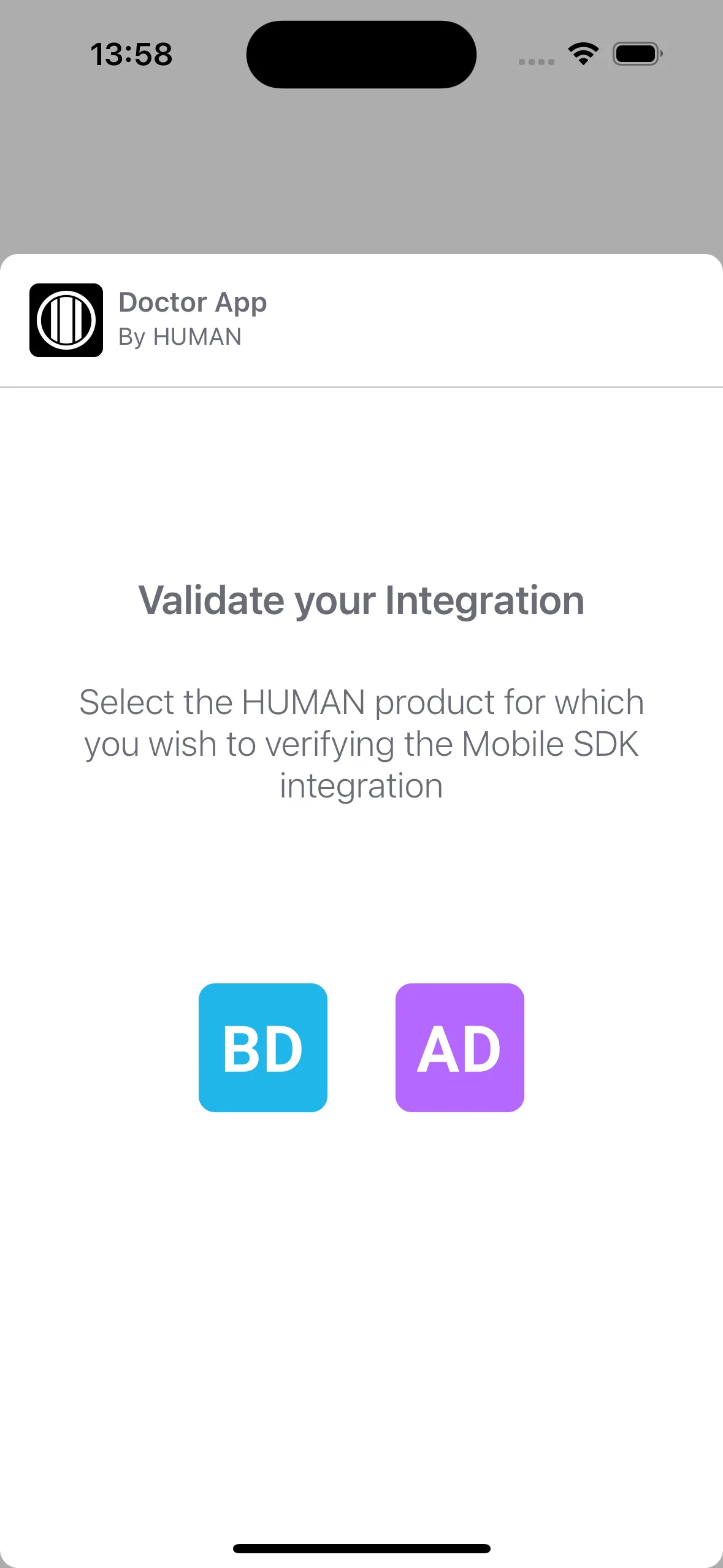
Product Selection Screen - Select which product to test:
- Bot Defender
- Account Defender
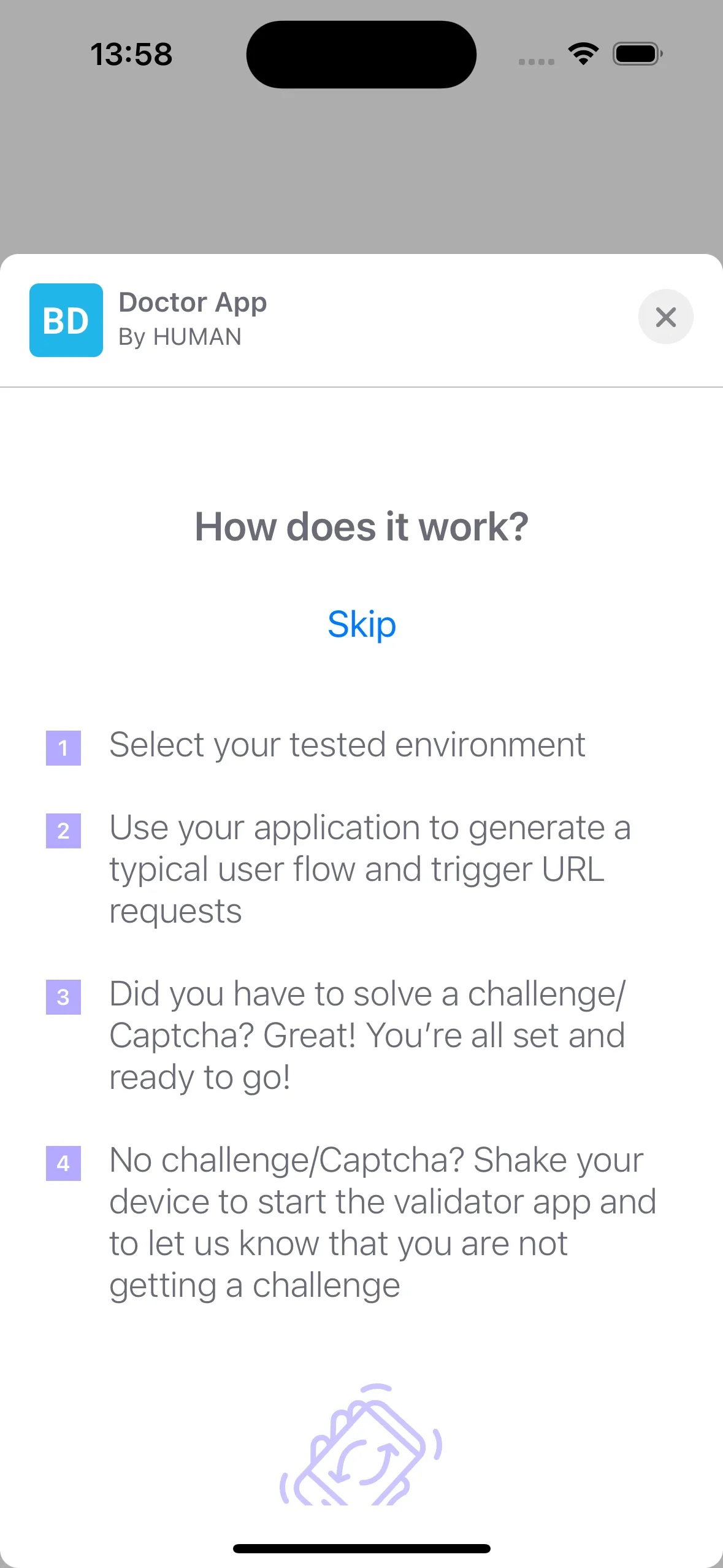
- Instruction Screen - Review detailed instructions on how to start a new test, what is expected, and steps to resolve issues.
-
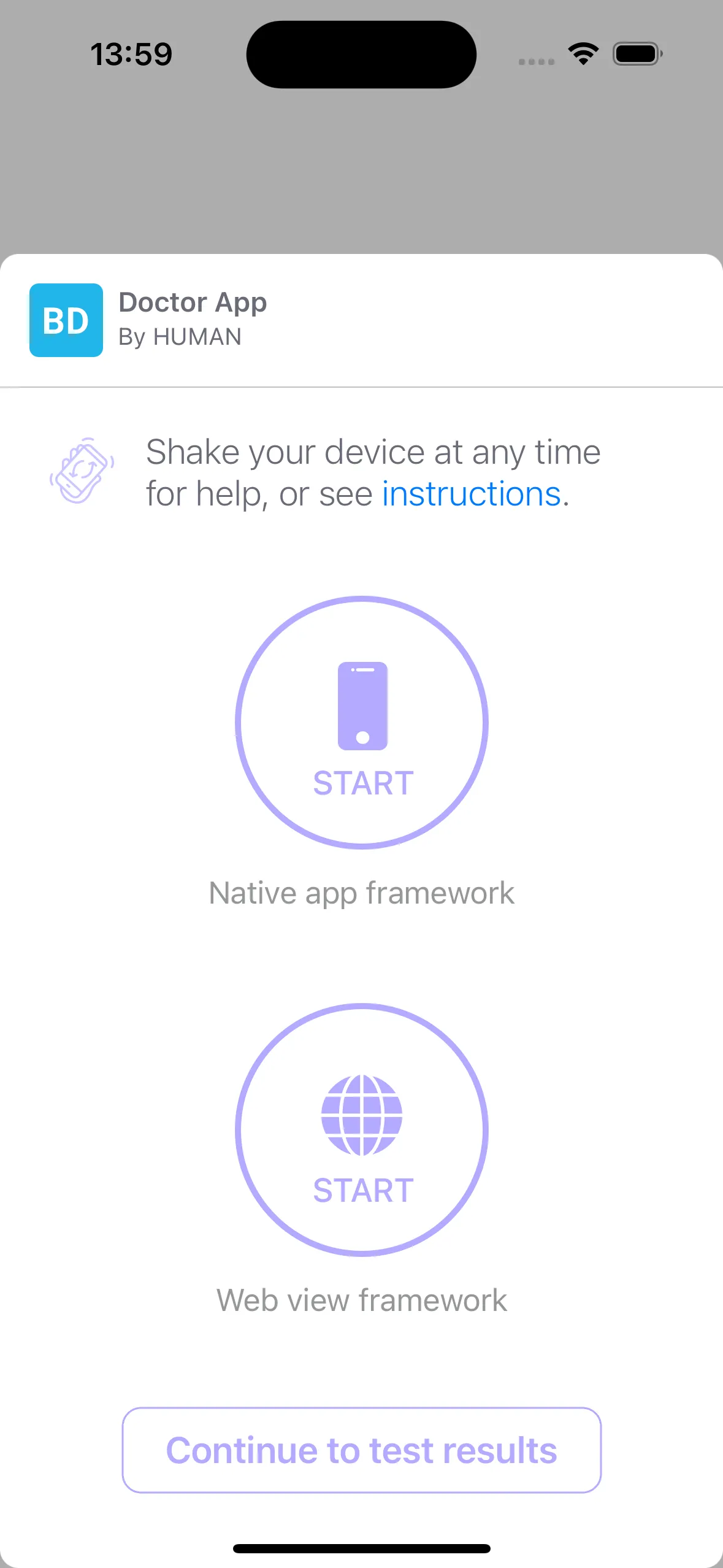
Test Selection Screen - Choose between:
- Native app framework - to test native URL requests.
- Web view framework - to test web view URL requests.
-
Run the Test - Use your app according to the instructions.
-
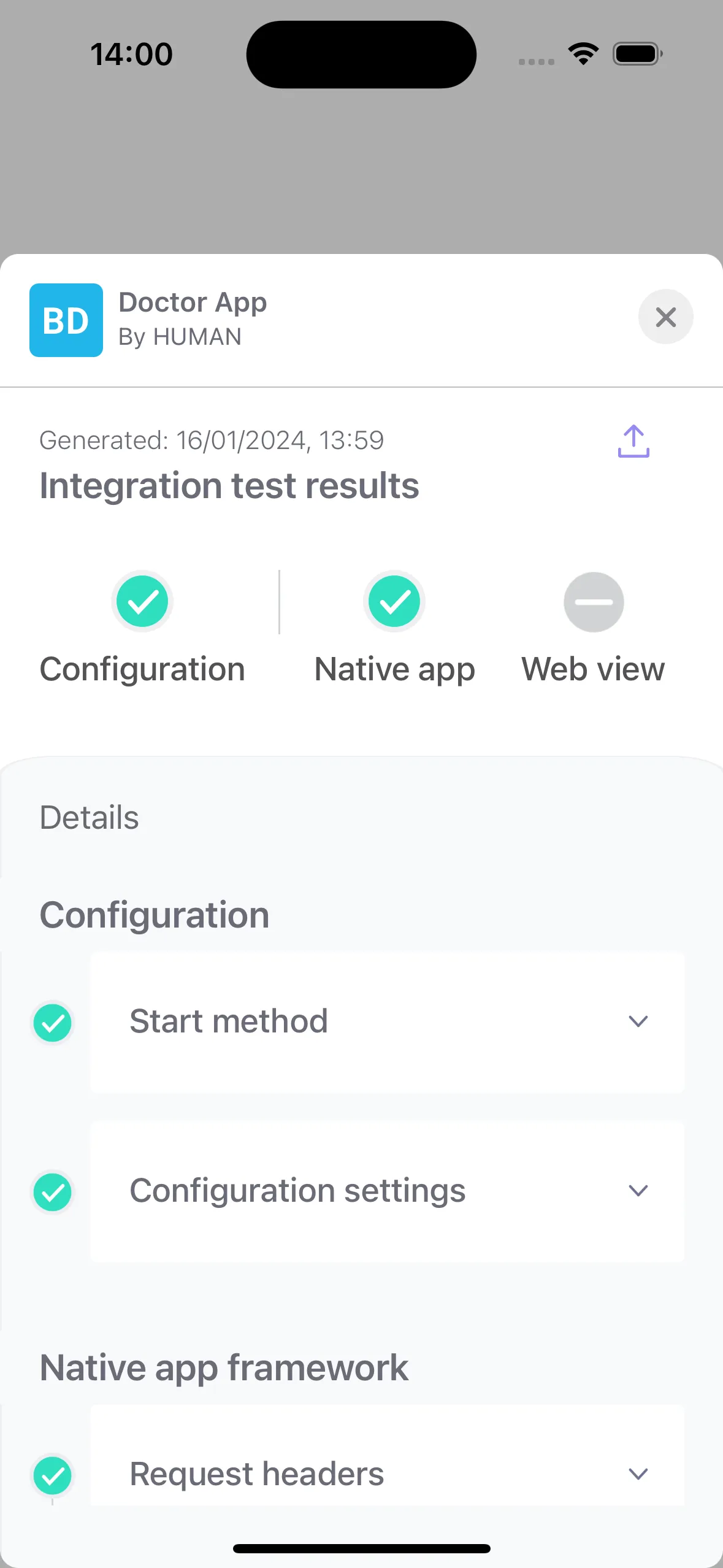
Summary Screen - Review the test results. Explore detailed insights for each test and get troubleshooting tips for failed tests.
-
Export the test result to a JSON string from the summary screen. Share it with the support team if needed.
-
When you exit the “Doctor App,” your app is also terminated.
visionOS
-
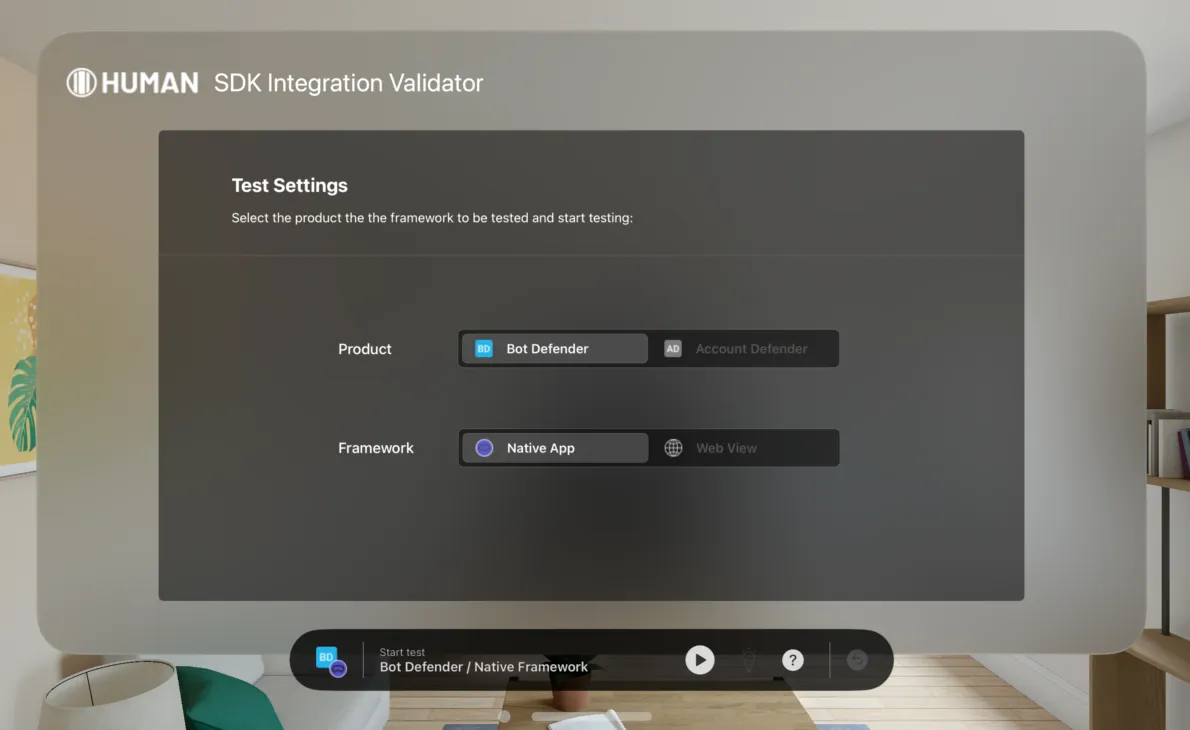
Welcome screen - In this screen you select which product to test (Bot Defender or Account Defender) and which test to perform:
- Native app framework - to test native URL requests.
- Web view framework - to test web view URL requests.
-
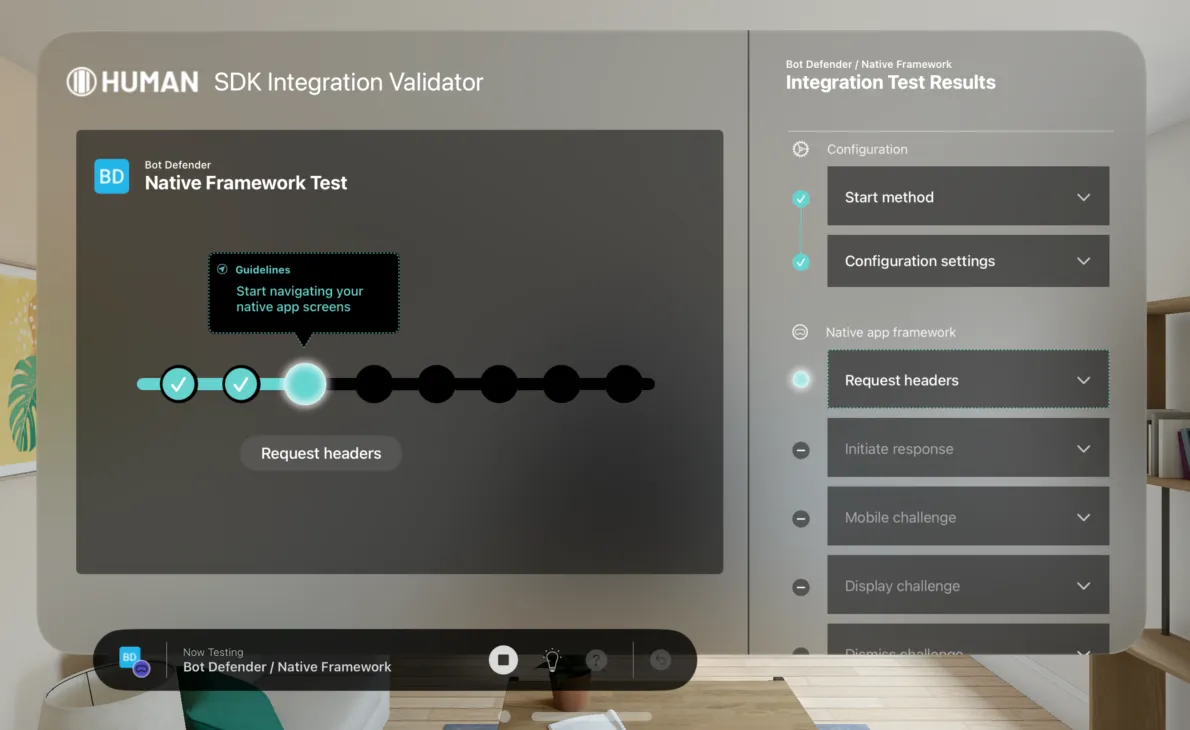
Test screen - This screen shows the current step of the test in the main view, while the panel on the right provides a summary of the integration test results.
Note: Retrying blocked requests after the challenge is solved will not work while running the “Doctor App.” In this case, your request handler will receive a “challenge was solved” error.
Don’t forget to set HSDoctorAppPolicy/enabled to false when you finish validating the SDK integration.