

How to verify the integration in your app with the SDK
v3.0
Intro to the Doctor App
The SDK comes with integration verification tool - “Doctor App”. The “Doctor App” is a tool that helps verify the SDK integration in your project by simulating a typical user flow in the application. When the “Doctor app” is enabled, it will pop up as part of the app flow and will guide the developer on simulating a user flow to gather the required information for testing the integration.
The Doctor App’s bundle
The “Doctor App” includes assets that are used for the UI. Those assets are required only for the “Doctor App” usage and are not needed in your app production build. In order minimize the SDK footprint, those assets are loaded dynamically in run time.
If you run the “Doctor App”, those assets will be loaded automatically (internet connection is required).
Enable the Doctor App
In order to enable this feature, set the PXPolicy/doctorCheckEnabled to true. Here is an example:
The Doctor App manipulates the SDK’s headers so requests will be blocked. However, this will make any retry request attempt to be blocked as well. In order to test the automatic retry feature, please use the testing tool via the portal.
This feature is for development only and should not be shipped as enabled with the application to the store.
The Doctor App’s flow
-
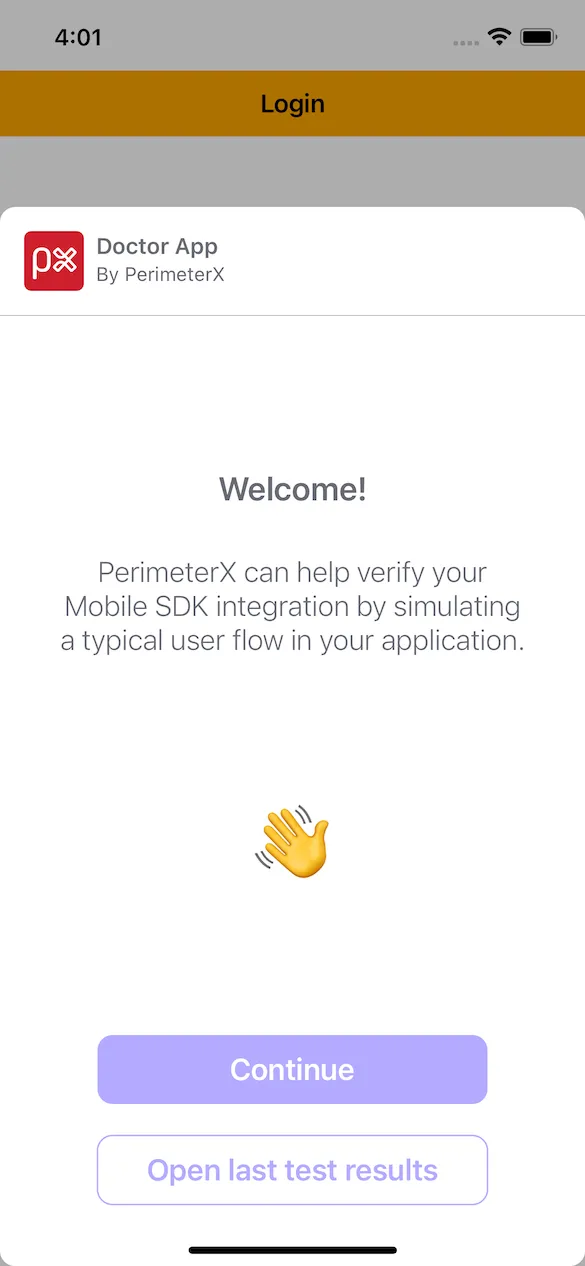
Welcome screen
In this screen you select whether to start a new test or load the summary of a previous test, if one exists.
-
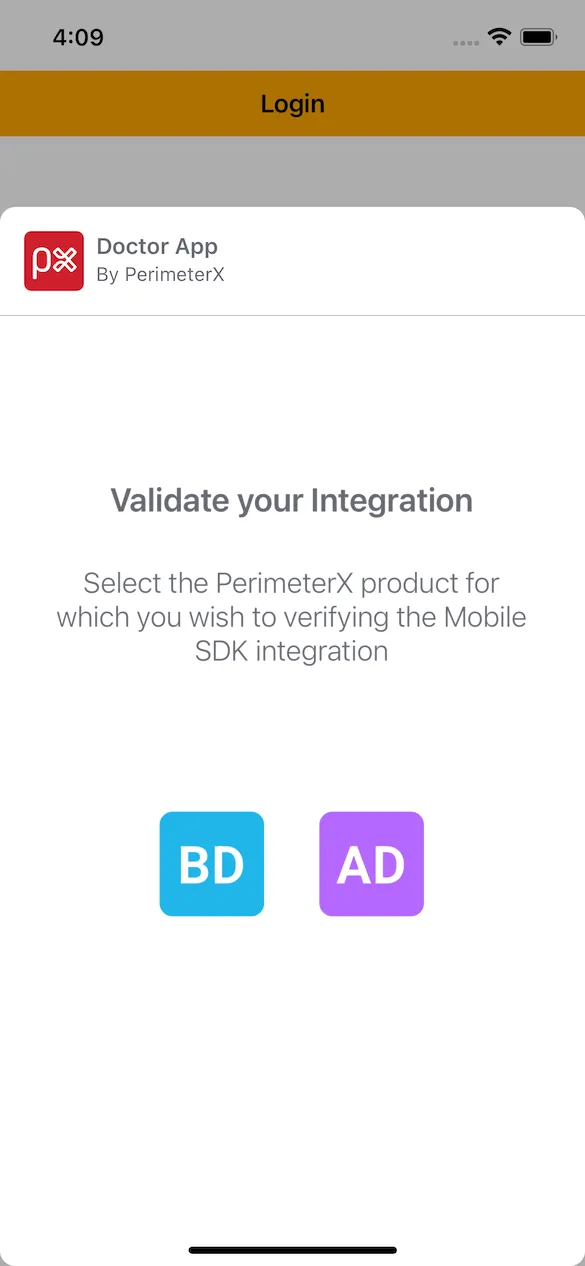
Product selection screen
In this screen you select which product to test:- Bot Defender
- Account Defender.
-
Instruction screen
In this screen you get a detailed explanation on how to start a new test, what is expected to happen and what you can do in case you are not able to generate a challenge/captcha.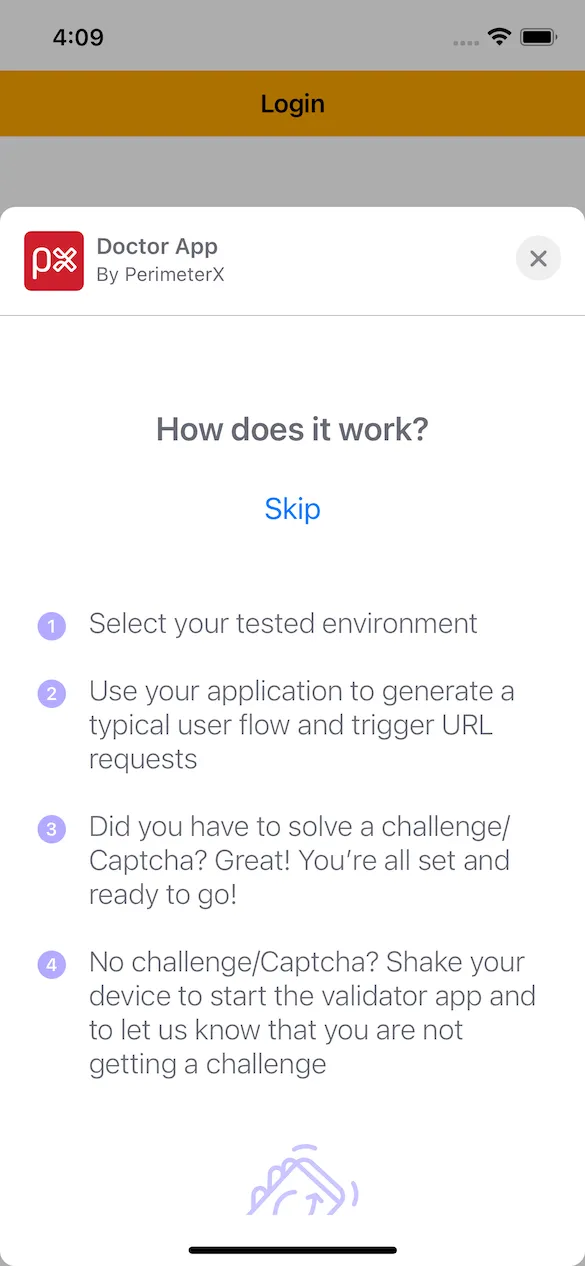
-
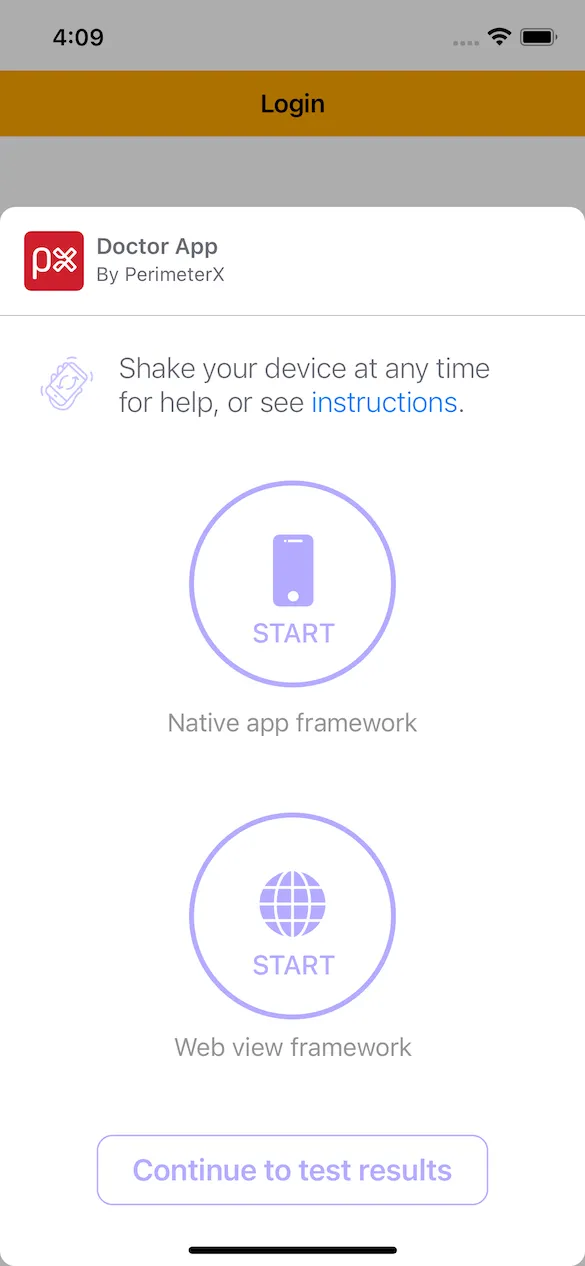
Test selection screen
In this screen you can select between two different types of tests:- Native app framework - to test your native URL requests.
- Web view framework - to test your web view URL requests.
When you are done executing a test, you will return to this screen to enable you to start the other test.
-
Summary screen
In this screen you review the test results. You can go into details regarding each test and get troubleshooting tips in case a test failed, to help you analyze what is causing this issue.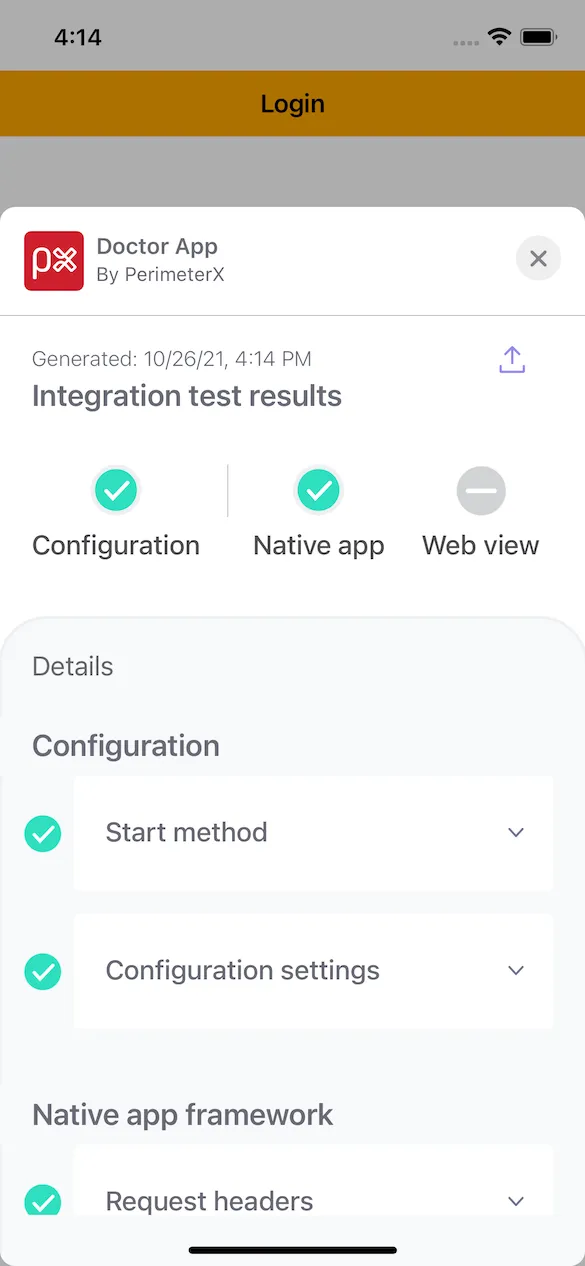
Remember to switch the
doctorCheckEnabledparamfalseWhen you exit the “Doctor App”, your app is also terminated. Just remember to switch the
doctorCheckEnabledparam tofalsein case you finished validating your SDK integration. 6. When you exit the “Doctor App”, your app is also terminated.