

About the Platform Feed
The Platform Feed lists malicious creatives identified for your platform within a specified time period. Use it to find individual threats, then export CSV data, download PDF reports, or share a public threat report link with teammates.
Reference steps 3-7 for a walkthrough of the Platform Feed.
Filter and search data
You can refine the data in the main table using the following tools:
- Date range: Restrict the feed to a specific period. Filter values such as Threat Type and DSPs reflect the inventory HUMAN observed for your platform in that range.
- Search bar: Search for specific keywords or entries in the feed.
- Smart Filter: Narrow the table by attributes such as:
- Threat Type
- Threat Class
- DSP
- Source
- Country Code
- Browser
- User Agent
- Creative ID
To restore the default view, click Clear Filters.
View creative details
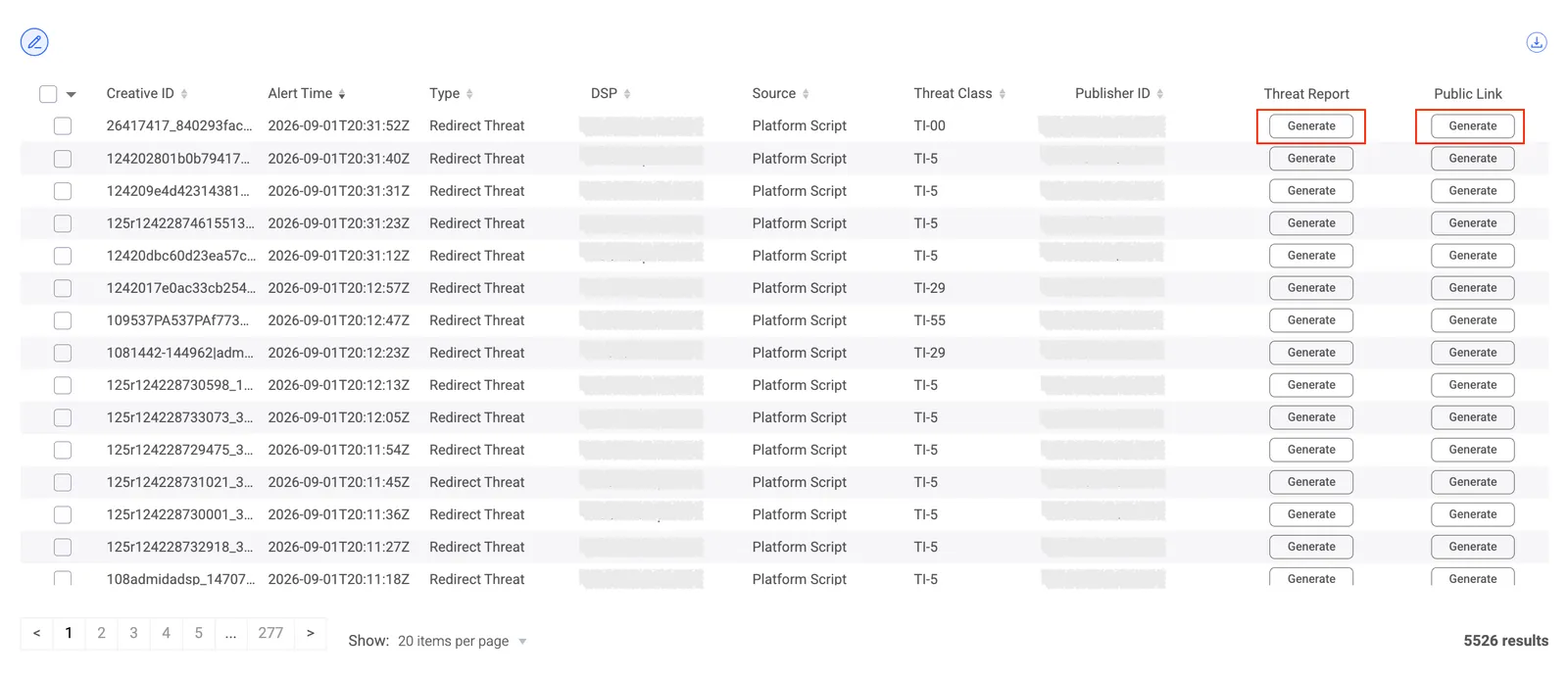
The table lists creatives that match your date range and filters. Columns can include:
- Creative ID
- Alert Time
- Type
- DSP
- Source
- Threat Class
- Publisher ID
- Threat Report
- Public Link
Click the Pencil icon  to configure the table view and see additional columns such as Country, Browser, User Agent, and OS.
Generate a threat report or public link
You can extract and share threat details directly from the table.
- Locate the creative in the table.
- In the Threat Report column, click Generate to open a threat summary for that creative. The report can include the threat type, what that threat means, related traits and examples, where it was observed, device and impression context, and screenshots or placeholder images when screenshots are unavailable.
- In the Public Link column, click Generate to create a shareable web link to the same threat summary for teammates.
Export data
You can download your filtered views for external reporting and further offline analysis. Click the export icon  to download a CSV file of your current view.
Exports are capped at a maximum of 10,000 records per file. If your query yields more than 10,000 results, the export truncates the data. Apply a stricter Date range or additional filters to reduce the result size before exporting.
Download bulk reports
- Select the checkbox next to each creative you want to include.
- Click Bulk report download. HUMAN generates a PDF report for each selected threat.
If you selected a large number of threats, this process may take a few minutes. When the reports are ready, they appear in your browser’s downloads folder.